
Updated on 2026-09-15 / iPhone Tips
Missing a meeting or important event because your iPhone stayed silent can be frustrating. Many users face the iphone calendar alerts not working issue without knowing what caused it. Sometimes the problem comes from notification settings, sound options, or a small iOS glitch.
In this guide, you will learn 12 easy ways to restore your calendar alerts. These methods are beginner-friendly and can help your iPhone send reminders again so you never miss an important schedule.
Part 1. Why Are iPhone Calendar Alerts Not Working?
Missing calendar reminders can disturb your whole routine. In most cases, iphone calendar alerts not working is not a serious issue. It usually happens because of simple settings mistakes, sync problems, or small iOS system glitches.
-
Notification Settings Are Not Set Properly
Calendar alerts will not show if notifications are not correctly enabled.
-
Calendar notifications may be turned off in Settings
-
Alert display options like banners or lock screen may be disabled
-
Notification sound may be set to "None," so alerts become silent
-
-
Focus Mode or Do Not Disturb Is Blocking Alerts
Focus features are designed to stop distractions, but they can also block reminders.
-
Do Not Disturb can silence all calendar alerts
-
Focus mode may not allow Calendar notifications
-
Scheduled Focus can turn on automatically and block alerts without warning
-
-
Event Alert Is Not Configured Correctly
Sometimes the issue is only with the event setup.
-
Event alert is left on "None" while creating the reminder
-
Wrong alert timing is selected, causing missed notifications
-
Time Zone Override can shift or delay the alert time
-
-
iCloud or Account Sync Problem
If syncing is not active, alerts may not reach your device.
-
Calendar sync is disabled in iCloud settings
-
Apple ID is not properly signed in or updated
-
Events from other devices are not syncing to iPhone
-
-
Battery and System Limitations
Some iPhone settings can restrict background activity.
-
Low Power Mode reduces background notification activity
-
Incorrect date and time break alert scheduling
-
Manual time settings can stop alerts from triggering correctly
-
Part 2. 12 Ways to Fix iPhone Calendar Alerts Not Working
When iphone calendar alerts not working, important reminders can appear late or not show at all. The problem usually happens because of notification settings, time settings, or a small iOS system issue. Some users also notice that iphone calendar notifications stop after an update. The methods below explain the most effective solutions in a clear way.
1. Enable Calendar Sync
Calendar alerts depend on proper iCloud syncing. When the Calendar app stops syncing with your Apple account, your device may not receive updated events, which can lead to missing reminders.
-
Open the Settings app on your iPhone and tap your Apple ID name at the top of the screen.
-
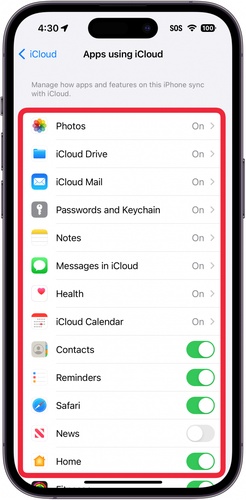
Tap the iCloud option to open the list of apps that use your iCloud account.
-
Press Show All to see the complete list of apps connected to iCloud.
-
Scroll down until you find Calendars in the app list.
-
Turn on the switch next to Calendars so syncing becomes active again.
-
Wait a few moments and then open the Calendar app to check the alerts.
2. Fix iPhone Calendar Alerts Not Working with ReiBoot
Sometimes iphone calendar alerts not working on iOS 18/iOS 26/iOS 27 is caused by deeper iOS system issues instead of simple settings errors. When this happens, a system repair tool like Tenorshare ReiBoot can help fix the problem and restore normal calendar alerts without complex steps.
The software can fix problems like update failures, app crashes, frozen screens, and other system glitches that may affect notifications. For users who want an easier way to solve the issue, ReiBoot offers a safer and more convenient repair solution.
Main features of ReiBoot:
-
Repairs iOS system issues without deleting personal data
-
Fixes stuck Apple logo and recovery mode problems
-
Resolves app crashes and system freezing issues
-
Downgrades or upgrades iOS safely
-
Enters or exits recovery mode with one click
-
Fixes update-related software problems
-
Supports most recent iPhone models and iOS versions
How to fix iphone calendar alerts not working with reiboot:
- Step 1: Launch ReiBoot and Connect iPhone
Download and install Tenorshare ReiBoot on your computer. Open the program and connect your iPhone using a USB cable. Click “Start Repair” once your device is detected.

- Step 2: Choose Standard Repair
When ReiBoot detects your device, select “Standard Repair” to proceed without data loss and fix calendar alert issues.

- Step 3: Download Firmware Package
Download the latest firmware package when prompted. ReiBoot will automatically match the correct version for your device.

- Step 4: Start Standard Repair
Once the firmware is ready, click “Start Standard Repair” to fix iPhone calendar alerts not working properly. Wait a few minutes for the process to complete.

- Step 5: Repair Completed
Your iPhone will restart automatically, and calendar alerts should work normally again without affecting your data.

3. Disable Focus or Do Not Disturb Mode
Focus mode can block iphone calendar notifications without deleting the actual event. This makes reminders stay silent even when the Calendar app is functioning.
-
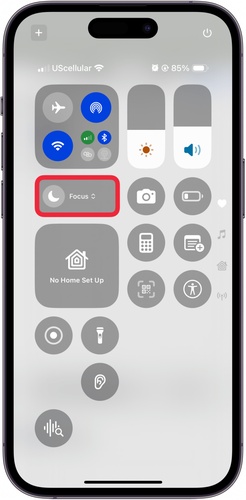
Swipe down from the top-right corner of the screen to open Control Center.
-
Look for the Focus icon to see whether any mode is active.
-
Tap the Focus icon and turn off any enabled mode.
-
Open the Settings app and tap Focus for more settings.
-
Review each Focus profile and confirm Calendar notifications are allowed.
-
Remove any schedule that automatically enables Focus mode during the day.
4. Enable Automatic Date & Time
Wrong date and time settings can prevent reminders from arriving at the correct moment. This often causes users to think their alerts are missing.
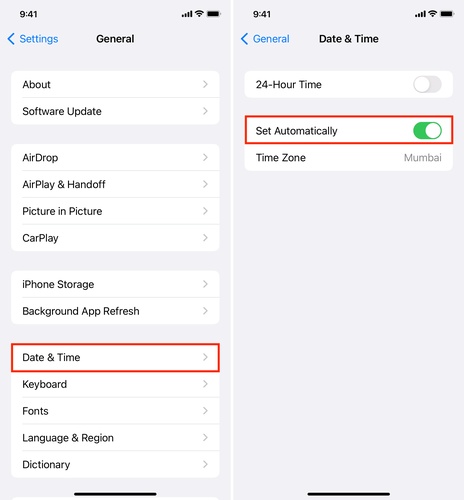
Open the Settings app and tap General from the menu.
Scroll down and select Date & Time.
-
Turn on the Set Automatically option.
-
Make sure your current location shows the correct time zone.
5. Disable Time Zone Override
Time Zone Override can force your calendar to follow a fixed time zone. This can create problems when you travel or move to another location.
-
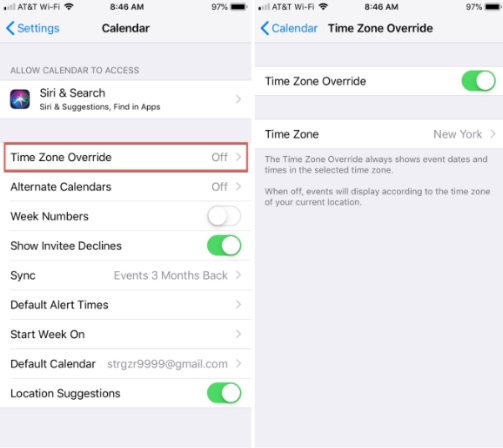
Open the Settings app and scroll down until you find Calendar.
Tap Calendar to open its settings page.
Select the Time Zone Override option.
-
Turn off the Time Zone Override switch.
-
Return to the Calendar app and check your upcoming event alerts.
6. Configure Default Alert Times
Missing default alert times can stop notifications for events on shared calendar on iOS from appearing before an event starts.
Steps:
Open the Settings app and tap Calendar.
Tap the Default Alert Times option.
-
Select Birthdays and choose when you want alerts to appear.
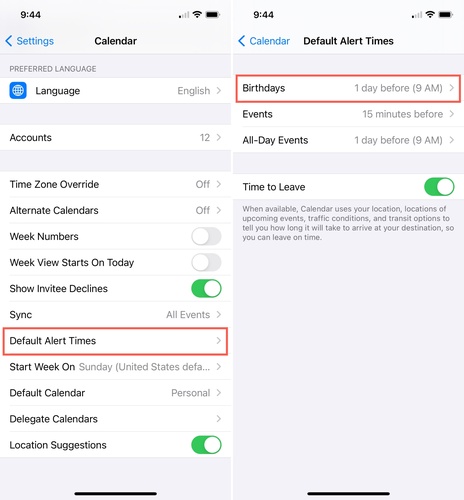
Select Events and set a preferred reminder time.
-
Select All-Day Events and choose an alert schedule.
-
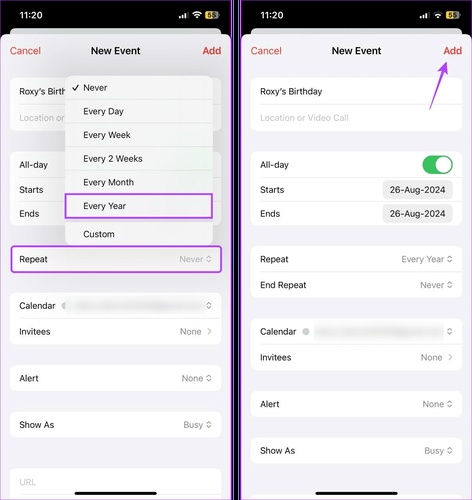
Save the settings and create a test event to confirm the fix.
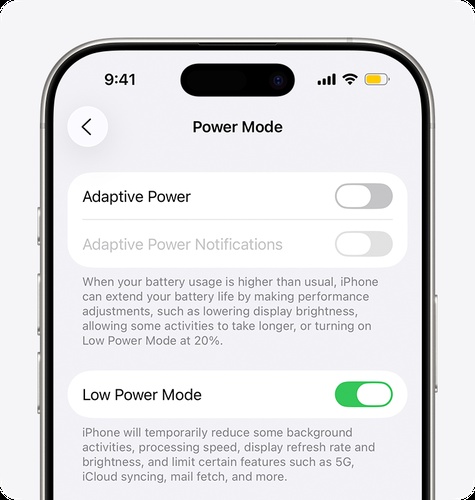
7. Disable Low Power Mode
Low Power Mode reduces background activity to save battery. This can delay reminders or stop the Calendar app from updating properly.
Open the Settings app and tap Battery.
Check whether Low Power Mode is currently turned on.
-
Turn off the switch next to Low Power Mode.
-
Leave the phone connected for a few minutes and test the Calendar app again.
8. Disable Silent Mode and Increase Volume
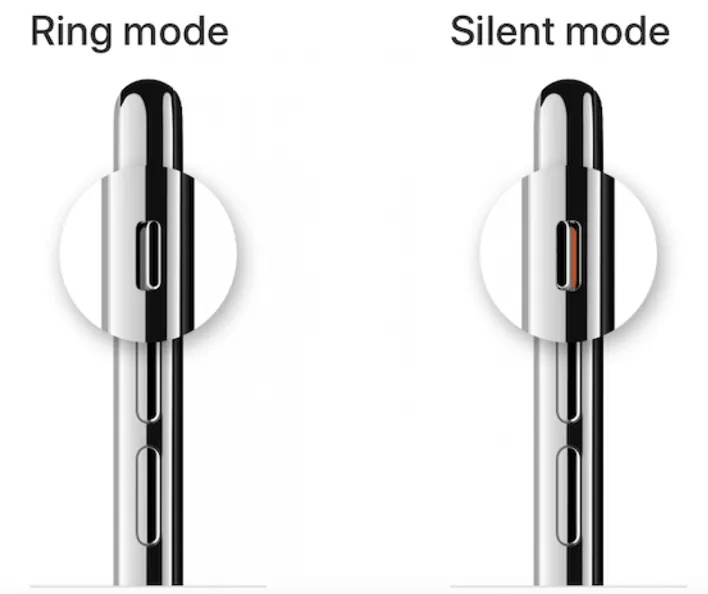
Some users think iphone calendar alerts disabled when the issue is only low sound or silent mode.
-
Check the physical Ring/Silent switch on the side of the iPhone.
-
Move the switch forward so orange is no longer visible.
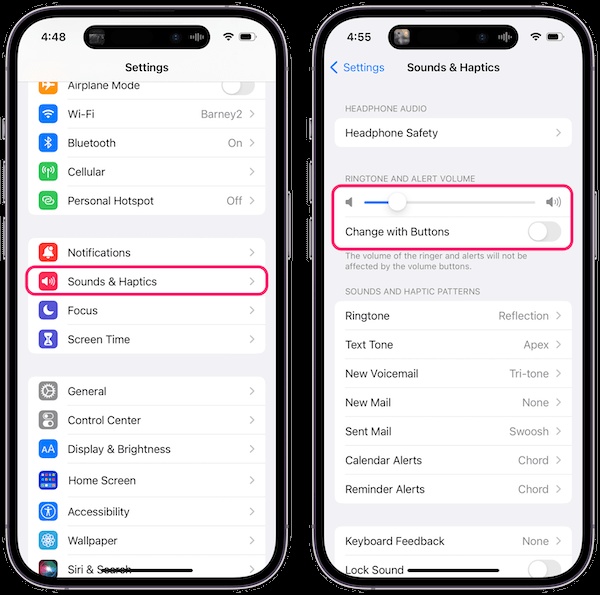
Open the Settings app and tap Sounds & Haptics.
-
Increase the Ringer and Alerts volume slider.
-
Tap a ringtone to make sure the sound is loud enough.
9. Force Restart Your iPhone
A temporary system bug can sometimes stop the Calendar app from sending reminders even though your settings are correct. A force restart refreshes the iPhone system and clears minor software problems that may be affecting your alerts.
-
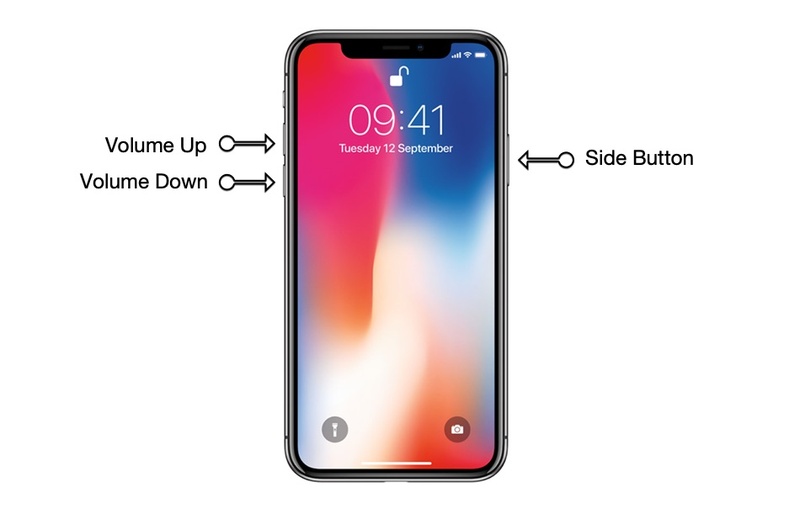
Quickly press and release the Volume Up button on the side of your iPhone.
-
Quickly press and release the Volume Down button right after that.
-
Press and hold the Side button until the Apple logo appears on the screen.
-
Release the Side button once the Apple logo becomes visible.
10. Update to the Latest iOS Version
Older iOS versions can contain software bugs that affect the Calendar app. Installing the latest update can fix hidden issues that may cause iphone calendar alerts not working after a recent system change.
Open the Settings app from your iPhone home screen.
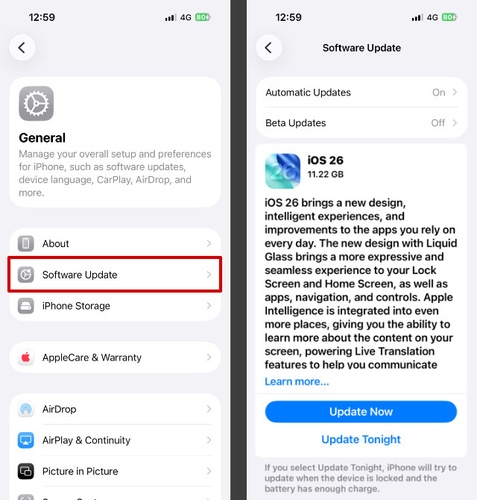
Scroll down and tap the General option.
-
Tap Software Update to check for a newer iOS version.
-
Wait while your iPhone searches for available updates.
Tap Update now when a new update appears.
-
Enter your passcode when your iPhone asks for confirmation.
11. Reset All Settings
Incorrect system settings can silently block reminders even though the Calendar app itself is working. Resetting all settings can fix iphone calendar alerts disabled without deleting your personal files such as photos or messages.
Open the Settings app and tap General.
-
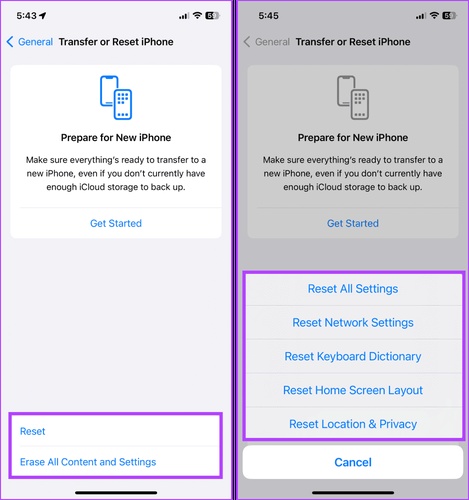
Scroll to the bottom and tap Transfer or Reset iPhone.
Tap the Reset option from the bottom menu.
-
Choose Reset All Settings from the available options.
Enter your iPhone passcode to continue the process.
-
Tap Confirm to allow your iPhone to reset the settings.
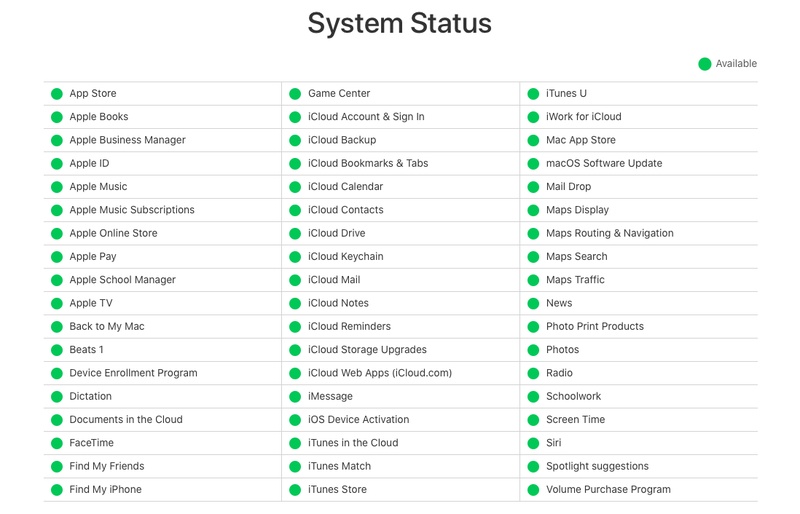
12. Check iCloud Calendar Server Status
Apple server issues can stop calendar data from syncing properly across devices. This can cause iphone shared calendar alerts not working because the reminder cannot update from iCloud in time.
Open Safari or another web browser on your iPhone.
Visit the official Apple System Status page.
-
Scroll down until you find the iCloud Calendar service.
-
Look at the status icon next to the service name.
-
Confirm the icon is green, which means the service is working normally.
-
Wait for Apple to restore the service if the icon appears yellow or red.
Conclusion
iPhone calendar alerts not working can quietly disrupt your day and make you miss important plans, even when everything looks fine in settings. Most issues come from small settings mistakes, sync problems, or minor iOS glitches that can be fixed easily. Once everything is set correctly, calendar reminders start working smoothly and reliably again. For stubborn issues that don't go away, Tenorshare ReiBoot provides a safe way to repair iOS problems and restore calendar alerts without data loss.
