
Updated on 2026-09-15 / iPhone Tips
Updating to iOS 26.4O or iOS 27 can bring new features, but many users notice their iPhone's battery draining faster than usual. The iOS 26.4 battery drain issue is common across several devices, causing frustration for daily users. Fortunately, there are simple steps you can take to fix it and extend your battery life. In this guide, we'll share 7 proven ways to solve iOS 26.4 battery drain. We start with easy fixes and end with an advanced solution for stubborn battery problems.
- Part 1: Part 1: Quick Overview: Why Your iPhone Is Losing Battery on iOS 26.4
- Part 2: Part 2: Basic Fixes to Solve iOS 26.4 Battery Drain
- Part 3: Part 3: Advanced Solution: Fix iOS 26.4 Battery Drain with Tenorshare ReiBoot
- Part 4: Part 4: Tips to Prevent Battery Drain in Future Updates
- Part 5: Final Words:
Part 1: Quick Overview: Why Your iPhone Is Losing Battery on iOS 26.4
Many iPhone owners have noticed their battery draining much faster after updating to iOS 26.4. On Reddit and other forums, users describe unusual overnight drain, heating, and rapid battery loss even during light usage, turning what used to be a full day's power into just hours.
Here are the real reasons behind the iOS 26.4 battery drain users are sharing:
1. Background System Re‑Indexing After Update
After installing a big update like iOS 26.4, the phone re‑indexes apps, files, photos, and other data in the background, which can use extra CPU power and drain battery until it finishes.
2. Increased Background Activity
iOS may start more background tasks such as syncing iCloud data, app updates, and Spotlight indexing, leading to steady battery use even when idle.
3. Unoptimized Apps
Some apps aren't fully optimized for the latest iOS when it first rolls out, causing them to run inefficiently and consume more battery.
4. Performance Issues and Thermal Load
Users report their phones heating up or running more processes after the update, which naturally uses more battery power.
Part 2: Basic Fixes to Solve iOS 26.4 Battery Drain
Facing iOS 26.4 battery drain can be frustrating, especially when your iPhone loses charge quickly even during light use. Many users on Reddit and forums report similar problems. Here are 6 basic fixes that address common causes like background activity, display settings, and system glitches.
Fix 1: Restart Your iPhone
Sometimes, battery drain happens because certain apps or processes get stuck in the background after an update. Restarting your iPhone refreshes the system and closes unnecessary tasks.
Steps to fix iOS 26.4 battery drain issue:
-
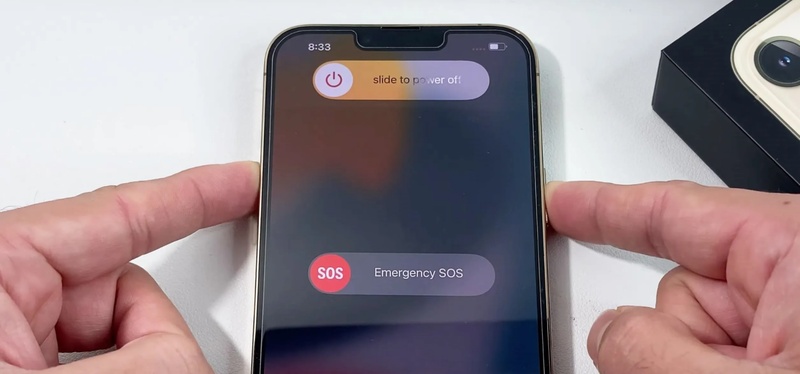
Press and hold the Side button and either volume button until the power-off slider appears.
Drag the slider to turn off your iPhone.
-
Wait about 30 seconds to ensure all processes stop completely.
-
Press and hold the Side button again until the Apple logo appears.
Fix 2: Update Apps and iOS
Outdated apps often consume more battery because they are not fully compatible with the latest iOS version. iOS updates also include bug fixes that can solve iOS 26.4 battery drain issues.
Steps for Ios 26.4 battery drain fix:
Open the App Store and tap your profile icon.
-
Scroll to Pending Updates and tap Update All to ensure apps are optimized for iOS 26.4.
-
Go to Settings > General > Software Update to check if any minor iOS updates are available. Install them.
-
Restart your iPhone after updates for changes to take effect.
Fix 3: Disable Background App Refresh
Apps refreshing in the background constantly consume CPU and battery power. Limiting this activity helps preserve battery life.
Steps for Ios 26.4 battery drain iphone 13/others:
-
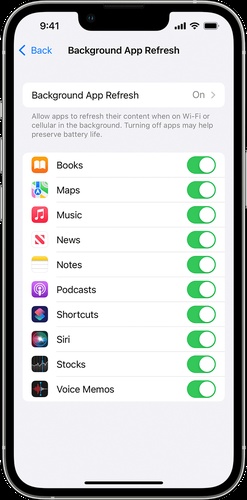
Go to Settings > General > Background App Refresh.
-
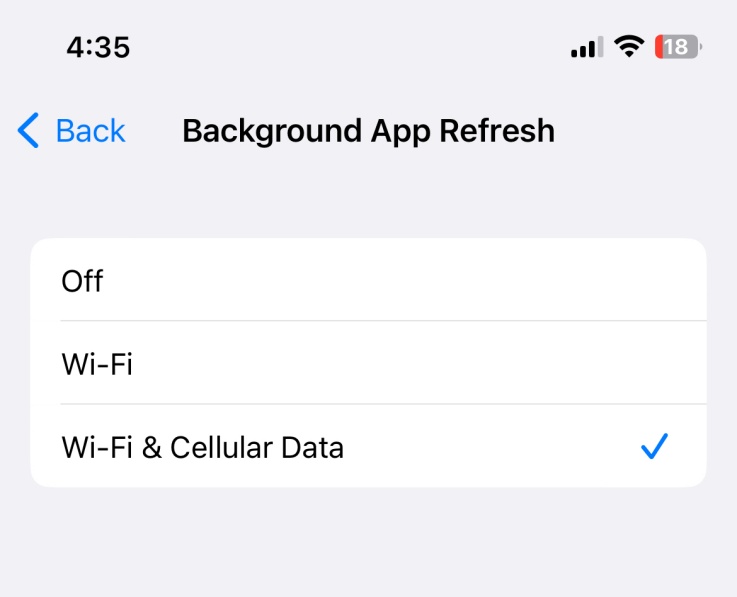
You can choose Off to disable all apps or Wi-Fi Only to allow minimal background activity.
-
Optionally, scroll through the app list and turn off background refresh for high-drain apps like social media and streaming services.
Fix 4: Check Battery Usage and Limit High-Drain Apps
Some apps consume much more battery than others, often without you realizing it. Checking battery usage helps you pinpoint which apps are draining your iPhone's power the most.
Steps for iOS 26.4 battery drain fix:
Open Settings > Battery.
-
Scroll down to see Battery Usage by App, which shows the percentage of battery each app has used in the last 24 hours or 10 days.
-
Look for apps that have unusually high battery consumption compared to usage time.
-
For apps using a lot of power:
-
Close the app when not in use by swiping up from the home screen.
-
Disable notifications for apps that frequently wake your phone.
-
Limit background activity for the app if possible.
-
Consider uninstalling apps that are rarely used but consume heavy battery.
-
-
Enable Low Power Mode temporarily via Settings > Battery > Low Power Mode to reduce background activity.

Fix 5: Adjust Display and Location Settings
The screen and GPS are among the biggest battery consumers on an iPhone. Adjusting brightness, screen settings, and location services can dramatically improve battery life.
Steps for Display Settings:
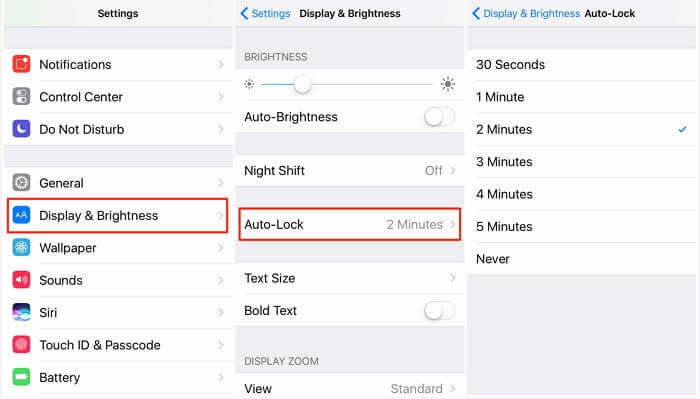
Go to Settings > Display & Brightness.
-
Reduce Brightness manually or enable Auto-Brightness, which automatically adjusts brightness according to ambient light.
-
Turn off True Tone and Dynamic Wallpapers, which use extra battery to adjust color and motion effects.
-
Limit Screen Timeout: Go to Settings > Display & Brightness > Auto-Lock and select 30 seconds or 1 minute.
Steps for Location Services:
Go to Settings > Privacy > Location Services.
-
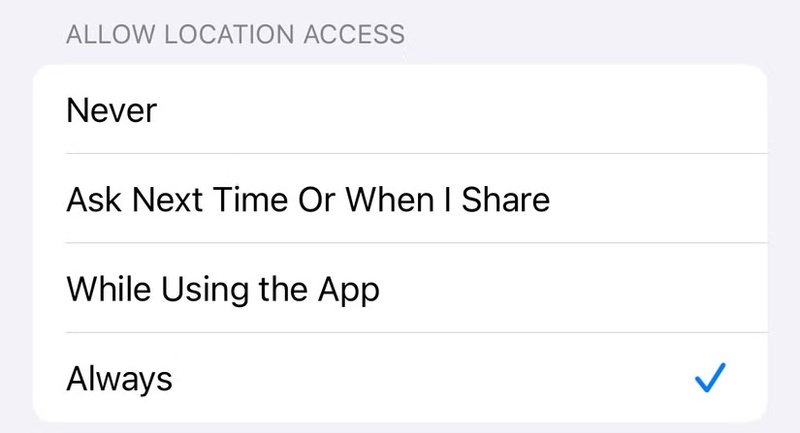
For each app, choose Never, While Using the App, or Ask Next Time depending on how often the app needs location access.
-
Turn off System Services that are unnecessary
such as Location-Based Apple Ads
Suggestions
or Significant Locations.
-
Monitor battery performance over a few days to see improvement.
Fix 6: Reset Settings or Restore iPhone
If all basic fixes fail, resetting your settings or performing a restore can fix deeper system glitches that cause persistent battery drain.
Steps to Reset Settings (Safe Option):
-
Go to Settings > General > Transfer or Reset iPhone > Reset > Reset All Settings.
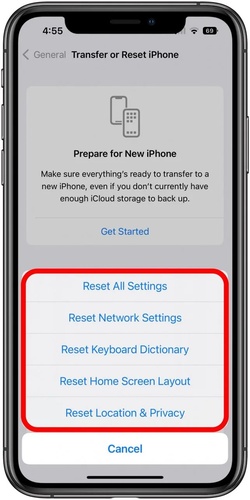
Enter your passcode if prompted.
-
Confirm reset. This does not delete your data
but it restores system settings like Wi-Fi
network
display
and privacy preferences.
-
After reset
reconfigure necessary settings and monitor battery performance.
Steps to Restore iPhone (Advanced Option):
Backup your iPhone using iCloud or iTunes/Finder.
Connect your iPhone to a computer.
-
Open iTunes/Finder, select your device, and click Restore iPhone.
-
Once restored, follow the setup steps and restore your backup.
-
Test battery performance and see if iOS 26.4 battery drain is resolved.
Part 3: Advanced Solution: Fix iOS 26.4 Battery Drain with Tenorshare ReiBoot
Sometimes, basic fixes are not enough to fully solve iOS 26.4 battery drain issues. In such cases, a reliable system repair tool like Tenorshare ReiBoot can help. ReiBoot is designed to fix iOS system problems safely without causing data loss. It is user-friendly and works on all iPhone models running iOS 26.4.
With ReiBoot, even stubborn battery drain issues caused by system glitches, corrupted settings, or failed updates can be resolved. The tool also supports other common iOS problems like frozen screens, app crashes, and iPhone not turning on.
Why Tenorshare ReiBoot Is the Best Choice
One-Click System Repair: Fix common iOS issues quickly without technical knowledge.
Safe Standard Repair: Resolves battery and system glitches without erasing your data.
Supports All iOS Devices: Works on all iPhones and iPads running iOS 26.4 or earlier.
Fast and Efficient: Repairs system problems in a few minutes, saving time.
User-Friendly Interface: Designed for beginners, the tool guides you through every step.
Additional iOS Fixes: Handles other issues like app crashes, frozen screens, and startup problems.
Steps to Repair iOS 26.4 Battery Drain Using ReiBoot
-
Step 1: Go to the Tenorshare, download ReiBoot, and install it on your computer.
-
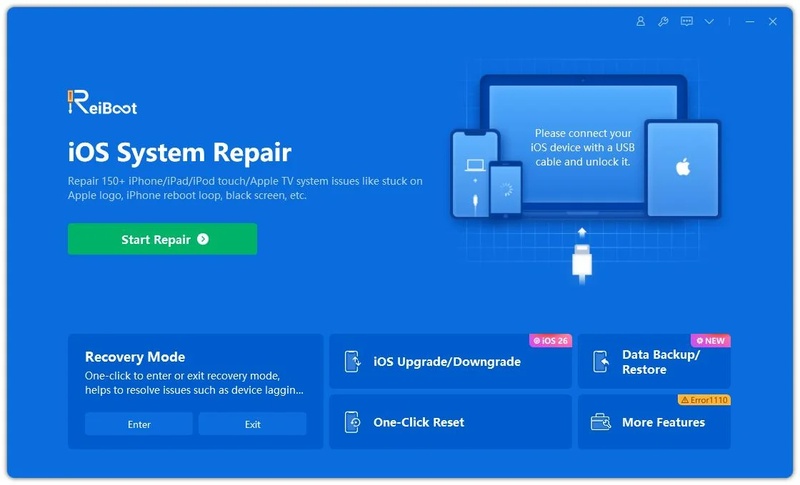
Step 2: Use a USB cable to connect your iPhone to the computer. Launch ReiBoot and let it detect your device. Click Start Repair.
-
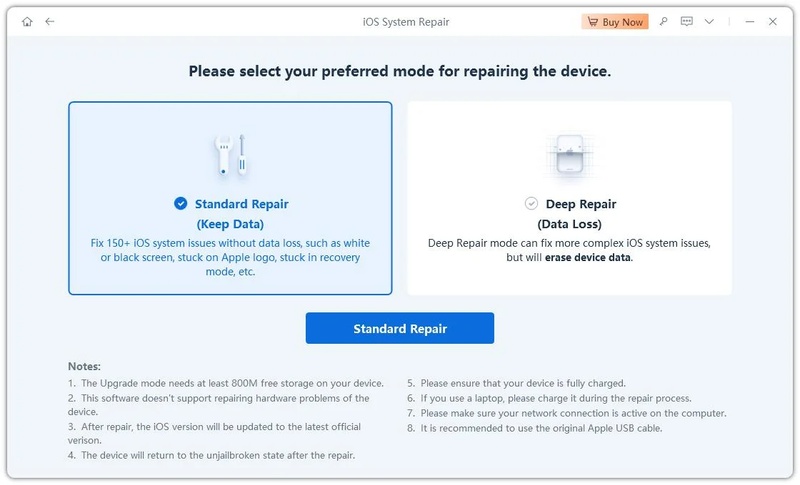
Step 3: Select Standard Repair. This mode fixes battery and system issues without erasing data. If previous fixes failed, this mode is highly effective for stubborn iOS 26.4 battery drain issues.
-
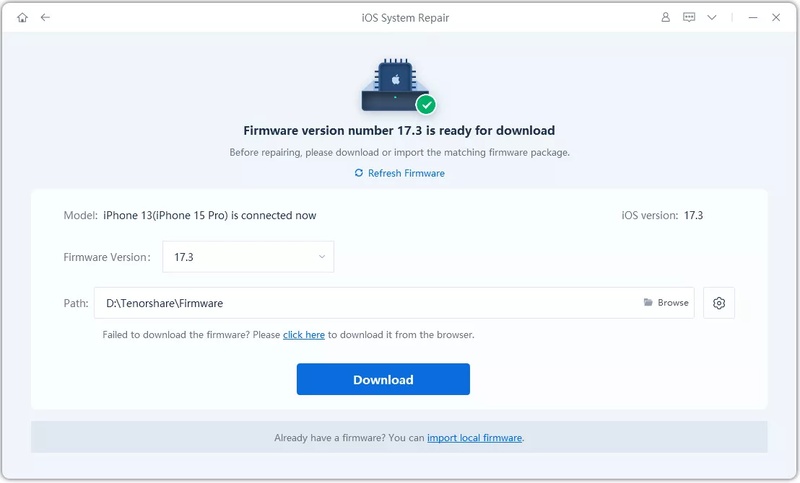
Step 4: ReiBoot will prompt you to download the appropriate firmware package for your device. Click Download and wait for the process to complete.
-
Step 5: Click Start Standard Repair to begin fixing your iPhone. The tool will automatically repair system issues, including glitches causing battery drain.

Part 4: Tips to Prevent Battery Drain in Future Updates
Preventing iOS 26.4 battery drain is easier than fixing it. By taking a few proactive steps, you can keep your iPhone running smoothly and avoid sudden drops in battery life after updates. These tips help maintain battery health and ensure your iPhone lasts longer throughout the day.
Tip 1: Keep Apps Updated Regularly
-
Outdated apps can conflict with iOS updates and increase battery usage.
-
Open the App Store and install pending updates to ensure apps are optimized for iOS 26.4.
Tip 2: Update iOS Promptly
-
Apple often releases small updates to fix battery-related bugs.
-
Always install the latest iOS updates from Settings > General > Software Update.
Tip 3: Manage Background Activity
-
Disable unnecessary Background App Refresh and limit notifications.
-
Only allow apps that you actively use to refresh in the background.
Tip 4: Optimize Display and Brightness
-
Enable Auto-Brightness and avoid keeping screen brightness at maximum.
-
Use dark mode where possible and limit dynamic wallpapers to save power.
Tip 5: Limit Location Services
-
Set apps to use location only while in use.
-
Disable location tracking for apps that don't need it.
Tip 6: Restart Your iPhone Regularly
-
Restarting your iPhone every few days clears temporary glitches and background processes.
-
This prevents hidden processes from slowly draining battery over time.
Final Words:
iOS 26.4 battery drain can affect your iPhone's daily performance, but following the basic fixes, adjusting settings, and monitoring apps can significantly improve battery life. For stubborn issues that don't respond to normal troubleshooting, using a reliable tool like Tenorshare ReiBoot ensures a safe, fast, and effective solution. It repairs system glitches without losing data, making it the best choice to restore your iPhone's battery health.
