
Updated on 2026-04-02 / iPhone Tips
Running out of iCloud storage without downloading anything new can feel confusing and stressful. iCloud Drive taking up storage space is a common issue caused by hidden files, app data, shared folders, and old documents that build up over time.
When space is full, backups fail, photos stop syncing, and new data cannot upload. You can fix this quickly without technical skills. This guide explains simple, safe, and effective ways to find what is using space and free up your iCloud Drive in minutes.
- Part 1: Part 1. Why is my iCloud Drive Storage Full After Deleting Everything?
- Part 2: Part 2. How to Fix iCloud Drive Taking Up Storage Space
- Part 3: Part 3: How to Check What's Using iCloud Drive Storage
- Part 4: Part 4: Methods Above Not Working? Try the Third-Party Tool!
- Part 5: Tips to Prevent iCloud Drive from Filling Up Again
- Part 6: Conclusion:
Part 1. Why is my iCloud Drive Storage Full After Deleting Everything?
Running out of storage while iCloud Drive taking up storage space can feel confusing, especially after you delete all visible files. The reason is that iCloud often keeps hidden or background data that still counts toward your storage. Your drive may look empty, but several items can continue using space:
-
Recently Deleted files: Deleted items remain for up to 30 days before permanent removal.
-
App data and documents: Apps automatically save files to iCloud Drive in the background.
-
Failed or incomplete backups: Temporary backup files may stay after an error.
-
Shared folders and received files: Files shared with you can also occupy storage.
-
Sync from other devices: Data from another iPhone, iPad, or Mac may restore automatically.
-
Hidden cache and temporary files: System-generated data can remain after syncing.
-
Large files inside app folders: These are easy to miss but can use a lot of space.
Part 2. How to Fix iCloud Drive Taking Up Storage Space
When iCloud Drive is taking up storage space, it can affect backups, syncing, and overall device performance. Even after deleting files, hidden caches, app data, and backups can still occupy space. Here's a step-by-step guide to clear storage effectively.
1. Disable and Re-enable iCloud Drive
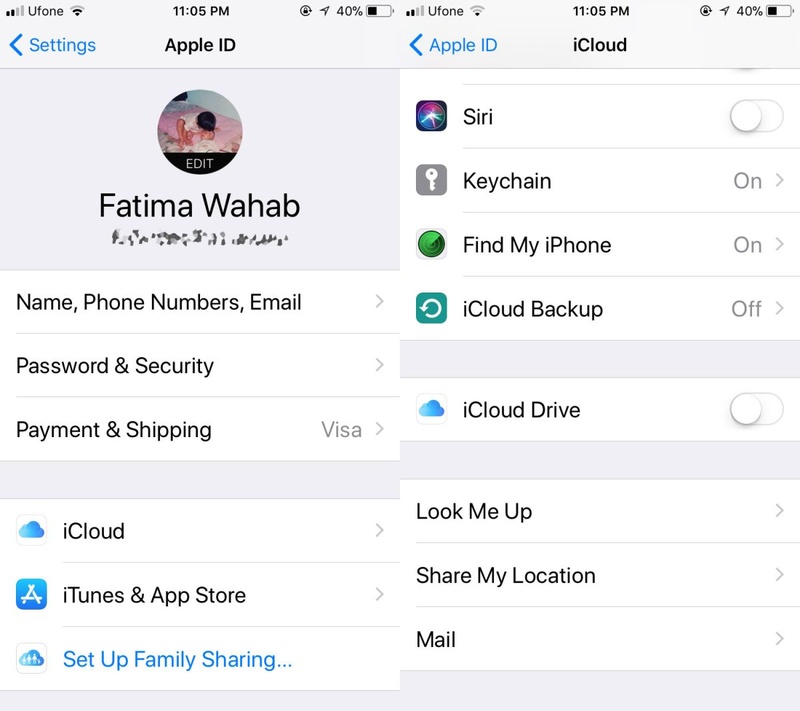
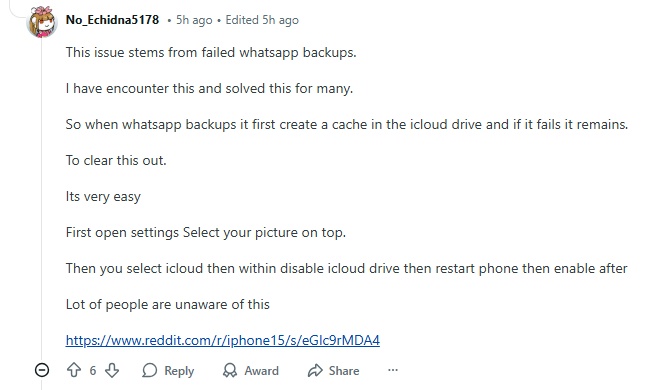
One common cause of icloud drive taking up space on iPhone storage is failed WhatsApp backups. When WhatsApp tries to back up, it first creates a temporary cache in iCloud Drive. If the backup fails, the cache remains and consumes storage.
Steps to fix this:
-
Open the Settings app and tap your Apple ID at the top.
-
Select iCloud, then choose iCloud Drive.
-
Turn off iCloud Drive. When prompted, select to delete local cached data.
-
Restart your iPhone to ensure the temporary files are cleared.
-
Turn iCloud Drive back on to allow it to resync properly.
This simple refresh often resolves large, unexplained storage usage. Reddit users have reported regaining tens of gigabytes after this process.
2. Delete Large Files from iCloud Drive
Documents, videos, PDFs, and app-generated files can quietly fill your iCloud space. This step is especially useful if you store work documents, PDFs, or large downloads in iCloud.
Steps to fix icloud storage full problem:
-
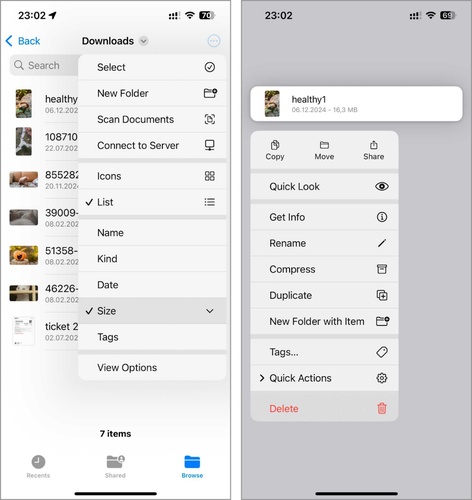
Open the Files app on your iPhone and go to iCloud Drive.
name:open-icloud-drive
alt:open icloud drive
-
Sort files by size if possible or browse manually to find large files.
-
Delete unnecessary files.
-
Don't forget to empty the Recently Deleted folder to reclaim space.
3. Empty the Recently Deleted Folder
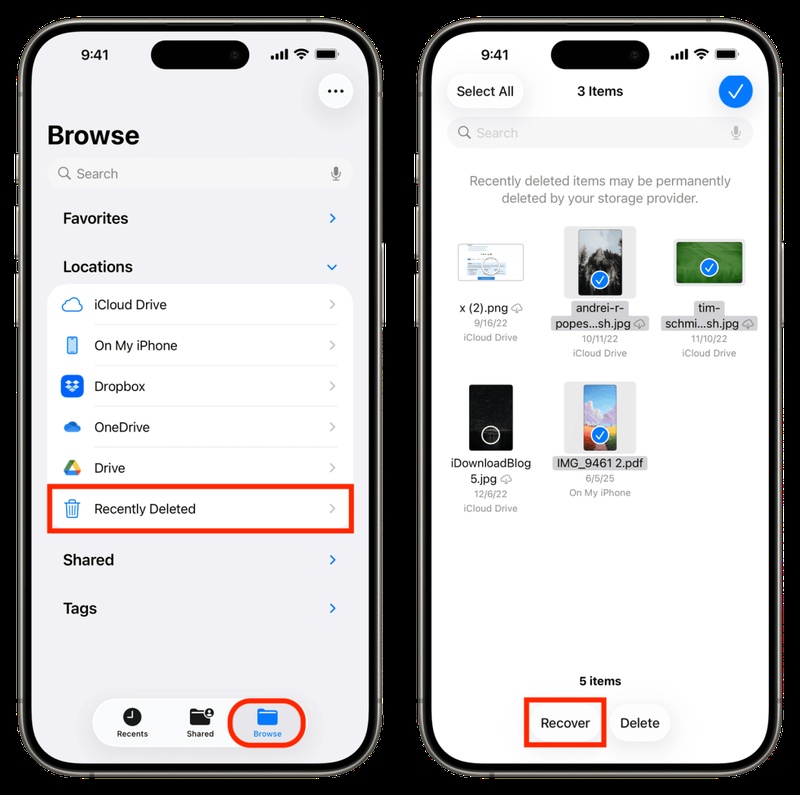
Files deleted from iCloud Drive remain in the Recently Deleted folder for 30 days. They still occupy storage until permanently removed. This action immediately frees up space and prevents your iPhone from reporting icloud storage full problem.
Steps to fix icloud photos taking up space on iphone:
Open the Files app and navigate to Recently Deleted.
Select all files and delete them permanently.
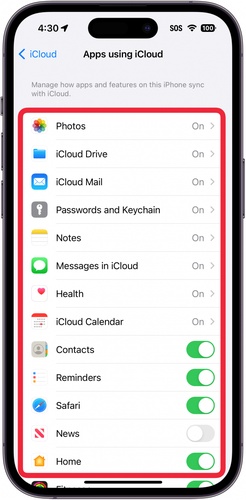
4. Disable Apps That Store Data in iCloud Drive
Many apps automatically save data in iCloud Drive, which can accumulate unnoticed. Common space-consuming apps include messaging apps, note-taking apps, and productivity tools. Disabling unnecessary apps can reduce storage usage significantly.
Steps:
Open Settings, tap your Apple ID, then go to iCloud.
Tap Apps Using iCloud and review the list.
-
Turn off iCloud sync for apps that don't require cloud storage.
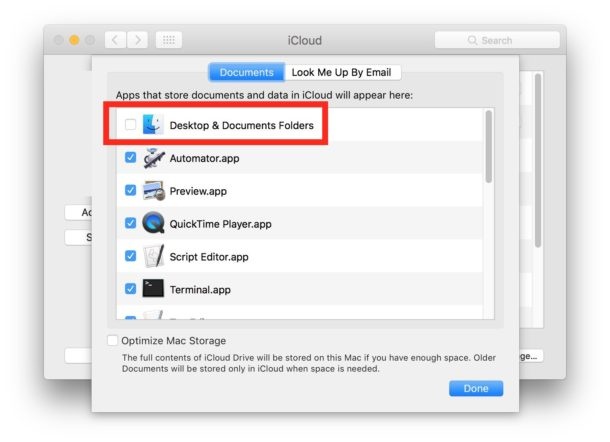
5. Turn Off Desktop & Documents Sync on Mac
If you use multiple Apple devices, the desktop & documents sync feature uploads all files to iCloud Drive, which can consume a lot of storage.
Steps to fix icloud drive taking up space on iphone storage:
-
On your Mac, go to System Settings and click your Apple ID.
Select iCloud, then click iCloud Drive.
Turn off Desktop & Documents sync.
Tip:
Only disable this if you do not need your Desktop and Documents to sync across devices. This prevents unnecessary storage consumption in iCloud.
Part 3: How to Check What's Using iCloud Drive Storage
Check exactly what is occupying your iCloud Drive to manage storage efficiently and prevent issues like icloud storage full problem. Follow these steps on each device.
On iPhone or iPad
Open the Settings app.
-
Tap your Apple ID, located at the top of the screen with your name and profile picture.
Select iCloud to access your cloud settings.
-
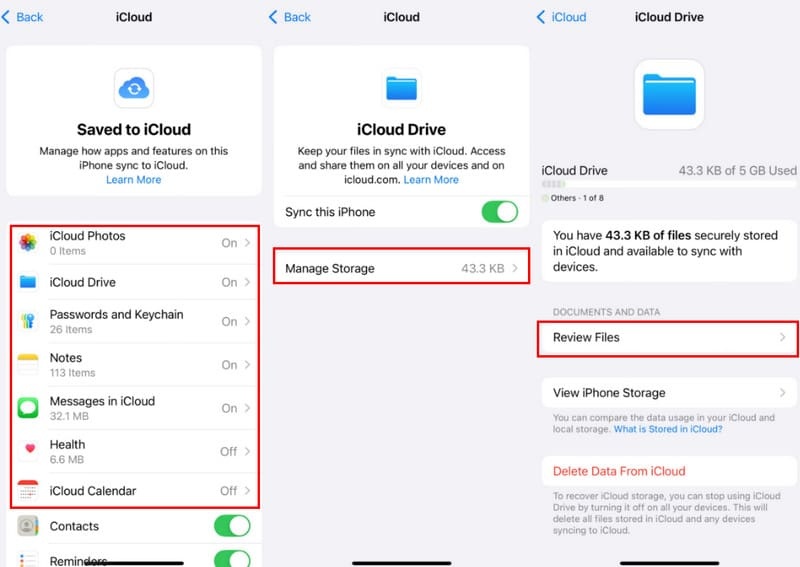
Tap Manage Storage to see a detailed breakdown of iCloud usage.
-
Select iCloud Drive to view all apps, documents, and files occupying space.
-
Identify large files or unnecessary app data and delete or move them to your computer to free storage.
On Mac
-
Open System Settings from the Apple menu in the top-left corner.
-
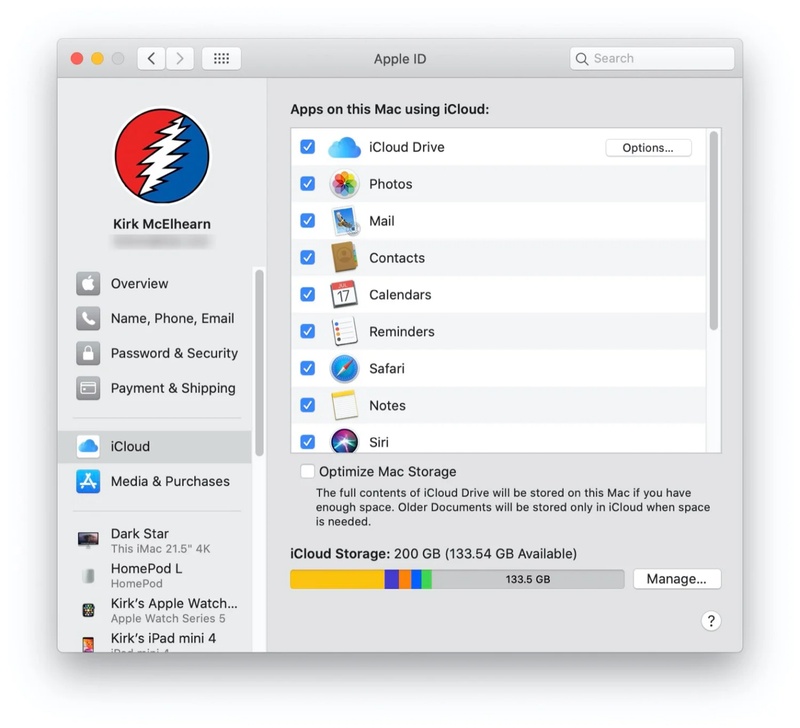
Click your Apple ID in the sidebar to access iCloud settings.
-
Select iCloud, then click Manage to view storage usage in detail.
-
Open iCloud Drive to check all documents, PDFs, and app files stored in the cloud.
-
Delete unnecessary or large files to free both iCloud and local storage.
On Windows
-
Install iCloud for Windows from Apple's official website.
-
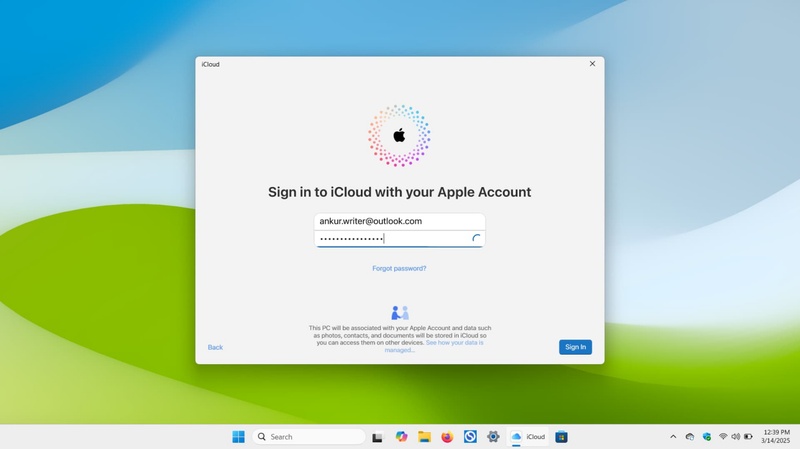
Open the app and sign in with your Apple ID.
-
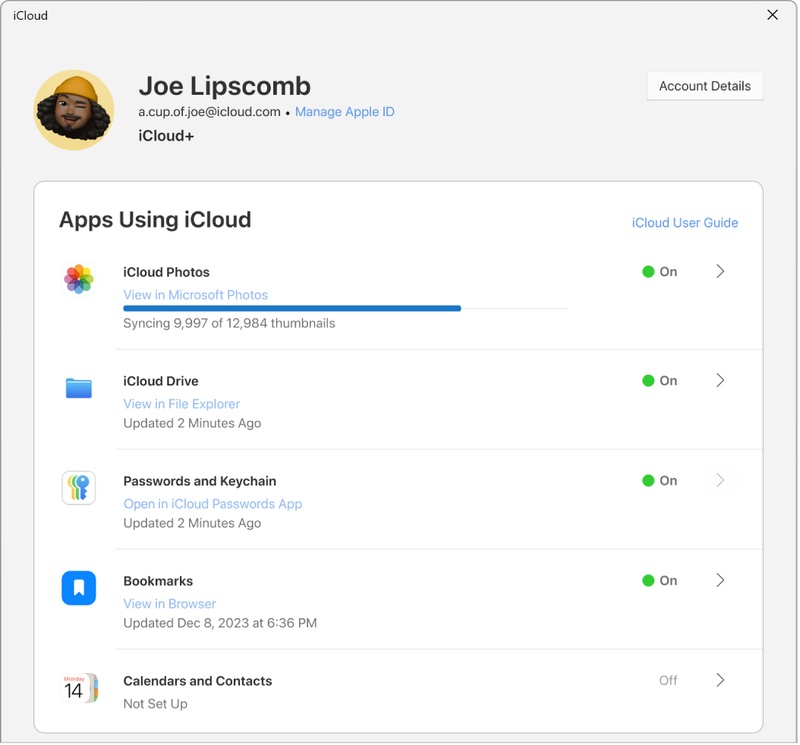
Click Storage to see which apps and files are using iCloud space.
-
Select iCloud Drive to review documents
spreadsheets
PDFs
and other files.
-
Delete or move unnecessary files to your PC to reclaim iCloud storage.
Part 4: Methods Above Not Working? Try the Third-Party Tool!
iCloud Drive can take up too much space, and when normal cleanup doesn't work, a reliable third-party tool can fix it quickly. Tenorshare ReiBoot is a reliable iOS repair software designed to fix iPhone storage issues, system glitches, and other iOS problems without losing data.
This tool is perfect for situations where your iPhone reports full storage even when it isn't, or when storage calculation is stuck due to iOS bugs. It provides a safe and fast solution to restore your iPhone's performance.
Key Features of Tenorshare ReiBoot
-
One-Click Repair: Fix iOS system issues quickly with minimal effort.
-
Safe Reset: Factory reset your iPhone without losing personal data.
-
iOS Bug Fixing: Resolve storage errors, boot loops, black screens, frozen apps, and more.
-
Wide Compatibility: Supports most iPhone, iPad, and iPod touch models, including the latest iOS versions.
-
Easy to Use: User-friendly interface designed for beginners and professionals alike.
Steps to Clear iPhone Storage with Tenorshare ReiBoot
-
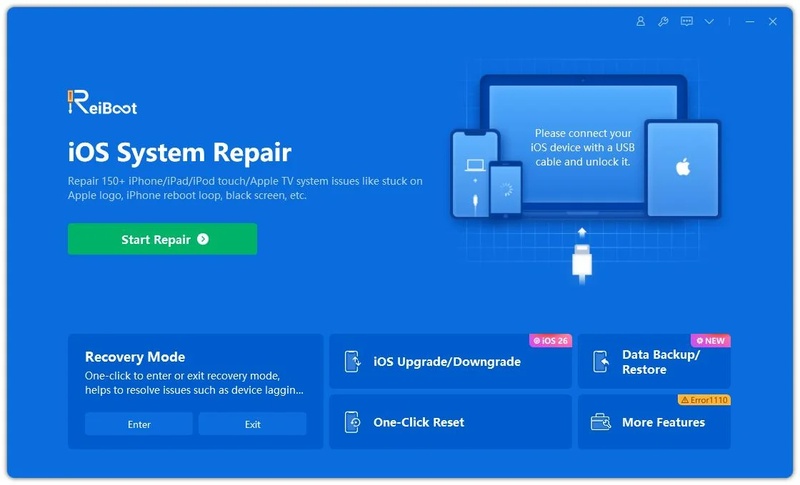
Step 1: Download and Install ReiBoot
Download Tenorshare ReiBoot on your PC or Mac and install it. After launching the program, connect your iPhone to the computer using a USB cable. Click One-Click Reset to begin the process.
-
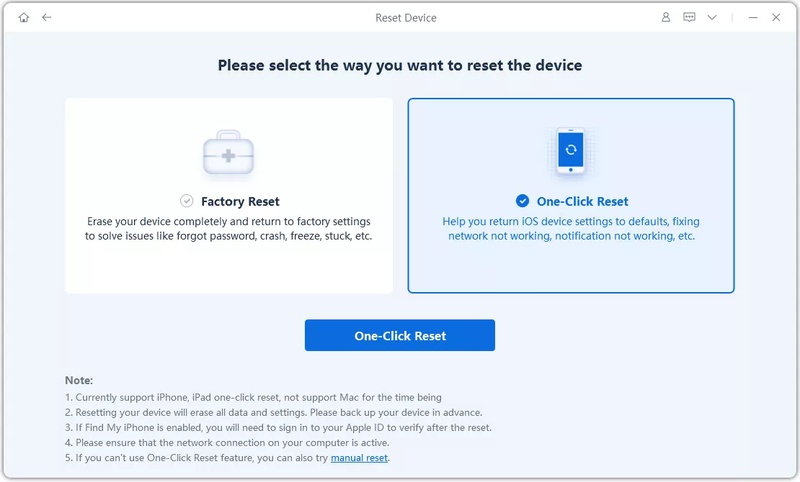
Step 2: Choose the Reset Option
ReiBoot will offer two reset modes. Select One-Click Reset again to proceed. This ensures your device will be reset safely without affecting personal data.
-
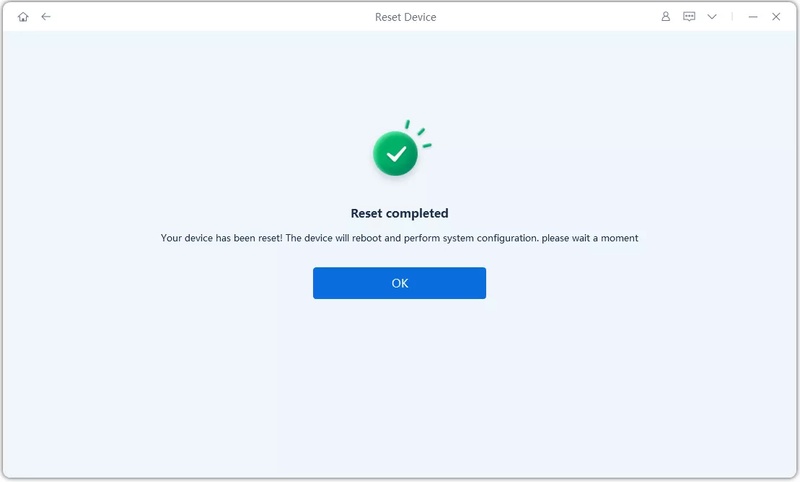
Step 3: Wait for the Reset to Complete
The reset process will start automatically. Once finished, your iPhone will restart, and storage issues caused by iOS bugs or system glitches will be resolved.
Tips to Prevent iCloud Drive from Filling Up Again
Keep your iCloud storage under control to avoid the icloud storage full problem and stop icloud photos taking up space on iPhone. Follow these practical tips:
1. Check iCloud Storage Regularly
Go to Settings, tap your Apple ID, select iCloud, and then Manage Storage. Identify apps, backups, and files using the most space and remove what you don't need.
2. Optimize Photo Storage
Turn on iCloud Photos and choose Optimize iPhone Storage. Full-resolution photos stay in iCloud while smaller versions stay on your iPhone.
3. Delete Old Backups
Check all device backups in iCloud and delete backups from devices you no longer use.
4. Remove Old Messages and Attachments
Large attachments in iMessages and texts can fill your iCloud. Delete old messages or remove attachments from conversations.
5. Manage App Data in iCloud
Some apps save large files automatically in iCloud. Review apps storing data and turn off syncing for the ones you don't need.
6. Empty Recently Deleted Folders
Photos, files, and notes in Recently Deleted remain for 30 days. Empty these folders regularly to free space.
7. Avoid Duplicate Files
Keep only one copy of documents, photos, and videos. Move extras to your computer or external storage.
8. Update iOS Regularly
Updates include storage optimizations and iCloud improvements. Keeping your device up to date prevents storage errors.
Conclusion:
Managing iCloud storage can be tricky, especially when iCloud Drive is taking up storage space unexpectedly. Regularly cleaning up old backups, messages, attachments, and unnecessary files helps keep your iPhone running smoothly. Optimizing photos and monitoring app data prevents future storage issues. For stubborn problems or iOS bugs that cause storage calculations to be inaccurate, regular cleanup may not be enough. A reliable solution is Tenorshare ReiBoot, which safely repairs your device without losing any data.
