
Updated on 2026-09-15 / iPhone Tips
Auto-correct on iPhone is one of those features that sounds helpful until it rewrites your message mid-send and makes you look like you typed with your elbows. Whether it's changing names, technical terms, or perfectly normal words into something embarrassing, there are many valid reasons to shut it off entirely. This guide shares how to turn off auto-correct on iPhone 17 and iOS 26.4/27, including predictive text. You'll also learn how to fix the keyboard if auto-correct is still troubling you after switching it off.
Part 1. Why Turn Off Auto-Correct on iPhone?
Most people don't want to disable auto-correct on iPhone. Here are the popular reasons that drive that decision:
-
It changes words you meant to type: Proper nouns, brand names, slang, and technical terms get mangled constantly.
-
It's inconsistent: iPhone autocorrect not working properly is a recurring complaint. It corrects some words aggressively and ignores obvious typos in others.
-
It's worse in third-party apps: WhatsApp, Telegram, and similar apps sometimes behave differently from native iOS apps, creating inconsistency.
-
It slows you down: If you type fast, autocorrect can create a disruptive back-and-forth where you're correcting the corrections.
-
iOS 26 changes: Apple overhauled the autocorrect and predictive text engine in iOS 26, and for many users, the new behavior is more intrusive than helpful.
Note: Disabling auto-correct doesn't mean giving up spell check entirely. iOS lets you control auto-correct and predictive text independently
Part 2. How to Turn Off Auto Correct on iPhone (Step-by-Step)
Here's how to turn off Auto-Correct on iPhone in 2 ways, depending on whether you want a permanent or temporary fix:
1. Turn Off Auto-Correction via Settings
You can turn off autocorrect for the default system keyboard across apps like Messages, Mail, and Notes via iPhone Settings. It only functions for the built-in keyboard. Also, your device may still underline misspelled words, but it won't automatically change them. Here's how to switch off auto-correct on iPhone via Settings:
-
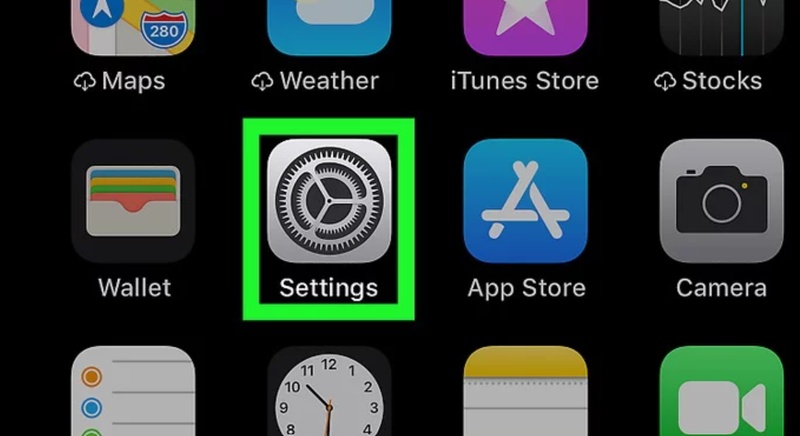
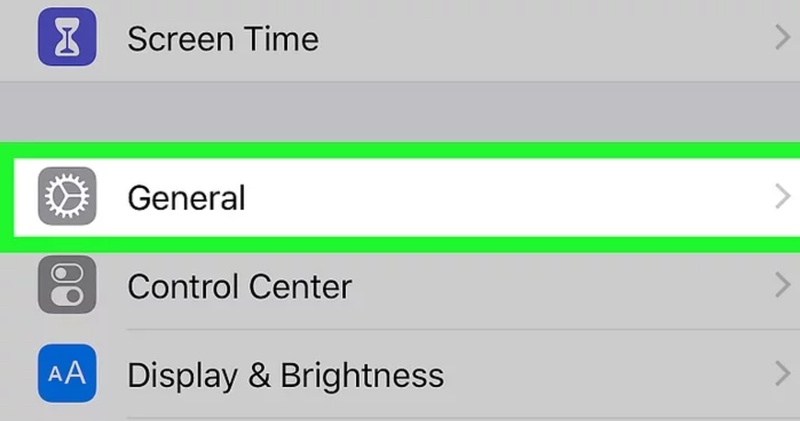
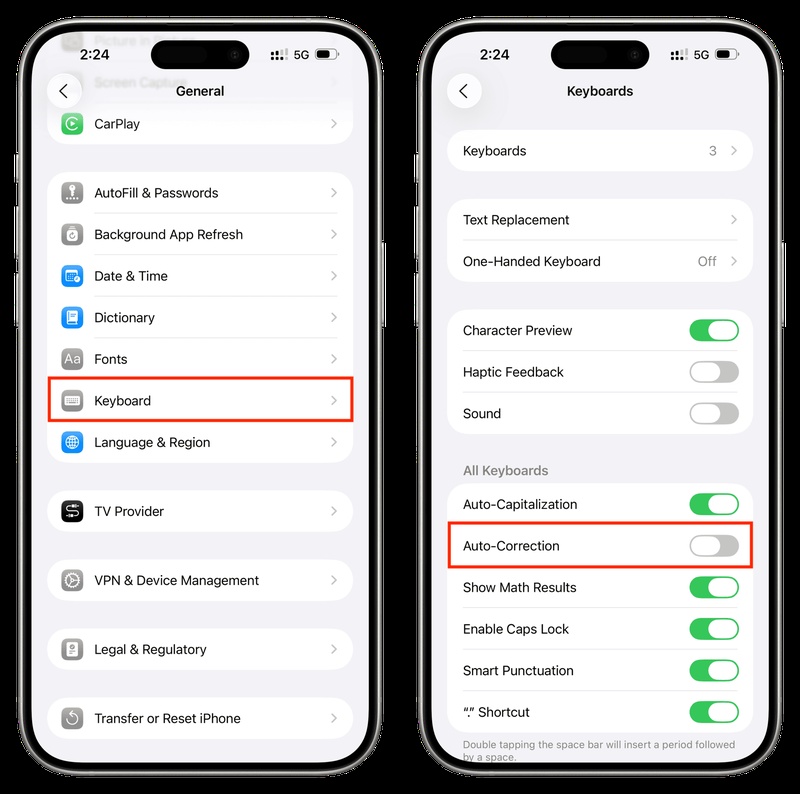
Step 1: Open "Settings" on your iPhone. Then, tap "General." Click "Keyboard."
-
Step 2: Switch off "Auto-Correction."
If you're using a third-party keyboard, like Gboard or SwiftKey, you'll need to turn off autocorrect in those apps separately from their own Settings.
Note: To turn off autocorrect on iOS 26.4/27 (including iPhone 17), the setting is in the same place. But for a fully manual typing experience, you can also switch off "auto-capitalization" and "check spelling."
2. Undo Auto-Correction While Typing (Temporary Fix)
If you don't want to turn off autocorrect on iPhone 17 completely, you can quickly undo a correction when it happens. Right after a word is changed, use the undo gesture or tap the backspace key once to bring back what you originally typed.
This only supports the most recent correction, and you have to act right away. It functions on iOS 13 and later, including iOS 26.4/27. Follow the instructions beneath to undo auto-correct while typing:
-
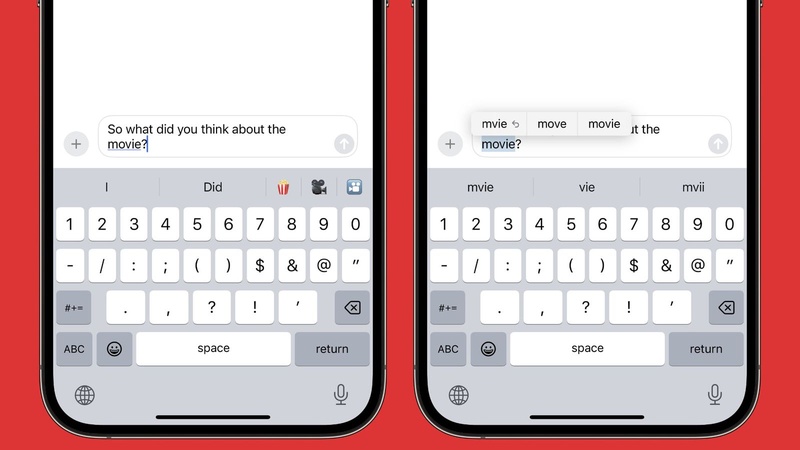
Step 1: When autocorrect changes a word, immediately hit the backspace or look for the underlined corrected word.
-
Step 2: Then, tap the underlined word. A small bubble appears showing your original typed word.
-
Step 3: Tap your original word to restore it.
Part 3. How to Turn Off Predictive Text on iPhone
Predictive text suggests your next word based on what you type and improves over time. If you turn off predictive text but keep auto-correction on, your phone may still fix misspelled words. To stop all automatic changes, you need to turn off both features. The predictive text bar exists above the keyboard and suggests words as you type. You can disable it independently. Here's how:
1. Turn Off Predictive Text via Settings
You can turn off predictive text via Settings for the default Apple keyboard. Turning it off won't affect autocorrect since they are separate features, but it will remove the word suggestion bar.
Apps like WhatsApp use the system keyboard, so turning off predictive text in Settings will also remove suggestions there, with no separate option inside the app. Here's how to turn off predictive text on iPhone WhatsApp, and all other apps:
-
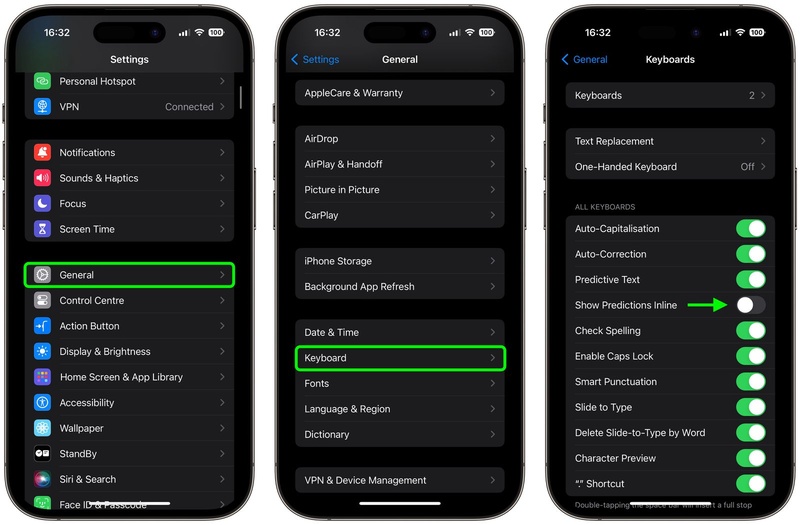
Step 1: Open "Settings" on your iPhone. Then, tap "General."
-
Step 2: Choose "Keyboard." Then, toggle off "Show Predictions Inline."
2. Hide Predictive Text Bar Temporarily (Swipe Down)
If you just want to hide the suggestion bar for a while, you can swipe it away without changing any settings. But keep in mind, this is only temporary. The bar will come back the next time you open the keyboard.
It's mainly useful when you need more space while typing, and it supports iPhones operating on iOS 16 or later. Follow the steps beneath to hide the predictive text bar temporarily:
-
Step 1: Open any app on your iPhone. Then, tap inside a text field so that the keyboard appears.
-
Step 2: While the keyboard is visible, place your finger on the predictive text bar (the suggestion strip above the keyboard).

-
Step 2: Swipe downward on the bar. The suggestions bar collapses. You can swipe up from the same area to bring it back.
Bonus Tip: Fix iPhone Keyboard Issues Easily with ReiBoot
Sometimes the problem isn't the auto-correct settings on your iPhone but the system itself. If autocorrect is still functioning after you've turned it off, or your keyboard is lagging, freezing, or acting strangely after an update, it could be a deeper software issue.
In such a case, an iOS repair tool, like Tenorshare ReiBoot, can fix these issues. It can repair problems like settings not saving, or the keyboard keeps crashing without erasing your phone. Here's what more ReiBoot offers:
Main features of ReiBoot:
-
Fix 150+ iOS issues like the iPhone stuck on the Apple logo, black screen, etc., without losing data.
-
Upgrade or downgrade iOS (including removing iOS 26) without jailbreak or iTunes.
-
Enter or exit Recovery Mode with one click.
-
Quickly fix frequent iTunes errors like 4013 and 1110.
-
Reset your device to factory settings without a passcode or iTunes.
-
Permanently erase all data before selling your phone.
-
Back up and restore your iPhone without iTunes or iCloud.
Here's how to fix keyboard issues on your iPhone with ReiBoot:
- Step 1: Launch ReiBoot and Connect iPhone
Download and install Tenorshare ReiBoot on your computer. Open the program and connect your iPhone using a USB cable. Click “Start Repair” once your device is detected.

- Step 2: Choose Standard Repair
When ReiBoot detects your device, select “Standard Repair” to proceed without data loss and fix iPhone keyboard issues.

- Step 3: Download Firmware Package
Download the latest firmware package when prompted. ReiBoot will automatically match the correct version for your device.

- Step 4: Start Standard Repair
Once the firmware is ready, click “Start Standard Repair” to fix keyboard problems such as unresponsive keys or typing lag. Wait a few minutes for the process to complete.

- Step 5: Repair Completed
Your iPhone will restart automatically, and the keyboard should work normally again without affecting your data.

Part 5. FAQs on How to Turn Off Auto Correct on iPhone
Q1. Why is autocorrect so bad on iOS 26?
Auto-correct is not necessarily bad, but it may feel too aggressive for those who use slang, niche terms, or unusual typing styles. To fix this, you can turn off Auto-Correction in your iPhone Settings.
Q2. Why is autocorrect still on after I turned it off?
This can happen if you're using a third-party keyboard with its own autocorrect settings. So, you may need to turn off auto-correct there instead. It can also be caused by a system glitch where the iOS settings don't save properly. Try turning it off again, closing the Settings app, and reopening it to check. If the problem continues, a system repair tool like ReiBoot can help fix the bug without data loss.
Q3. Can I turn off autocorrect but keep predictive text?
Yes, you can turn off auto-correct while keeping the predictive text feature on. They are two different options. However, if you wish to turn off predictive text, it would be better to switch off auto-correct as well. Otherwise, your iPhone may still fix misspelled words. To stop all automatic changes, you need to turn off both features.
Conclusion
Learning how to turn off auto-correct on iPhone, including predictive text, is simple and gives you more control over how you type. Whether you disable it completely in Settings or just undo corrections when needed, you can avoid unwanted word changes and type more comfortably.
If your keyboard still has issues even after changing settings, the issue may be system-related. In that case, a tool like Tenorshare ReiBoot can help fix deeper iOS problems, repair keyboard glitches, and restore normal performance without data loss.
