
Updated on 2026-04-30 / iPhone Tips
Facebook opening to a black screen can be very frustrating when you just want to scroll or check updates. This issue can happen on iPhone, Android, or PC and often stops Facebook from loading properly. It is usually caused by internet problems, an outdated app, cache errors, or temporary server issues.
Sometimes device or browser issues can also trigger it. In this guide, you'll learn simple and quick methods to solve the Facebook black screen issue and get it working again.
- Part 1: Why Is Facebook Showing a Black Screen?
- Part 2: How to Fix Facebook Black Screen on iPhone/Android/iPad/PC
- Part 3: How to Fix Facebook Black Screen on PC Browser
- Method 1. Clear Browser Cache and Cookies
- Method 2. Disable Hardware Acceleration
- Method 3. Disable Browser Extensions
- Conclusion:
Part 1. Why Is Facebook Showing a Black Screen?
The Facebook black screen issue can appear on iPhone, Android, and PC when the app or website fails to load properly. It usually happens due to simple technical or network-related problems.
Main reasons include:
-
Unstable or weak internet connection
-
Facebook server outage or temporary downtime
-
Outdated Facebook app version
-
Corrupted cache or stored app data
-
Temporary app bugs or glitches
-
Low storage space on device
-
Old iOS, Android, or system software
-
Conflicts from background running apps
-
Incorrect date and time settings
-
Browser issues or outdated version (PC)
-
VPN or proxy interfering with connection
-
Improper app installation or update failure
-
Disabled or missing app permissions
Part 2. How to Fix Facebook Black Screen on iPhone/Android/iPad/PC
The facebook black screen issue can be fixed using simple troubleshooting steps on iPhone, Android, iPad, and PC. Most of the time, updating the app, clearing cache, or restarting the device solves the problem. For deeper system issues, a repair tool or system reset may be needed.
1. Fix Facebook Black Screen with Reiboot (Fastest & Easiest)
The Facebook black screen issue can sometimes happen because of deeper system problems that basic fixes cannot solve. In this case, a tool like Tenorshare ReiBoot can help fix system errors and restore normal app loading quickly. It is widely used to repair iOS system errors without complex steps or technical knowledge.
Tenorshare ReiBoot is a system repair tool designed for iPhone and iPad users. It helps fix common issues like black screen, frozen apps, stuck loading, and system crashes. Standard Repair mode repairs the iOS system without damaging your personal data.
Key Features:
-
Fixes Facebook black screen and app freezing issues
-
Repairs iOS system without data loss (Standard Repair mode)
-
Resolves Apple logo stuck and recovery mode issues
-
One-click enter and exit recovery mode
-
Supports latest iOS versions and devices
-
Easy-to-use interface for beginners
Steps to Fix Facebook Black Screen Using Tenorshare ReiBoot
-
Step 1: Launch ReiBoot and Connect iPhone
Download and install Tenorshare ReiBoot on your computer. Launch the tool and connect your iPhone using a USB cable. Once the device is detected, click on "Start Repair" to continue.

-
Step 2: Choose Standard Repair
Select "Standard Repair" from the available options. Follow the on-screen instructions to proceed with fixing the Facebook black screen issue.

-
Step 3: Download Firmware Package
Click "Download" to get the latest firmware package required for repair. This may take some time depending on your network speed.

-
Step 4: Start Standard Repair
After the firmware is downloaded, click "Start Standard Repair" to begin fixing system issues that may cause the Facebook black screen.

-
Step 5: Wait for Completion
Wait a few minutes for the repair process to finish. Your iPhone will restart automatically, and the Facebook black screen issue should be resolved.

2. Force Close and Reopen Facebook
A temporary app glitch is one of the most common reasons behind a Facebook black screen on iPhone/Android. Sometimes Facebook continues running in the background with a frozen process, and reopening it without fully closing the app does not solve the issue. Force closing the app refreshes its background activity and can quickly restore the display.
Steps for iPhone / iPad facebook black screen when scrolling fix:
-
Step 1: Swipe up from the bottom of the screen and pause in the center.
Step 2: Locate the Facebook app preview.
-
Step 3: Swipe Facebook upward to close it completely.
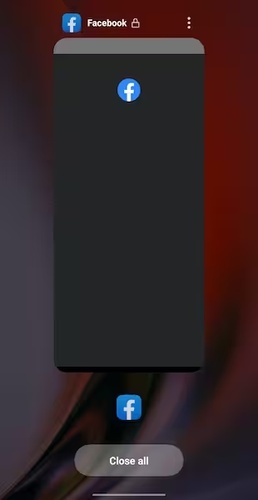
Step 4: Wait a few seconds.
-
Step 5: Open Facebook again and check whether the black screen disappears.
Steps for Android facebook black screen on android:
Step 1: Tap the Recent Apps button.
Step 2: Find Facebook in the app list.
-
Step 3: Swipe the app away to force close it.
Step 4: Open Facebook again.
Steps for PC
Step 1: Close your browser completely.
Step 2: Open the browser again.
-
Step 3: Visit Facebook and sign in again.
3. Clear Facebook Cache
Corrupted cache files can often cause a Facebook black screen when scrolling because old stored data prevents the app from loading new content properly. Clearing the cache removes temporary files that may be causing the problem.
Steps for Android facebook black screen fix:
-
Step 1: Open the Settings app on your Android phone and tap on Apps or Application Manager.
-
Step 2: Scroll down and tap on Facebook from the installed apps list.
-
Step 3: Tap on Storage or Storage & Cache, depending on your device model.
-
Step 4: Press the Clear Cache button to remove temporary app files.
-
Step 5: Close Settings and reopen Facebook to see if the problem is fixed.
Steps for Facebook Browser Cache facebook black screen on ipad fix:
-
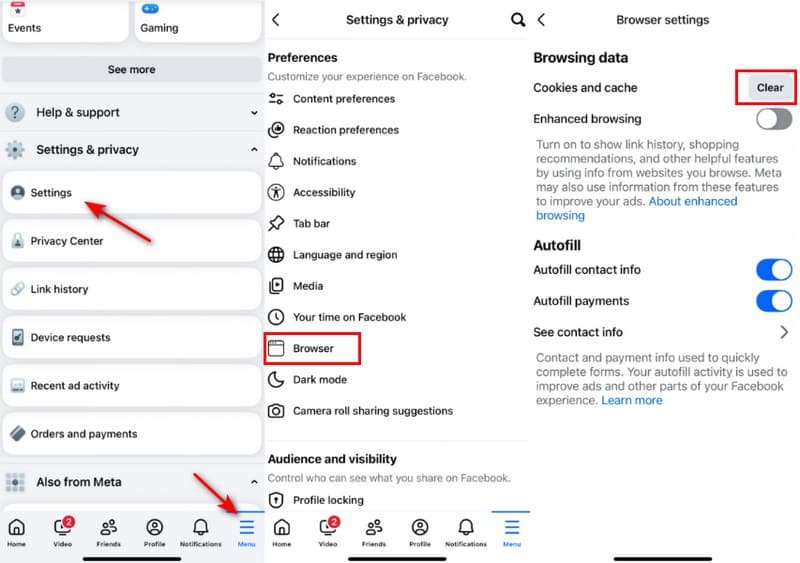
Step 1: Open the Facebook app and tap the menu icon in the corner.
-
Step 2: Scroll down and tap Settings & Privacy, then choose Browser.
-
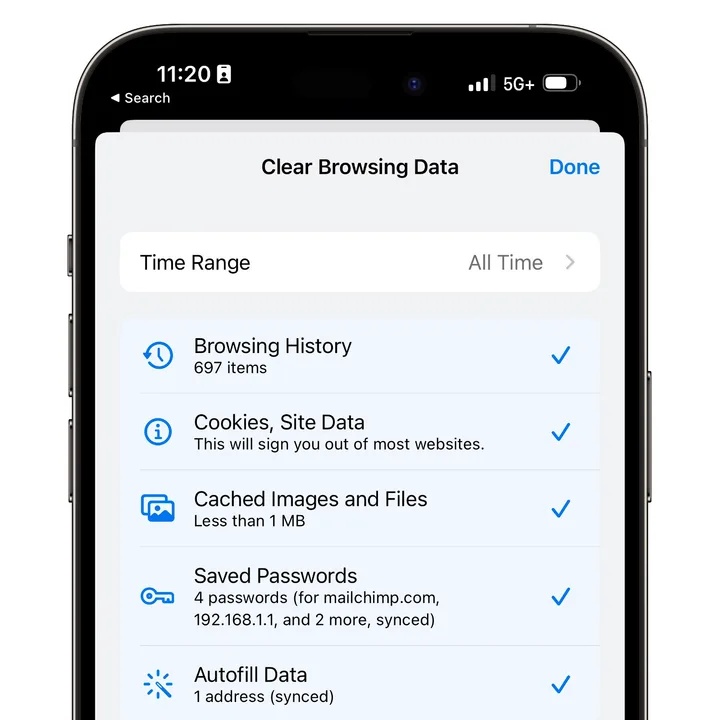
Step 3: Tap the option that says Clear Browsing Data.
-
Step 4: Restart the app and check if the black screen disappears.
4. Update the Facebook App
An outdated app version can lead to a Facebook Messenger black screen or loading issues in the main app. Updating Facebook installs bug fixes that may resolve the problem.
Steps for iPhone / iPad fixing facebook messenger black screen:
-
Step 1:ong> Open the App Store and tap your profile icon at the top right.
-
Step 2: Scroll down until you see the list of available updates.
-
Step 3: Find Facebook in the list and tap the Update button beside it.
-
Step 4: Wait for the update to finish downloading.
-
Step 5: Open Facebook again after the update completes.
Steps for Android
-
Step 1: Open the Google Play Store on your phone.
-
Step 2: Search for Facebook in the search bar.
-
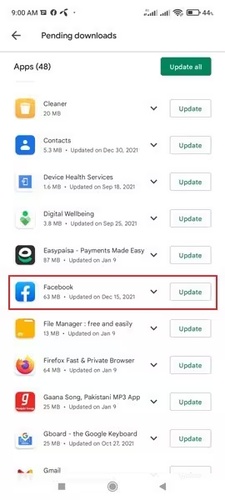
Step 3: Tap the Facebook app from the results.
-
Step 4: Tap the Update button if a newer version is available.
-
Step 5: Open the app once the update is installed.
5. Reinstall the Facebook App
If app files become damaged, reinstalling Facebook can completely remove the problem causing the Facebook black screen on iPad or mobile devices.
Steps to fix facebook black screen on iphone/android
-
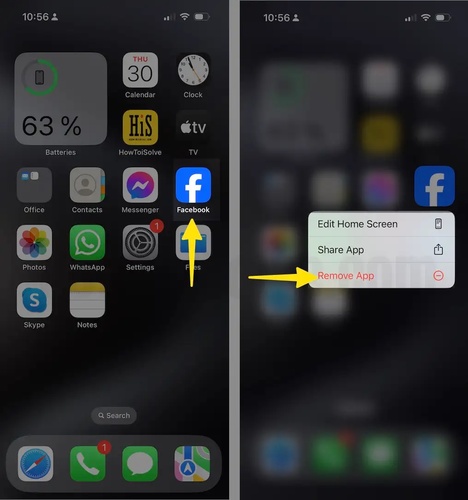
Step 1: Press and hold the Facebook app icon on your Home Screen until a menu appears.
-
Step 2: Tap Remove App or Uninstall to begin removing the app.
-
Step 3: Confirm that you want to delete the app from your device.
-
Step 4: Restart your phone or tablet after the app is removed.
-
Step 5: Open the App Store or Google Play Store.
-
Step 6: Search for Facebook and download the latest version again.
-
Step 7: Sign into your Facebook account and check if the app loads normally.
Part 3. How to Fix Facebook Black Screen on PC Browser
Method 1. Clear Browser Cache and Cookies
Stored browser files help websites load faster, but damaged cache or outdated cookies can stop Facebook from displaying videos and photos properly. Clearing these files removes old data and allows the browser to load a fresh version of Facebook.
Steps for Google Chrome facebook videos black screen on pc fix:
-
Step 1: Open Google Chrome and click the three-dot menu in the upper-right corner of the browser.
-
Step 2: Select Settings from the dropdown list to open browser settings.
-
Step 3: Click Privacy and Security from the left panel.
-
Step 4: Select Clear browsing data from the available options.
-
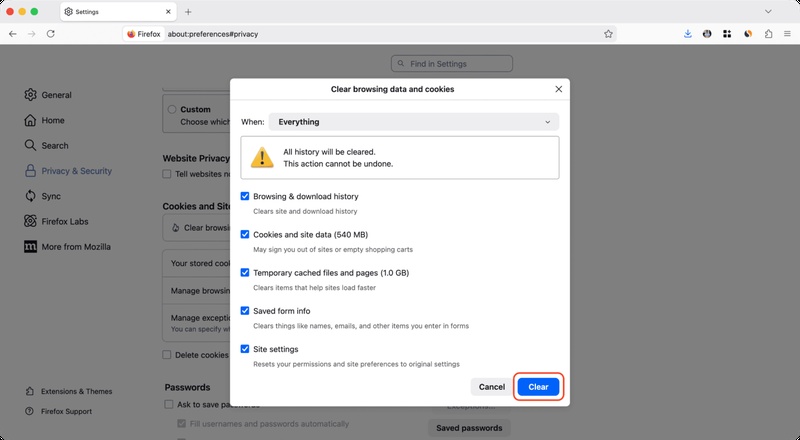
Step 5: Change the time range to All Time so every saved Facebook file can be removed.
-
Step 6: Check Cookies and other site data and Cached images and files.
-
Step 7: Click Clear Data and wait for the browser to finish the process.
-
Step 8: Restart Chrome and open Facebook again to test the video or photo.
Steps for Firefox facebook videos black screen on pc
-
Step 1: Open Firefox and click the menu icon in the top-right corner.
Step 2: Click Settings from the menu.
-
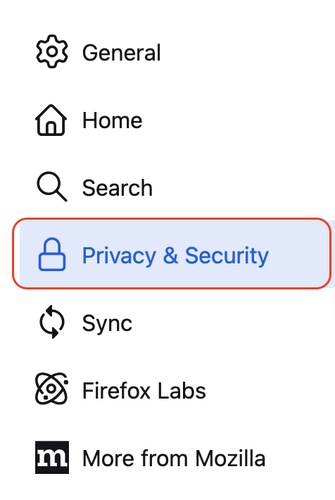
Step 3: Open Privacy & Security from the left side.
-
Step 4: Scroll down to the Cookies and Site Data section.
-
Step 5: Click Clear Data and confirm the action.
-
Step 6: Restart Firefox and reload Facebook.
Method 2. Disable Hardware Acceleration
Hardware acceleration allows the browser to use your computer's graphics card for smoother performance, but it can also create Facebook black screen videos on some computers. Turning this feature off can solve playback problems.
Steps for google chrome
-
Step 1: Open Chrome and click the three-dot menu in the top-right corner.
-
Step 2: Click Settings and scroll down to the bottom page.
Step 3: Click System from the left menu.
-
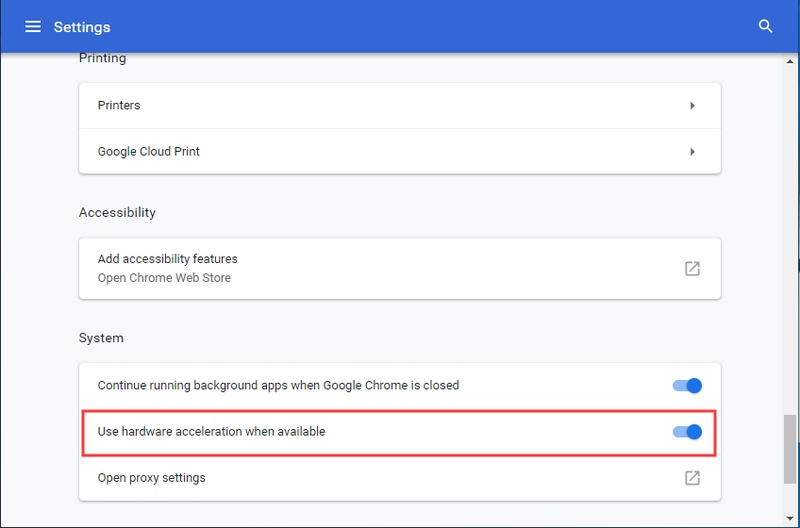
Step 4: Find the option called Use hardware acceleration when available.
-
Step 5: Turn the toggle off to disable the feature.
-
Step 6: Click Relaunch so Chrome restarts with the new setting.
-
Step 7: Open Facebook and check whether videos play normally.
Method 3. Disable Browser Extensions
Browser extensions such as ad blockers, privacy tools, and script managers can interrupt Facebook's media player and lead to a Facebook black screen photo or blank videos.
Steps for Google Chrome facebook messenger black screen fix:
-
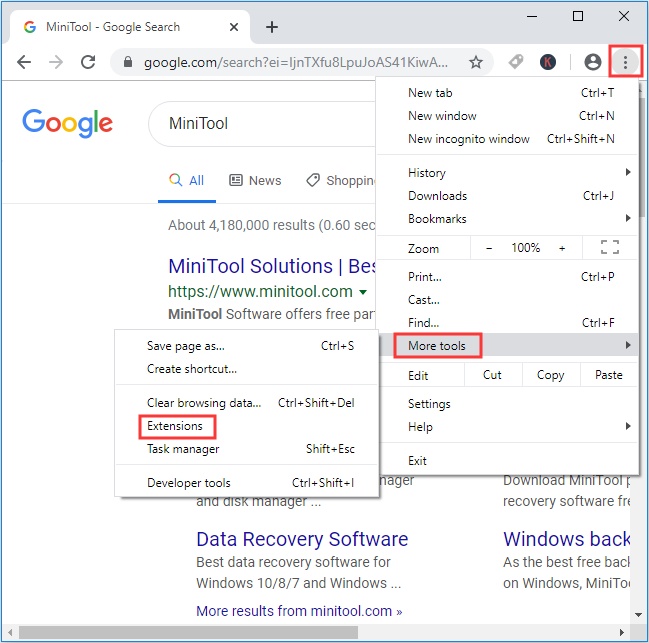
Step 1: Open Chrome and click the three-dot menu.
-
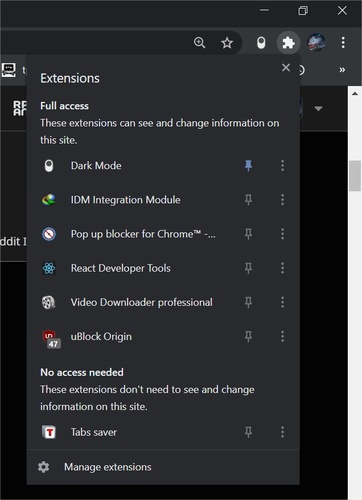
Step 2: Move your cursor to Extensions, then click Manage Extensions.
-
Step 3: Review the installed extensions shown on the screen.
-
Step 4: Turn off each extension using the toggle switch.
Step 5: Close and reopen the browser.
-
Step 6: Visit Facebook again and test the media.
Steps for Firefox facebook messenger black screen fix:
-
Step 1: Open Firefox and click the menu icon.
Step 2: Select Add-ons and Themes.
-
Step 3: Click Extensions from the sidebar.
Step 4: Disable all active extensions.
-
Step 5: Restart Firefox and reopen Facebook.
Conclusion:
A Facebook black screen can be frustrating because it stops you from using Facebook normally. You may not be able to watch videos, open photos, or read messages. Restarting the app, clearing cache, updating the app, or checking your internet can solve it in many cases. Tenorshare ReiBoot can be a good option for iPhone or iPad users who still face the Facebook black screen. It can fix deeper system problems without removing your data.
