
Updated on 2026-09-17 / iPhone Tips
It's a common concern among iPhone users, and it often sounds more dangerous than it really is. Can an iphone be hacked by visiting a website is a question many people search when they worry about online safety. The truth is, your iPhone is not easily hacked just by visiting a normal website.
However, not every website is safe. Some fake or harmful pages use tricks like pop-ups, fake alerts, or unsafe downloads to mislead users. In this guide, we break it all down simply and help you stay safe while browsing.
- Part 1: Can an iPhone Be Hacked by Visiting a Website?
- Part 2: How To Check If Your iPhone Is Hacked by Visiting a Website
- Part 3: What to Do If Your iPhone Be Hacked by Visiting a Website
- Part 4: How iPhones Get Hacked Through Websites
- Part 5: How to Protect Your iPhone from Malicious Websites
- Part 6: Conclusion
Part 1. Can an iPhone Be Hacked by Visiting a Website?
In most cases, an iPhone cannot be hacked just by visiting a website. iOS has strong security that keeps your data and system protected while browsing. However, risky websites can still try to trick you. They may show fake alerts, pop-ups, or ask you to install unknown files or profiles.
Real hacking through a website is very rare and usually depends on serious security bugs that Apple quickly fixes with updates. So, normal browsing is safe, but you should avoid suspicious links and unknown websites.
Part 2. How To Check If Your iPhone Is Hacked by Visiting a Website
Sometimes users worry after opening a suspicious website and think their iPhone is hacked. In reality, full hacking through a website is very rare, but a few warning signs can help you understand if something is not right. Here is how to check if your iphone is hacked in settings:
1. Repeated fake warnings or pop-ups
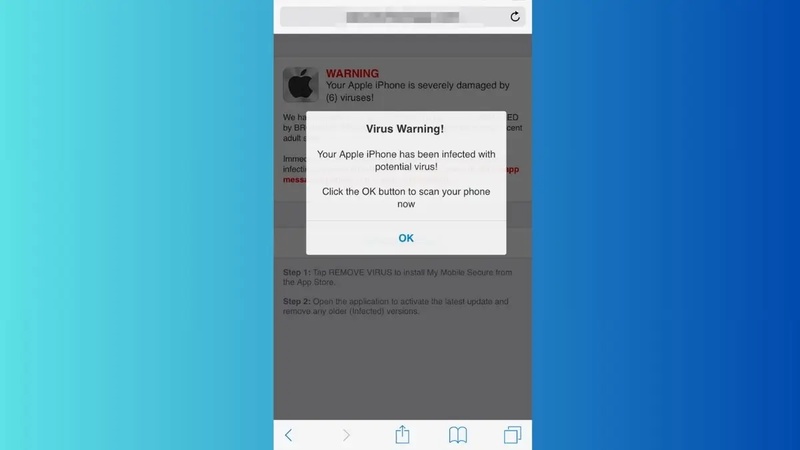
Safari may start showing constant alerts like "Your iPhone is hacked" or "virus detected." These are usually scam messages designed to scare you into clicking.
2. Unknown apps or hidden profiles
Check your iPhone for any apps you don't recognize. Also review Settings for unknown profiles, as some harmful sites try to install them without permission.
3. Unusual battery drain or heating
A sudden drop in battery life or a warm device without heavy use can indicate background activity.
4. Slow performance or random glitches
Lagging, freezing, or apps crashing without reason may point to unwanted processes running in the background.
5. Strange browser behavior
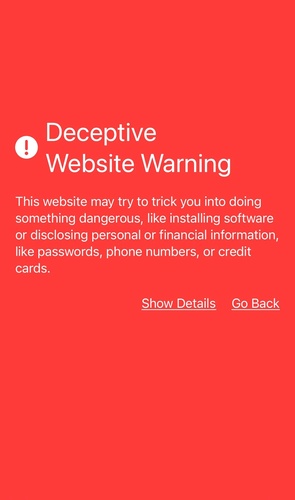
Safari redirecting to unknown pages or showing nonstop ads can be a sign of unsafe browsing activity.
6. Unexpected data usage
A sudden spike in mobile data usage without changes in your routine can also raise concern.
Part 3. What to Do If Your iPhone Be Hacked by Visiting a Website
Unexpected pop-ups, redirects, or strange behavior after visiting a website can feel alarming. Most of the time, these issues come from scam pages or browser changes, not actual hacking. Still, proper cleanup helps secure your iPhone and remove any hidden risks.
1. Clear Safari data and browsing history
Removing Safari data helps delete stored website files, cookies, and scripts that may be causing unwanted pop-ups or redirects.
-
1. Open Settings on your iPhone
-
2. Scroll and tap Safari
-
3. Tap Clear History and Website Data
-
4. Confirm by selecting Clear History and Data
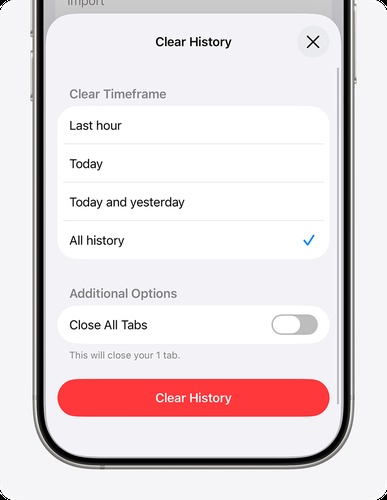
- 5. Restart your iPhone to complete the cleanup
2. Remove unknown profiles or VPN settings
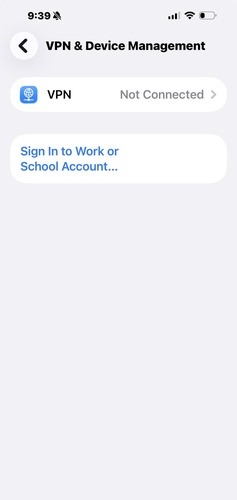
Some unsafe websites may install hidden profiles that can affect your device settings or track activity.
-
1. Open Settings
-
2. Go to General
-
3. Tap VPN & Device Management
-
4. Check carefully for any unfamiliar profile
-
5. Tap it and choose Remove Profile
-
6. Enter your passcode and confirm removal
3. Secure your important accounts
Even if your iPhone is safe, securing accounts ensures no one can access your data using leaked or saved information.
-
1. Change your Apple ID password immediately
-
2. Update email account passwords linked to your phone
-
3. Reset passwords for banking, WhatsApp, Instagram, and other apps
-
4. Create strong passwords using letters, numbers, and symbols
-
5. Turn on Two-Factor Authentication (2FA) for every important account
-
6. Sign out from unknown devices in account settings
4. Review iPhone activity and performance
Monitoring your device helps identify hidden issues like background apps, data leaks, or unusual usage.
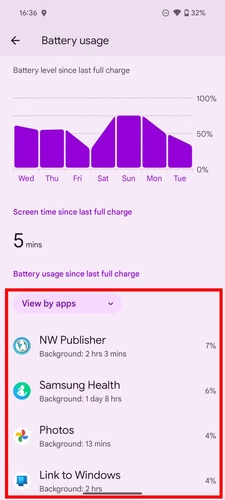
- 1. Open Settings > Battery and check apps causing unusual drain
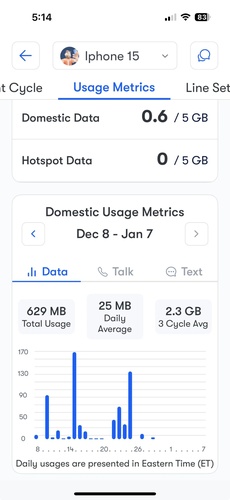
- 2. Go to Settings > Mobile Data and review data usage spikes
-
3. Look for any unknown apps on your home screen
-
4. Delete suspicious or unused apps immediately
-
5. Restart your iPhone to stabilize system performance
-
6. Observe device behavior for a few hours after cleanup
Bonus Tip: Fix iPhone Issues When Visiting a Website
Sometimes, browser glitches or system-level issues remain even after full cleanup. A reliable iOS repair tool like Tenorshare ReiBoot helps fix deeper system problems safely. It can repair common iPhone issues, refresh system files, and restore normal performance without deleting your data. With just a few simple clicks, it helps your device return to a stable and smooth working state. This makes it easier to continue using your iPhone without stress or interruptions.
-
Step 1: Launch ReiBoot and Connect iPhone
Download and install Tenorshare ReiBoot on your computer. Open the program and connect your iPhone using a USB cable. Click "Start Repair" on the main interface.

-
Step 2: Choose Standard Repair
When ReiBoot detects your device, click on "Standard Repair" to proceed and fix iPhone issues caused after visiting a website.

-
Step 3: Download Firmware Package
Download the latest firmware package when prompted. ReiBoot will automatically prepare the correct version for your device.

-
Step 4: Start Standard Repair
Once the firmware is ready, click "Start Standard Repair" to fix system issues that may occur after opening a problematic website. Wait a few minutes for the process to complete.

-
Step 5: Repair Completed
Your iPhone will restart automatically, and the system issues should be resolved with normal performance restored.

Part 4. How iPhones Get Hacked Through Websites
iPhones are highly secure, but websites can still be used as a gateway for attacks in rare cases. Most of these attacks don't directly break your iPhone. Instead, they use tricks like fake websites, browser bugs, or user mistakes to get access. Security research shows that these attacks usually target Safari or try to fool users into sharing information, rather than fully hacking the iPhone itself.
1. Phishing websites (fake login pages)
One of the most common methods is phishing. Attackers create fake websites that look like Apple, banking, or social media login pages. When users enter their details, hackers steal passwords and account access instead of breaking into the phone itself.
2. Browser (Safari) vulnerabilities
In rare cases, malicious websites can exploit bugs in Safari or WebKit. These flaws may allow hidden code to run when a page is opened. Security reports show that such "drive-by" attacks have existed, where simply visiting a compromised website was enough to trigger an exploit in older iOS versions.
3. Fake alerts and scam pop-ups
Many websites don't hack your iPhone directly but scare users into action. They show messages like "Your iPhone is infected" and push fake antivirus downloads or unsafe profiles. These tricks are designed to get you to install something harmful manually.
4. Malicious downloads or profiles
Some websites try to trick users into downloading configuration profiles, VPNs, or apps outside trusted sources. Once installed, these can track data, change settings, or expose personal information.
5. Outdated iOS versions
Older iPhones or unupdated systems are more at risk. Attackers often target known security gaps in outdated browsers or iOS versions because they are easier to exploit. Keeping your device updated significantly reduces this risk.
Part 5. How to Protect Your iPhone from Malicious Websites
Even though can you get hacked by visiting a website on iPhone is rare, unsafe websites can still trick users or expose personal data. A few simple habits can keep your iPhone safe while browsing.
1. Keep iOS and Safari updated
Apple regularly releases security updates to address vulnerabilities affecting iOS, Safari, and WebKit. Keep your iPhone updated to the latest available iOS version, including iOS 27 when your device supports it.
2. Avoid unknown or suspicious links
Do not open links from random emails, messages, or pop-ups. Most phishing attacks start with a simple click on a fake link.
3. Use Safari safety features
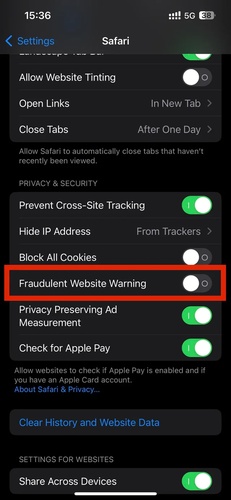
Enable options like "Fraudulent Website Warning" in Safari settings. This helps block known unsafe websites automatically.
4. Don't install unknown profiles or apps
Never download configuration profiles or apps from websites. These can change your settings or track your activity without permission.
5. Use strong security for accounts
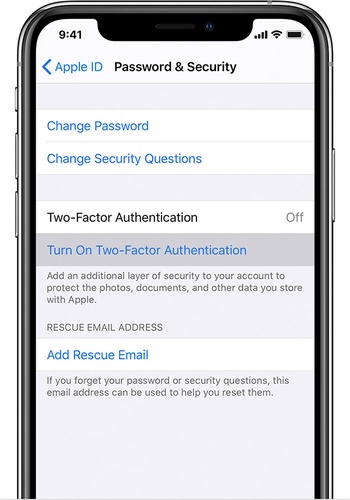
Enable Two-Factor Authentication (2FA) for Apple ID, email, and social media. This protects your accounts even if passwords are exposed.
6. Avoid public Wi-Fi without protection
Open networks can be unsafe. If needed, use a trusted VPN to secure your browsing data.
7. Clear browser data regularly
Clearing Safari history, cookies, and cache removes stored tracking files and reduces risks from malicious scripts.
Conclusion
Hearing about online threats can make anyone ask, can an iphone be hacked by visiting a website. The direct website hacking is rare because iPhone security is built to protect your device. Staying alert and keeping your iPhone updated can prevent most risks. When browser problems or system issues still do not go away, ReiBoot can be a simple way to repair iOS and bring your iPhone back to normal.
