
Updated on 2026-09-15 / iPhone Tips
The accessory uses too much power warning on iPhone can instantly stop your charging or connection without any clear reason. It usually means your iPhone thinks the connected accessory is drawing more power than it should.
In most cases, it is not a serious issue and can be fixed quickly with simple steps. In this guide, you will learn the real causes behind the accessory uses too much power message and easy ways to fix it fast.
Part 1. What Is "Accessory Uses Too Much Power" Meaning?
The accessory uses too much power message means your iPhone is not happy with the device you connected. It shows up when an accessory like a charger, cable, or USB device is taking more power than your iPhone can give safely.
This is a safety warning from Apple. It helps protect your phone from damage, overheating, or battery problems.
Part 2. Why Does My iPhone Say Accessory Uses Too Much Power?
The accessory uses too much power on iPhone 15/iPhone 16 message usually appears when your phone detects a problem with the connected accessory or the charging process. It can happen for many simple reasons, and most of them are easy to fix.
Here are the main causes:
-
A broken or low-quality charging cable can trigger the warning.
-
Non-certified accessories often don't match iPhone power needs.
-
Dust or a loose connection can affect power flow.
-
Some accessories draw more power than your iPhone can provide.
-
Sometimes the system shows iphone says accessory uses too much power when charging due to a temporary software issue.
-
Using weak adapters or unstable electricity can also cause this alert.
Part 3: How to Fix "Accessory Uses Too Much Power" Error
After understanding why your device blocks certain peripherals, it is time to take action. Whether your iPhone says accessory uses too much power when charging or you encounter this accessory uses too much power on iPad, these solutions are designed to bypass power limitations and restore a smooth connection.
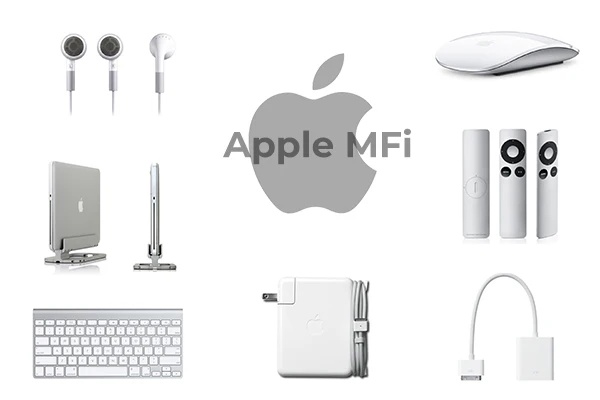
Fix 1. Use Official or MFi-Certified Accessories
One of the most common reasons behind this error is the use of low-quality or non-certified accessories. These accessories may not follow Apple's power standards, which leads to unstable current flow. When the iPhone detects irregular power, it automatically shows this warning to protect the battery and internal circuits.
Fix 2. Clean the Charging Port Carefully
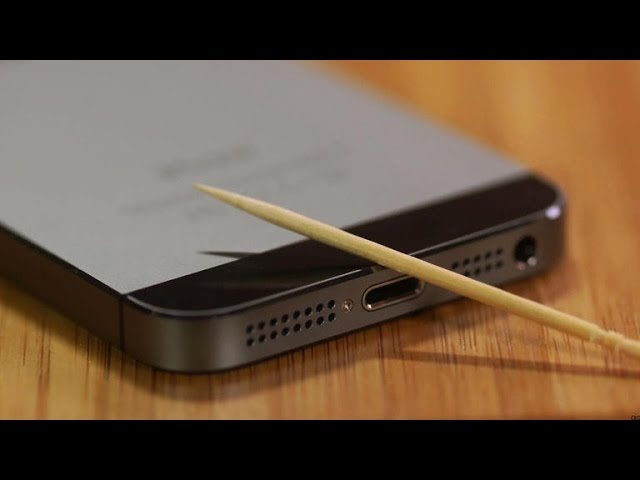
A blocked or dirty charging port can easily trigger the "accessory uses too much power" warning. Dust, lint, or moisture inside the port can interrupt the power flow, making the iPhone think the accessory is unsafe.
How to fix iphone says accessory uses too much power when charging:
-
First, power off your iPhone completely
-
Use a soft brush, dry toothbrush, or wooden toothpick
-
Gently remove dust from inside the charging port
-
You can also use short bursts of compressed air
-
Never use metal objects or sharp pins
Fix 3. Reconnect the Accessory Properly
Sometimes the issue is not the accessory itself but a weak or loose connection. If the plug is not fully inserted or the connection is unstable, iOS may interrupt power delivery.
Steps to fix this accessory uses too much power headphones:
-
Unplug the accessory from your iPhone
-
Wait at least 10--15 seconds
-
Inspect both ends of the cable for damage
-
Plug it back in firmly until fully connected
-
Try a different angle or port if needed
Fix 4. Use a High-Output Charger or Reliable Power Bank
Some accessories need more power than a standard adapter or low-quality power bank can provide. When the power source is weak, iPhone may block the accessory to protect itself.
How to fix it accessory uses too much power powerbank:
-
Use a fast charger (20W or higher recommended for iPhones)
-
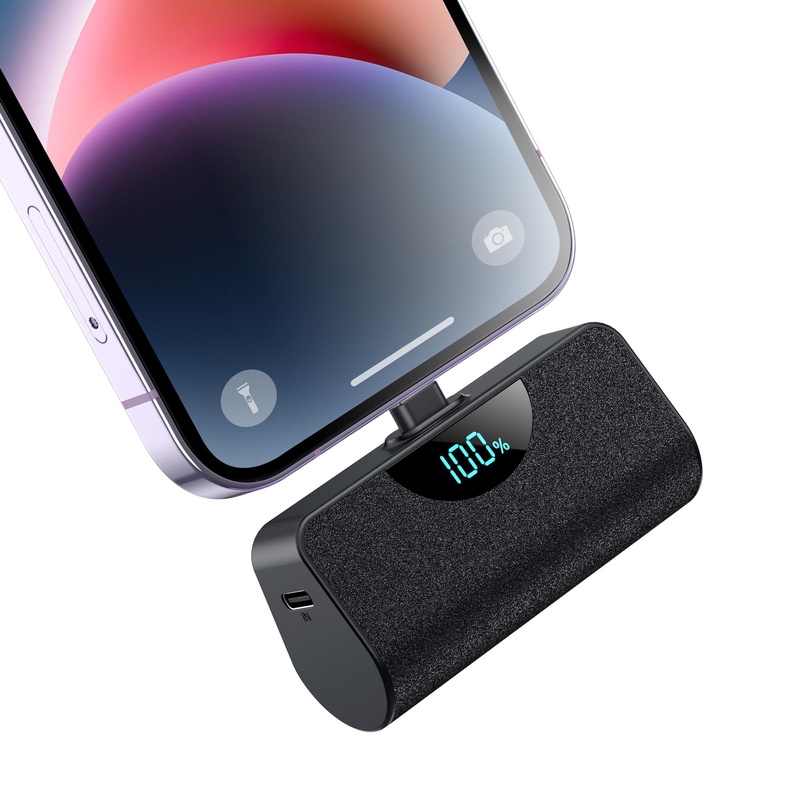
For travel or heavy use, choose a high-quality power bank
-
Avoid cheap power banks with unstable output
-
Make sure output rating matches your device needs
Fix 5. Charge Your Device Before Plugging in Accessories
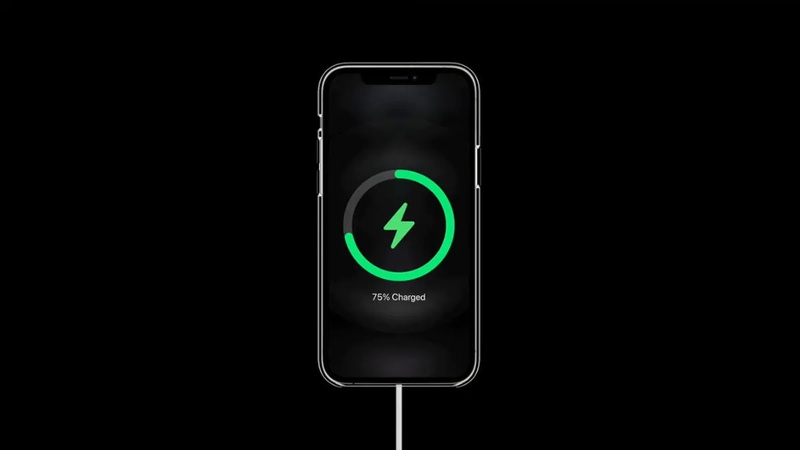
Your iPhone manages power output more aggressively when its own battery is low. If your battery is below 20%, iOS may automatically cut power to external peripherals to save energy for core system functions.
Keeping your device above 50--80% charge tells the system it is safe to send power to accessories. This also helps avoid power issues and sudden shutdowns.
Fix 6. Restart or Update Your iOS Firmware
Temporary software glitches or outdated power management can affect the system. They may cause iPhone to misread how much power an accessory is using. Restarting or updating fixes bugs and improves accessory compatibility.
Steps:-
To Restart:
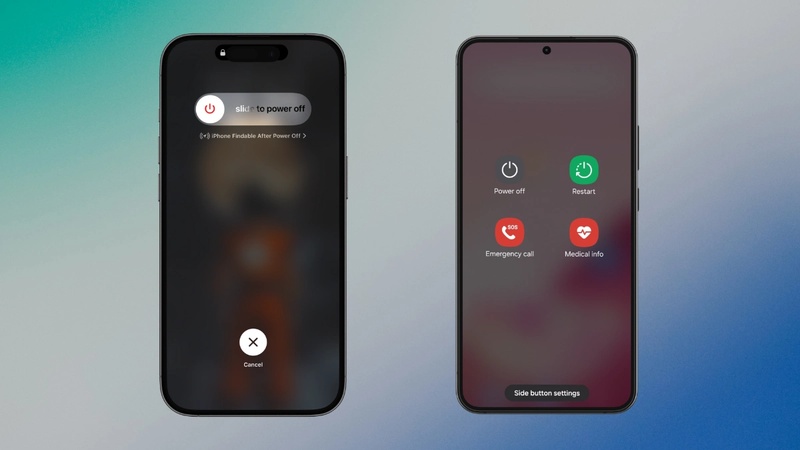
Press and hold the Power and Volume buttons together, then drag the slider to power off. Wait 10 seconds and turn it back on.
-
To Update:
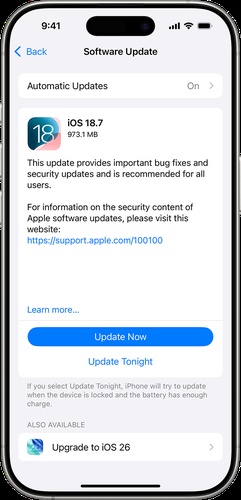
Open Settings > General > Software Update. If an update is available, tap Update Now. Make sure your device is connected to Wi-Fi and a charger during the installation process.
Part 4. Fix iPhone Power Issues Easily with ReiBoot
Instead of just treating the symptoms, ReiBoot works on the system-level errors that cause these power warnings in the first place. It helps bring the iPhone back to a stable state where accessories can connect and function normally again.
Key Features of Tenorshare ReiBoot-
Repairs 150+ iOS system issues including charging and accessory errors
-
Fixes glitches that trigger "accessory uses too much power" alerts
-
Standard Repair mode fixes system without deleting data
-
One-click enter and exit Recovery Mode
-
Solves stuck Apple logo, black screen, and boot loop issues
-
Works with all iPhones and iPads,including the latest iOS 26/27 verisons.
-
Step 1: Install and Launch ReiBoot
Download and install Tenorshare ReiBoot on your computer. Open the program, connect your iPhone using a USB cable, and tap "Trust This Computer" if prompted.

-
Step 2: Click on "Start Repair"
After ReiBoot detects your device, click on "Start Repair" to proceed with fixing iOS system issues.

-
Step 3: Download Firmware Package
Download the latest firmware package when prompted. Make sure the version matches your device before proceeding.

-
Step 4: Start Standard Repair
Once the firmware is ready, click "Start Standard Repair" to begin the repair process and keep your device connected.

-
Step 5: Repair Completed
Your iPhone will restart automatically after the repair, and the system should return to normal performance without data loss.

Part 5. FAQs on Accessory Uses Too Much Power
Q1. How to check if your accessory is faulty?
Try using the accessory with another iPhone or use a different cable or charger on your device. If the warning still appears, the accessory is likely faulty or not compatible.
Q2. Can a software issue cause accessory power warning?
Yes, a software issue can cause this warning. Sometimes iOS misreads power usage or shows false alerts after updates. Restarting your iPhone or updating iOS usually fixes the problem.
Q3. Is it safe to keep using the accessory on iPhone?
No, it is not safe if the warning keeps appearing. This alert is meant to protect your iPhone from damage or overheating. It is better to stop using the accessory and check it first.
Final Words:
The accessory uses too much power error can be frustrating, especially when your iPhone suddenly stops charging or blocks an accessory. If these quick fixes do not work, the problem may be due to a hidden iOS system glitch. In such situations, Tenorshare ReiBoot is a reliable solution to repair deeper system errors and restore normal accessory performance.
