
Updated on 2026-09-15 / iPhone Tips
iPhone 17e overheating is a common issue many users face during daily use. Your phone may heat up while charging, gaming, or using heavy apps. Sometimes, software bugs or background apps also cause this problem. If your iPhone 17e starts getting unusually warm after updating to iOS 27, temporary background activity or software glitches may also be contributing to the heat.
You can fix iPhone 17e overheating with simple and easy steps. In this guide, you will learn the main causes and easy ways to keep your device cool and working smoothly.
Part 1. Common Causes of iPhone 17e Overheating
iPhone 17e overheating can happen for many simple reasons. If your iphone 17 gets hot when charging, it is usually linked to battery load, app usage, or environment. Understanding the cause helps you fix the issue faster and avoid damage.
Here are the most common causes:
-
Using a fast charger, faulty cable, or charging while using the phone can increase heat.
-
Gaming, video editing, or long video calls put pressure on the processor.
-
Too many apps running in the background can overwork the system.
-
New iOS updates, including iOS 27, can sometimes cause temporary background activity or software glitches that make the system run warmer than usual.
-
Keeping brightness at maximum for long time adds extra load.
-
Using your phone in direct sunlight or warm areas raises temperature quickly.
-
Weak signals force the phone to work harder, causing heat.
Part 2. Quick Fixes for iPhone 17e Overheating
iPhone 17e overheating can affect performance, battery life, and overall usability. You may notice iphone 17 overheating and battery draining fast, especially during charging, gaming, or after updates. The fixes below are practical and easy to follow. They help you cool your device quickly and fix iPhone 17e overheating without reset in most cases.
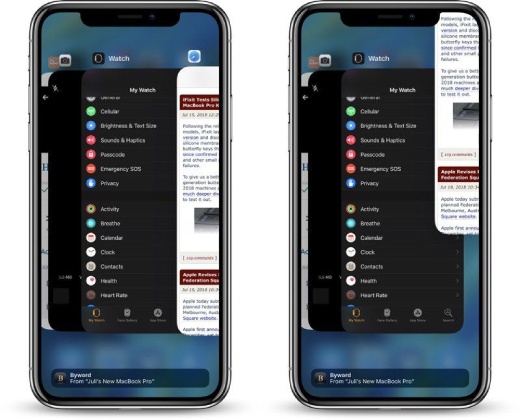
1. Close Background Apps
When multiple apps run in the background, they keep using CPU and battery power. This increases heat and slows down your phone. It is one of the main reasons behind iphone 17 overheating and battery draining fast.
2. Update iOS and All Installed Apps
Software bugs are one of the main causes of iPhone Overheating after Upgrading. If the issue started after updating to iOS 27, give your iPhone some time to complete background setup and make sure both iOS and your installed apps are up to date. Sometimes, after installing a new iOS version, the phone continues background optimization tasks. Also, outdated apps may not be fully compatible with the latest system.
Open Settings on your iPhone.
Scroll down and tap General.
-
Tap Software Update and wait for the system to check for updates.
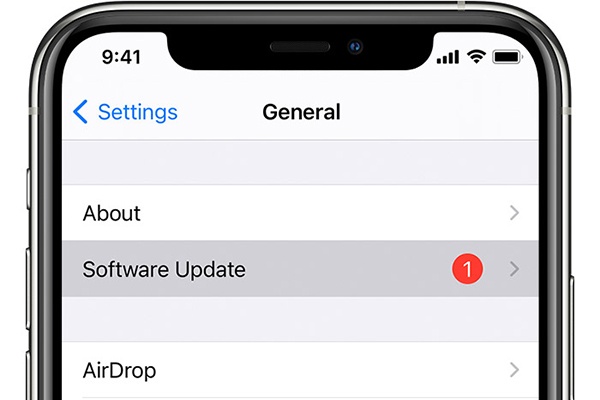
If an update is available, tap Download and Install.
-
Make sure your phone has enough battery or is connected to a charger.
3. Stop Using Phone While Charging
If your iphone 17 gets hot when charging, the most common mistake is using it during charging. Gaming, watching videos, or video calling while charging forces the processor and battery to work at the same time.
Charging already generates heat. Adding heavy usage increases temperature quickly.
4. Lower Screen Brightness and Adjust Power Settings
The display consumes a large amount of power. High brightness for long periods increases internal temperature. Features like Location Services, Bluetooth, and Background App Refresh also use battery constantly.
Open Settings.
Tap Display and Brightness.
-
Lower the brightness manually to a comfortable level.
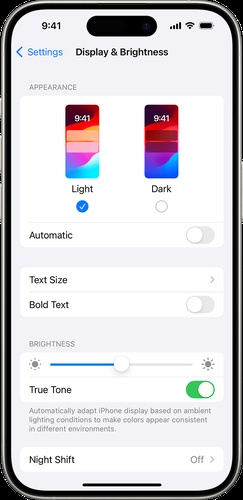
Turn on Auto-Brightness if available.
Go back to Settings and tap Privacy.
-
Open Location Services and disable access for apps that do not need it.
5. Use Certified and High-Quality Chargers
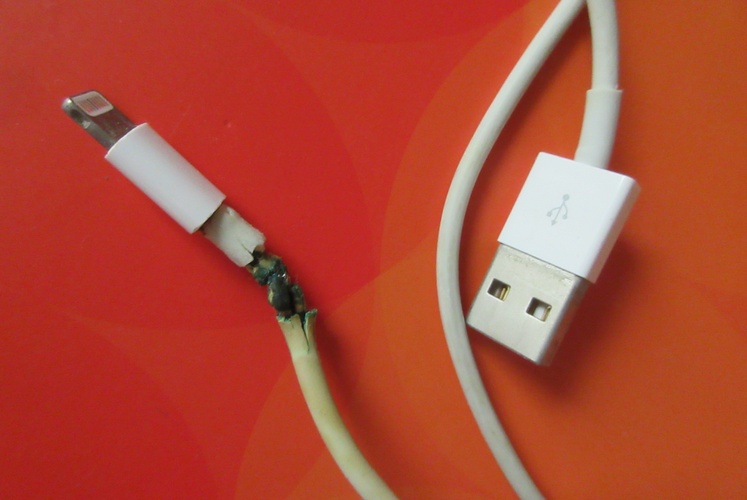
A poor charger is a major reason why iphone 17 gets hot when charging. Cheap or damaged chargers can send unstable voltage. This creates extra heat and can damage battery health over time. Using certified accessories makes sure stable power flow.
-
Use the original Apple charger or a certified MFi charger.
Avoid very cheap third-party cables.
-
Check the cable for visible damage.
-
Do not use a charger that becomes very hot during use.
-
Plug directly into a wall outlet instead of unstable extensions.
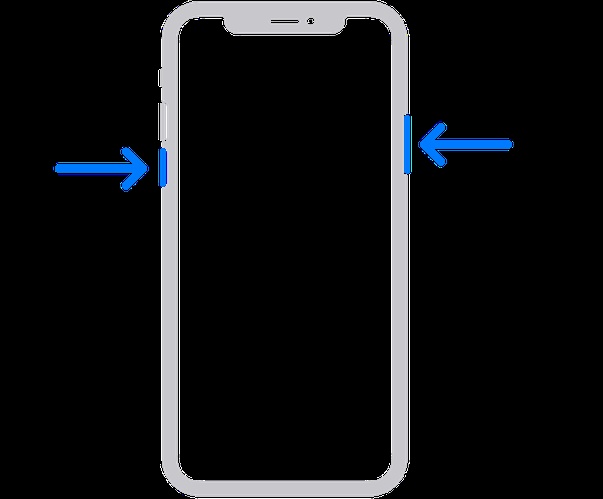
6. Restart the Device to Clear System Load
A simple restart can remove temporary system glitches. Background tasks sometimes get stuck and keep using processing power.
Restarting refreshes the system and improves performance.
7. Reset All Settings Without Losing Data
Resetting all settings can help fix iPhone 17e overheating without affecting your personal data. Sometimes hidden software glitches or incorrect system configurations cause the phone to heat up. This method refreshes system preferences while keeping apps, photos, and files intact.
-
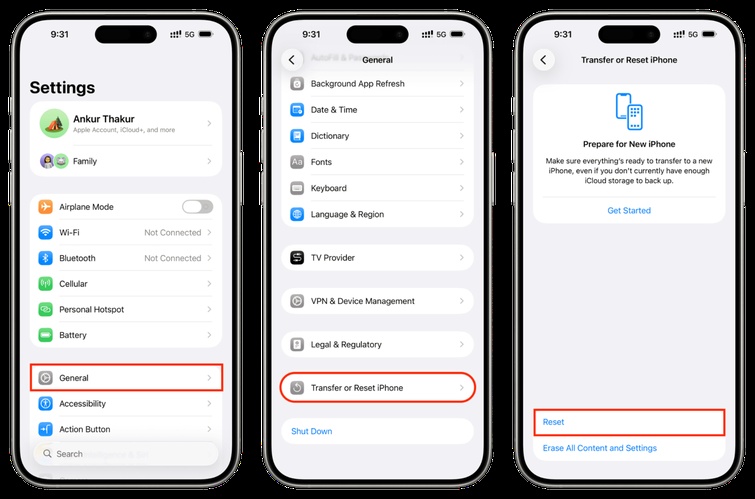
Open Settings on your iPhone to access all system controls.
Tap General to reach device-related options.
Scroll down and select Transfer or Reset iPhone.
-
Tap Reset to see available reset options.
-
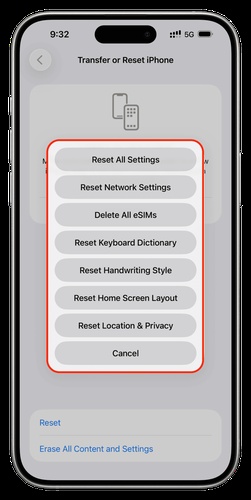
Choose Reset All Settings, which restores system preferences to default.
-
Enter your passcode when prompted to verify your action.
-
Confirm the reset and wait for the iPhone to restart automatically.
8. Know When Overheating Is Not Normal
Many people ask, is iPhone 17e overheating normal. Slight warmth during charging, updates, or gaming is normal. However, extreme heat, warning messages, automatic screen dimming, or charging pause is not normal.
If your phone shows a temperature warning, let it cool completely before using it again.
9. Contact Support for Hardware Issues
If all fixes fail and your phone still overheats during simple tasks, there may be a hardware issue such as battery damage or internal fault. Professional help makes sure safe diagnosis and repair.
-
Back up your data to iCloud or a computer to prevent any potential data loss.
-
Visit an official Apple Store or authorized service center.
-
Alternatively, contact Apple Support online or through the Apple Support app.
-
Clearly explain when and how the overheating occurs.
Part 3. How to Prevent iPhone 17e from Overheating
Keeping your iPhone 17e cool is easier than fixing it after it gets too hot. Regular care, smart usage habits, and attention to settings can prevent iPhone 17e overheating, protect your battery, and keep your phone running smoothly. By making small adjustments in daily use, you can avoid heat buildup and performance issues.
1. Keep the Phone in a Cool Environment
Avoid leaving your iPhone in direct sunlight, hot cars, or near heaters. High external temperatures increase internal heat quickly, which can affect battery life and performance.
2. Limit Continuous Heavy App Usage
Gaming, video editing, and streaming for long periods put pressure on the processor and graphics chip. Take breaks between sessions to allow the device to cool down naturally.
3. Use Certified Chargers and Cables
Low-quality chargers or cables can deliver unstable current, creating extra heat. Always use Apple-certified or MFi-approved accessories to ensure safe and efficient charging.
4. Manage Screen Brightness and Display Settings
High screen brightness produces extra heat. Reduce brightness to a comfortable level, enable Auto-Brightness, and use Dark Mode when possible to lower energy use.
5. Turn Off Unnecessary Features
Features like Bluetooth, Location Services, Background App Refresh, and automatic downloads run continuously in the background. Turning them off when not needed reduces CPU workload and heat generation.
6. Close Unused Apps Regularly
Apps running in the background use memory and processing power. Make it a habit to close apps you don't actively use to keep the system running cooler.
7. Remove the Phone Case During Intensive Tasks
Thick or insulated cases can trap heat. Removing the case while charging or during long gaming sessions allows better airflow and helps maintain safe temperatures.
8. Avoid Using the Phone While Charging
Using the iPhone during charging adds extra stress to the battery and processor, generating heat. Charge your phone while it is idle for safer and cooler charging.
9. Monitor Battery Health Regularly
Aging or damaged batteries can overheat more easily. Check battery health in Settings, enable Optimized Battery Charging, and replace the battery when needed.
Part 4. Fix iPhone 17e Overheating Easily with Reiboot
Sometimes iPhone 17e overheats because of hidden software problems, failed updates, or minor iOS glitches. Tenorshare ReiBoot is an easy-to-use tool that can fix these problems safely. It can repair over 150 iOS issues like overheating, battery drain, frozen screens, boot loops, and update errors.
ReiBoot is special because it can fix your iPhone without deleting your personal data. It also helps fix problems after updates, which can sometimes cause iPhone 17e overheating. Using ReiBoot keeps your iPhone running smoothly, cool, and stable.
Key advantages:
-
Fixes 150+ iOS system issues including overheating, stuck screen, and boot loop
-
Repairs iPhone without deleting your personal data
-
One-click option to enter or exit recovery mode easily
-
Helps resolve issues after updates like iPhone overheating after upgrading
-
Supports iOS upgrade and downgrade without iTunes
-
Fixes iTunes errors and system bugs that may cause overheating
-
Fast repair process with high success rate
Steps to Fix iPhone 17e Overheating Using ReiBoot
-
Step 1: Install and Launch ReiBoot
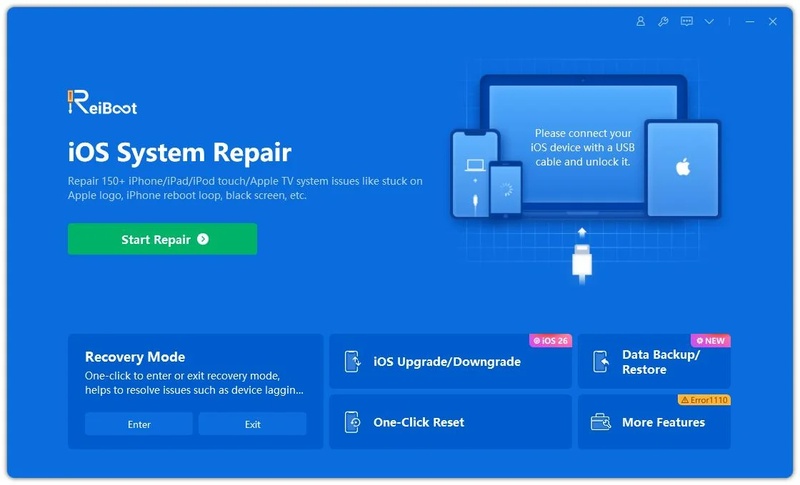
Download and install Tenorshare ReiBoot on your computer. Once installed, connect your iPhone to the computer using a USB cable. Click on the "Start Repair " button on the main interface to begin the repair process.
-
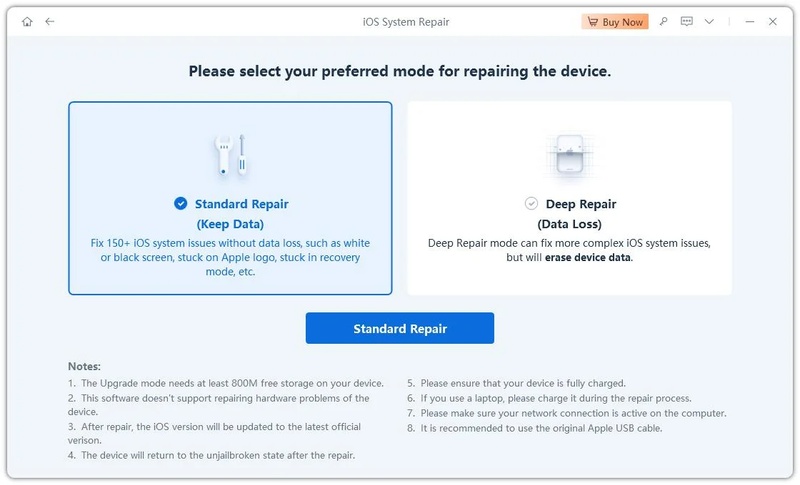
Step 2: Choose Standard Repair
Select "Standard Repair" mode. This option is recommended because it fixes system issues without deleting your data. Read the on-screen instructions carefully before continuing.
-
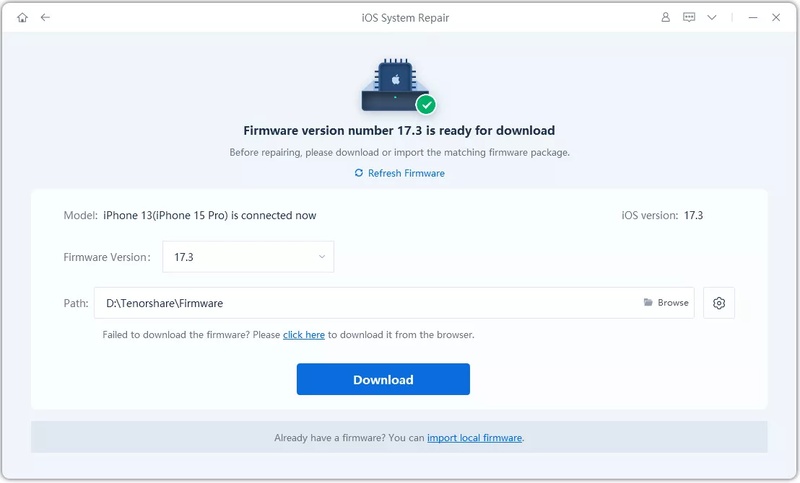
Step 3: Download Firmware Package
Click "Download" to get the latest firmware package required for repair. The file size is large, so it may take some time depending on your internet speed.
-
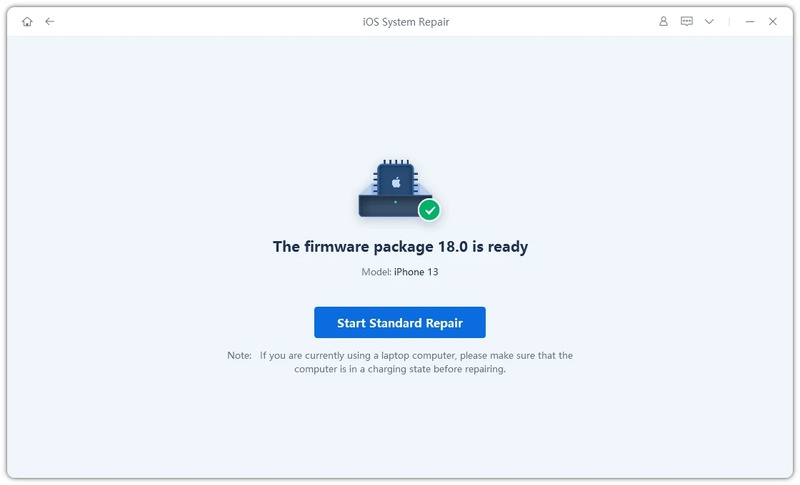
Step 4: Start Repairing the iPhone
Once the firmware is downloaded, click "Start Standard Repair". The tool will automatically fix system issues that may be causing overheating.
-
Step 5: Wait for Completion
Keep your device connected during the process. After a few minutes, your iPhone will restart, and the overheating issue should be resolved.

Part 5. FAQs on iPhone 17e Overheating
Q1. Can overheating permanently damage a phone?
Yes, frequent overheating can harm your iPhone over time. It can reduce battery life, slow performance, and in rare cases, damage internal components.
Q2. Is iOS 26 causing heating issues?
Sometimes. After updating to iOS 26, the phone may get warm while apps and files are updating. If it stays hot for a long time, it needs a fix.
Q3. Is my iPhone overheating due to a virus?
No. iPhones rarely get viruses. Overheating is usually caused by apps, background tasks, charging, or system glitches, not malware.
Conclusion
iPhone 17e overheating can affect performance, drain battery quickly, and make using your device frustrating. Most causes are easy to prevent or fix with proper care, like updating apps, using certified chargers, and managing settings. For persistent or software-related overheating, a reliable solution is key. ReiBoot offers a safe and easy way to repair your iPhone, restore normal performance, and keep it running cool.
