
Updated on 2026-07-21 / iPhone Tips
With the release of the iOS 27 in June, many iPhone 15 Pro Max users have reported experiencing a "Dead After iOS 27 Update" issue. Don't panic. This guide explains the real causes behind the problem and provides several effective methods to restore your device without data loss. Please read carefully before proceeding.
Part 1. Why Is My iPhone 15 Pro Max Dead After the iOS 27 Update?
If your iPhone 15 Pro Max or any other iPhone 15 series model fails to boot at all after installing iOS 27, it is typically due to a software issue. Based on user feedback from various forums and media outlets, it has been determined that this is a bug exclusive to the iPhone 15 Pro Max and iPhone 15 Pro when upgrading to the iOS 27.

-
iOS 27 Boot Process Failure: The most common cause is a failed boot sequence. After installing iOS 27, some iPhone 15 Pro Max devices enter an abnormal startup state and cannot load iOS properly.
-
Corrupted Firmware After the Update: System files can become corrupted during or shortly after a major update. When critical firmware components are damaged, the iPhone may fail to initialize the operating system, preventing it from turning on normally.
-
Force Restart Triggering an Existing iOS 27 Bug: Several users reported that their iPhone worked normally for hours after updating to iOS 27. The issue only appeared after performing a force restart.
-
Failed System Initialization: During startup, iOS must load drivers, security modules, and core system services. If one of these components fails to initialize correctly after the update, the iPhone can become trapped in a black screen state with no visible signs of activity.
-
Incomplete Update Installation: Even when an iOS update appears to install successfully, some background processes continue after the device restarts. If these processes are interrupted or fail to complete correctly, the system may become unstable and eventually stop booting altogether.
Part 2. How to Fix iPhone 15 Pro Max Dead After iOS 27 Update
| Solution | Success Rate | Data Loss | Ease of Use | Time Required |
|---|---|---|---|---|
| Apple Configurator | High | No | Moderate | 20–30 mins |
| Charge iPhone | Low | No | Very Easy | 30 mins |
| ReiBoot | High | No | Very Easy | 10–20 mins |
| Force Restart | Medium | No | Easy | 1 min |
| Recovery Mode | High | Possible | Moderate | 20–40 mins |
| DFU Mode | Very High | Yes | Difficult | 30–60 mins |
| Contact Apple Support | Depends on Issue | No | Easy | Hours to Days |
1. Revive iPhone Using Apple Configurator
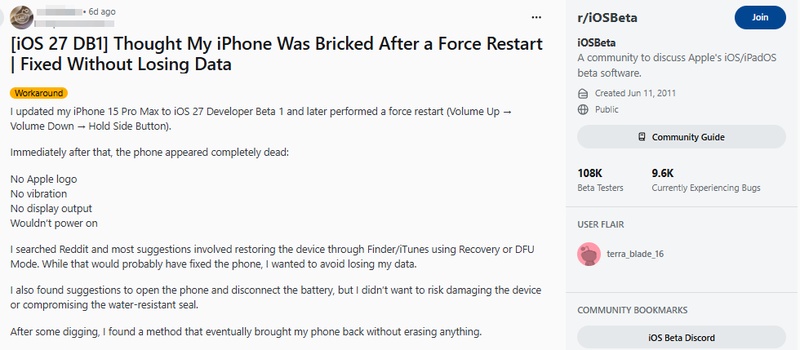
Apple Configurator can often bring your iPhone 15 Pro back to life without erasing your data. This solution has already helped some affected iPhone 15 Pro Max users recover devices that appeared bricked after a force restart on iOS 27.
We recommend you try this method first, as it has already been verified by many users on Reddit and other platforms.
Steps:
-
Install the App: Download and install the latest version of Apple Configurator from the Mac App Store.
-
Connect: Plug your iPhone 15 Pro Max into the Mac using a high-quality USB-C cable (preferably the original Apple cable).
-
Enter DFU Mode: With the phone connected, quickly press and release Volume Up, quickly press and release Volume Down, then press and hold the Side button until the screen goes black. The moment it goes black, hold both the Side button + Volume Down for 5 seconds. Release the Side button but keep holding Volume Down for another 10 seconds. (The screen must remain completely black).
-
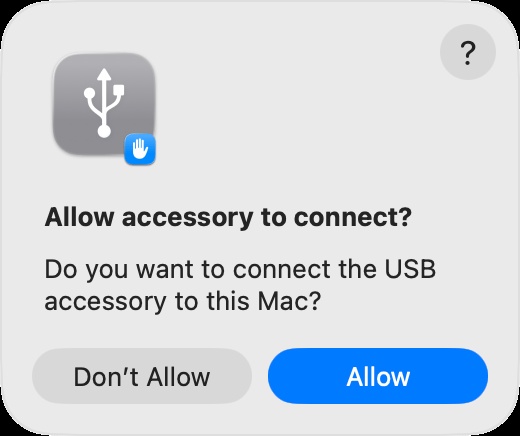
Allow Connection: Open Apple Configurator. If macOS prompts you to "Allow accessory to connect," make sure to click Allow immediately.
-
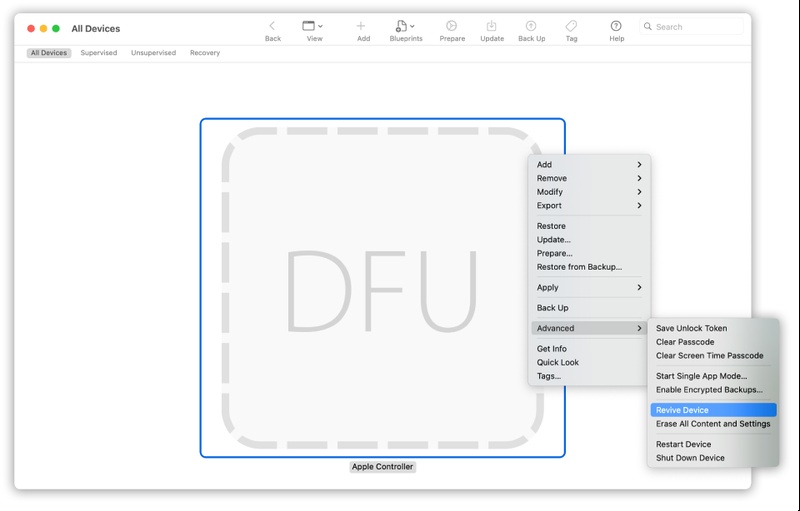
Trigger Revive: Once a large gray icon labeled "DFU" appears in the software, right-click it, navigate to Advanced, and select Revive Device (then click Revive to confirm).
-
Finish Process: Keep the cable firmly connected. The software will download the firmware and reinstall the system files. Wait for your iPhone 15 Pro Max to show the Apple logo and reboot normally with all your data intact.
2. Charge iPhone 15 Pro Max First
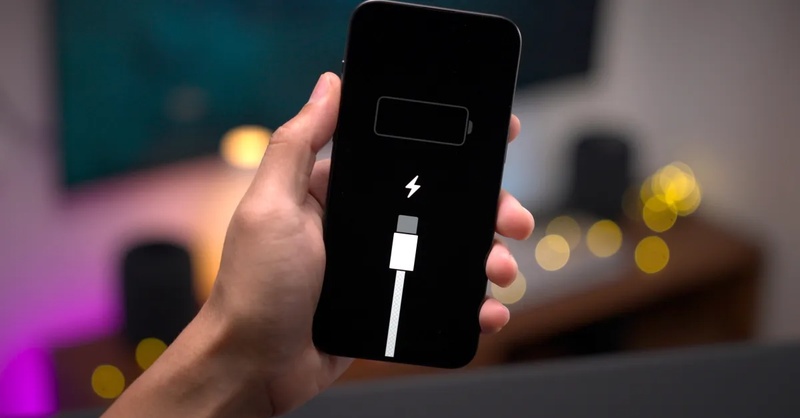
Before attempting advanced troubleshooting, make sure the iPhone is receiving power. Some iOS update failures can cause the battery indicator to become inaccurate, making a charged device appear completely dead. Charging the device is the quickest way to rule out a power-related issue.
Steps:
-
Connect your iPhone 15 Pro Max to an official Apple charger or a certified USB-C charger.
Plug the charger directly into a wall outlet.
-
Leave the device charging for at least 30 minutes without interruption.
-
Check for any signs of activity, such as the charging icon, vibration, or Apple logo.
After 30 minutes, perform a force restart.
-
If the device still does not respond, continue with the next troubleshooting method.
3. Fix iPhone 15 Pro Max Dead After iOS 27 Without Losing Data
The biggest concern is usually data loss. A dedicated iOS system repair tool like ReiBoot is designed to safely fix these types of update issues. It can repair the system without deleting any data, including photos, messages, or apps. In addition, it is simple to use, works quickly, and can fix over 150+ iOS issues.
Key benefits:
-
Repairs iOS system issues without erasing personal data
-
Resolve iPhone dead, black screen...150+ iOS Issues easily
-
Works even when the iPhone is not responding or not booting normally
-
Free One-Click Entry and Exit from Recovery Mode
-
Offers Standard Repair, Deep Repair, and DFU Repair
Steps to use Reiboot:
- Step 1: Launch ReiBoot on Your Computer
Download and install Tenorshare ReiBoot on your computer. Open the program and connect your iPhone that became dead after the iOS 27 update.

- Step 2: Click on "Standard Repair"
Click on "Standard Repair" when ReiBoot detects your device to fix the iPhone dead issue without data loss.

- Step 3: Download Firmware Package
Download the latest firmware package when prompted. ReiBoot will automatically prepare the correct firmware for your device.

- Step 4: Start Standard Repair
Once the firmware is ready, click “Start Standard Repair” to repair the iPhone dead issue after iOS 27 update. Wait for the process to complete.

- Step 5: iPhone Revived Successfully
Your iPhone will restart automatically after repair. Check whether the device powers on normally again after the iOS 27 update issue is fixed.

4. Force Restart iPhone 15 Pro Max
A force restart is the first troubleshooting step you should try, but it can only resolve general iPhone issues.
Steps:
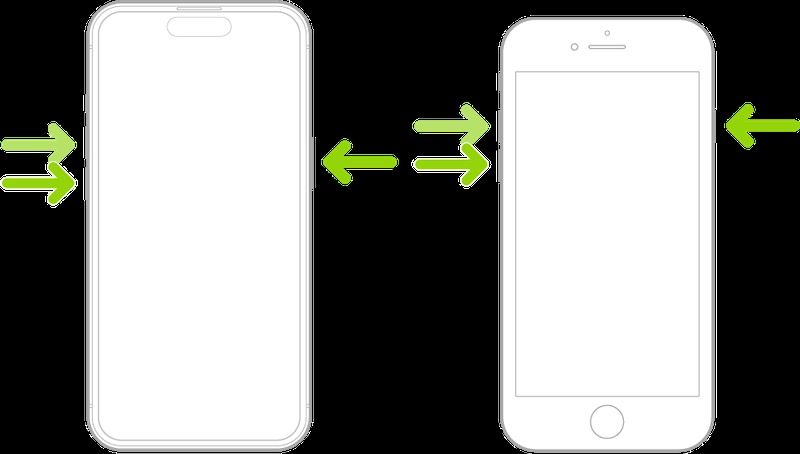
Quickly press and release the Volume Up button.
Quickly press and release the Volume Down button.
-
Press and hold the Side button for at least 15--20 seconds.
-
Keep holding the Side button even if the screen remains black, as a deeply bricked system needs more time to force-reboot.
-
Release the button immediately when the Apple logo appears on the screen.
-
Wait for your iPhone 15 Pro Max to boot back to the lock screen. (Note: If the screen stays black after 30 seconds, plug it into power for 15 minutes and repeat these steps).
5. Update or Restore iPhone in Recovery Mode
If a force restart does not work, Recovery Mode is Apple's official method for repairing a corrupted iOS installation. You can first try updating the device, which reinstalls iOS without deleting your data. All it takes is a single data cable and a computer, and you can do it with a simple hardware shortcut.
Steps:
-
Connect your iPhone 15 Pro Max to a Mac or Windows PC using a reliable USB-C cable.
-
Open Finder (on Mac running macOS Catalina or later) or iTunes (on Windows or older Macs).
-
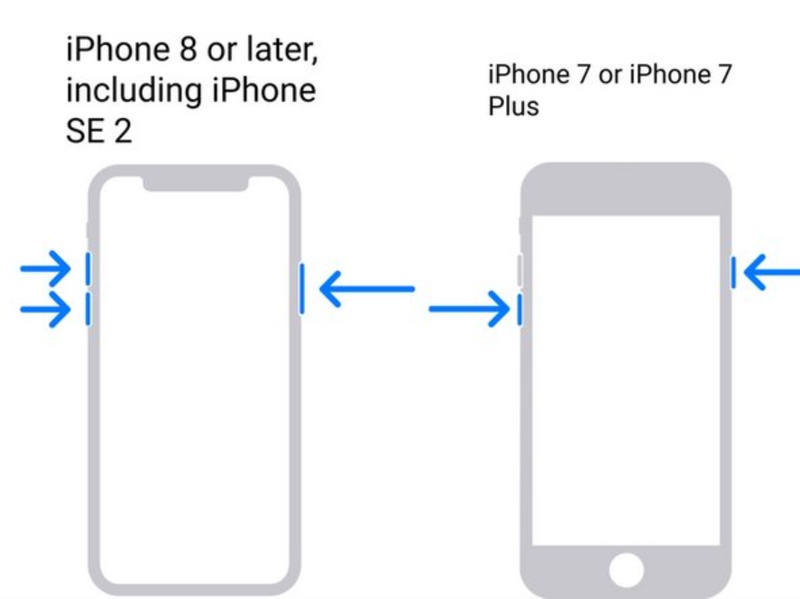
Trigger Recovery Mode: We recommend using Reiboot to enter and exit recovery mode with a single click for free! Manually enter recovery mode: Quickly press and release Volume Up, quickly press and release Volume Down, then press and hold the Side button. Keep holding the Side button even when the Apple logo flashes---do not release it until you see the "connect to computer" screen on your iPhone.
-
Once connected, a pop-up window will automatically appear on your computer screen. Select "Update" first to reinstall iOS without erasing your data.
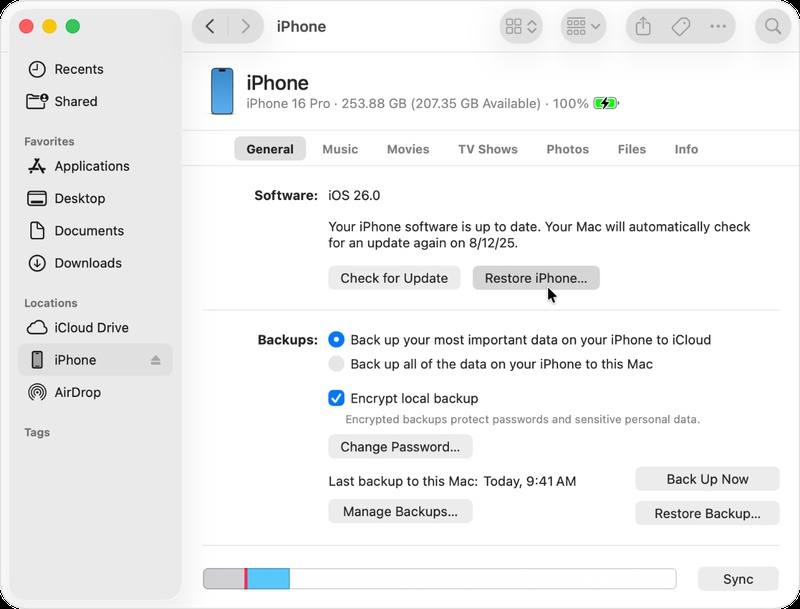
Allow the computer to download the iOS firmware.
-
If the "Update" process fails or doesn't fix the issue, repeat the exact same steps, but this time select "Restore" (Note: This will erase all data and factory reset the device).
-
Wait for the restore process to complete, and follow the on-screen instructions to set up your iPhone 15 Pro Max again.
6. Restore iPhone 15 Pro Max in DFU Mode
DFU Mode is the deepest type of system restore available on an iPhone. It bypasses the current operating system and firmware, allowing a completely fresh installation of iOS. If Recovery Mode can not fix your iPhone, DFU Mode is often the most effective remaining solution.
Note: A DFU restore erases all data on the device. Only use this method after other recovery options have failed.
Steps:
-
Connect your iPhone 15 Pro Max to a Mac or Windows PC using a high-quality USB-C cable. (We highly recommend using Reiboot for DFU Repair, as it makes the process simple and safe.)
Open Finder or iTunes on your computer.
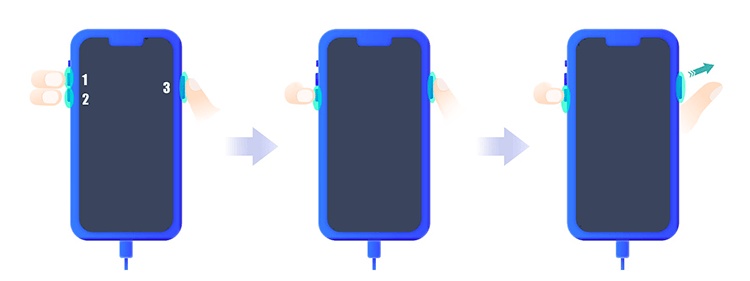
Quickly press and release the Volume Up button.
Quickly press and release the Volume Down button.
-
Press and hold the Side button for about 10 seconds until the screen turns completely black.
-
Crucial Timing: The exact moment the screen goes black, press and hold the Volume Down button while still holding the Side button for exactly 5 seconds.
-
Release the Side button but keep holding the Volume Down button for another 10 seconds.
-
Check the Screen: Verify that the iPhone screen remains completely black.
-
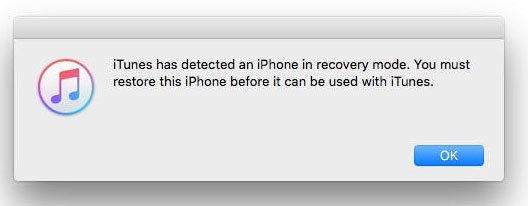
Computer Prompt: Look at your computer. Finder or iTunes will display an alert stating it has detected an iPhone in recovery mode. Click OK, and then select Restore iPhone.
-
Keep the cable firmly connected. Wait for the computer to download the firmware and completely wipe and reinstall iOS on your iPhone 15 Pro Max.
7. Contact Apple Support for a Hardware Check
While most iPhone 15 Pro Max devices that become unresponsive after an iOS 27 update are affected by software issues, a faulty battery, charging circuit, or logic board problem can produce similar symptoms. Apple technicians can run professional diagnostics to determine the exact cause and recommend the appropriate repair.
Steps:
-
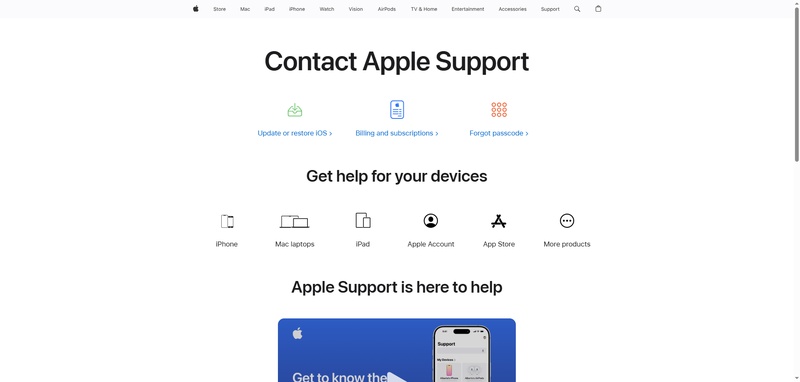
Visit the Apple Support website or open the Apple Support app.
-
Select your iPhone 15 Pro Max and choose a repair or service option.
-
Schedule an appointment at an Apple Store or Apple Authorized Service Provider.
-
Bring your iPhone, charging cable, and any relevant accessories to the appointment.
-
Explain when the issue occurred and mention that it started after installing iOS 27.
-
Allow the technician to perform a full hardware diagnostic check.
-
Review the results and follow Apple's recommended repair or replacement options if a hardware issue is confirmed.
Part 3. How to Avoid Your iPhone Dying During an iOS Update
If this is your primary phone, we don't recommend upgrading to iOS 27 right away. You can wait until the official version is released before upgrading. Most cases of iPhone dying can be prevented by taking a few simple precautions. If you're planning to upgrade, take a look at the following preventive steps.
Key tips:
-
Fully charge your iPhone or keep it above 50% before updating
-
Use a stable Wi Fi connection throughout the update
-
Free up sufficient storage space before installing iOS
-
Avoid interrupting the update process or restarting the device manually
-
Do not install updates on your primary daily-use iPhone
-
Always back up your data to iCloud or a computer before updating
FAQs About iPhone 15 Pro Max Dead After iOS 27 Update
Q1. Will I Lose My Data If My iPhone 15 Pro Max Died After Updating?
Usually no. If the issue is caused by the iOS 27 update, your data is still on the device and can often be recovered. Data is only erased if you choose Restore or DFU mode.
Q2. Why did my iPhone work after update but die after a force restart?
This is a known pattern in some iOS issues. The system may appear stable after installation but fails during the next boot cycle, especially after a force restart triggers system reinitialization.
Q3. Why is my iPhone 15 Pro Max not detected by Mac after iOS 27 update?
This typically indicates a deeper system crash where iOS fails to load even the basic communication drivers. It does not automatically mean hardware failure, but it does suggest the issue is more severe than a normal crash.
Conclusion
Now that you understand how to fix the iPhone 15 Pro Max Dead After iOS 27 Update issue, make sure to carefully check the priority and safety level of each method before taking action. This will help you save time and avoid unnecessary data loss. ReiBoot can also resolve this issue effectively, offering a simple and safe way to fix the system without erasing any data, and it is safe and reliable.
