
Updated on 2026-08-21 / iPhone Tips
The progress bar hasn't moved for 20 minutes, and your iPhone still says "Preparing Update." It may not be completely frozen, but the update is not moving forward. This can happen with iOS 27 because the update is larger and needs more space to prepare.
There are several simple ways to get the update moving again. In this guide, you'll find 8 practical fixes of iOS 27 stuck on preparing update to help your iPhone complete the update.
Part 1: What Does "Preparing Update" Mean on iPhone?
"Preparing Update" is the stage where your iPhone downloads the update files, verifies them, and gets everything ready before installation actually begins. It checks the software for errors, unpacks data, and organizes files in the background. During this step, your phone isn't installing iOS 27 yet, it's just getting the groundwork done first.
1.1 How Long Should Preparing Update Take on iOS 27?
Usually, preparing update take iOS 27 can take a few minutes to 30 minutes. A large update or low storage may make it take longer. If your iPhone stays on stuck on preparing update iOS 27 for a long time, try the fixes below.
Part 2: Why Is iOS 27 Stuck on Preparing Update?
There are several reasons why your iPhone stuck on preparing update. The most common ones include:
-
Poor Wi-Fi: A weak connection can interrupt the update.
-
Not enough storage: iOS needs free space to prepare the update.
-
Busy Apple servers: Many users updating at once can cause delays.
-
Temporary iOS glitch: A small software error may stop the process.
-
Low battery: The update may not continue with a very low battery.
-
Damaged update file: The downloaded file may not have completed correctly.
-
System activity: Background processes can sometimes slow down the update.
Part 3: How to Fix iOS 27 Stuck on Preparing Update
1. Wait and Check Your Internet Connection
Sometimes your iPhone isn't actually stuck, it's just working slowly because of a weak internet connection. iOS 27 needs a stable Wi-Fi signal to prepare and verify update files properly. If your connection keeps dropping, the "Preparing Update" screen can freeze without any real error.
Steps:
-
Open Settings and tap Wi-Fi to check if you're connected.
Move closer to your router for a stronger signal.
-
Turn Wi-Fi off and on again, then wait a few minutes.
-
If it still doesn't move, try switching to a different Wi-Fi network.
2. Restart Your iPhone and Try Again
A quick restart can clear temporary glitches that cause the iOS 27 stuck on preparing update problem. After restarting, try checking for the update again.
Steps:
-
Press and hold the Side button and either Volume button.
-
Drag the power-off slider.
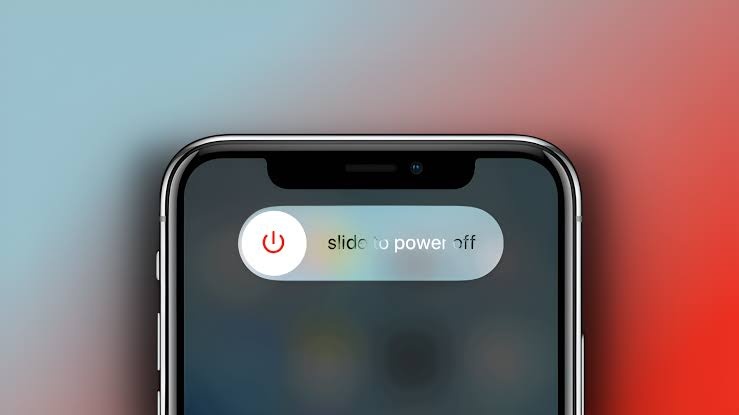
Wait a few seconds, then turn your iPhone back on.
3. Delete the Update and Download It Again
A partially downloaded or corrupted update file can cause the iPhone stuck on preparing update when setting up. Removing the file and downloading it again can fix the problem.
Steps:
Go to Settings > General > iPhone Storage.
Scroll down and find iOS 27 under the app list.
-
Tap it, then select Delete Update.

-
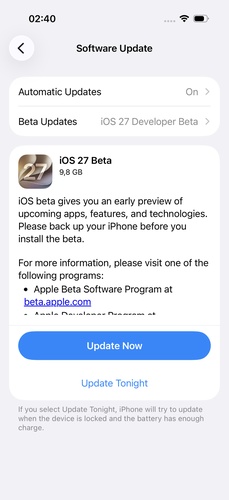
Return to Settings > General > Software Update and download it again.
4. Check Your iPhone Storage
Low storage space is one of the most common reasons for iOS 27 stuck on preparing update, especially on older models like the iPhone 11. Your iPhone needs enough free space to unpack and organize update files properly.
Steps:
Open Settings and tap General.
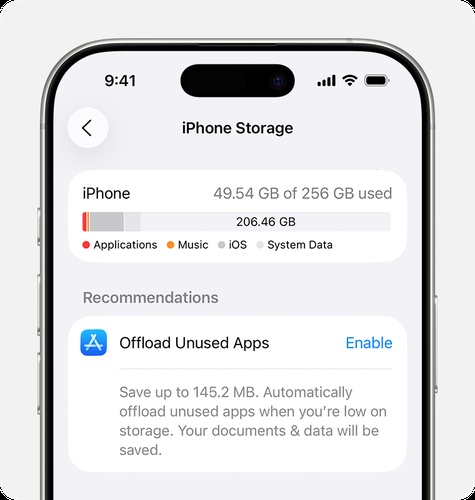
-
Select iPhone Storage to check the available space.
-
Remove unused apps, large videos, or other unnecessary files.
Restart your iPhone after freeing up some space.
5. Turn Off VPN and Switch Wi-Fi
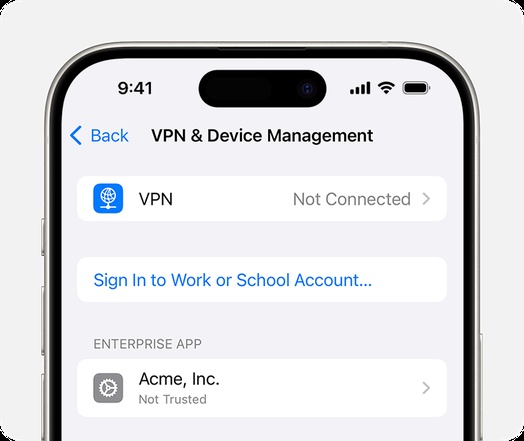
A VPN or unstable Wi-Fi connection can interfere with the update process and leave your iPhone stuck on preparing update iOS 27. Turn off the VPN and connect to a different, stable Wi-Fi network before trying the update again.
Steps:
-
Open Settings and tap General > VPN & Device Management.
-
Turn off any active VPN connection.
-
Go to Settings > Wi-Fi and disconnect from your current network.
Connect to another reliable Wi-Fi network.
6. Fix iOS 27 Preparing Update Issues With ReiBoot Without Losing Data
Basic restarts and storage checks don't always solve a stubborn "Preparing Update" freeze. Tenorshare ReiBoot offers a reliable way out for cases like this. It's built specifically to repair iOS system issues, and its standard repair mode fixes the update freeze without touching your personal data.
It's a much safer choice than a factory reset, especially when you haven't backed up recently. ReiBoot is also compatible with a wide range of iPhone models and iOS versions.
Key Features:
-
Fixes iPhone stuck on "Preparing Update," recovery mode, black screen, and other iOS issues
-
Standard Repair mode keeps all your data safe and untouched
-
Automatically downloads the correct firmware for your device
-
Works with the latest iOS versions, including iOS 27
-
Simple, guided process that doesn't require technical knowledge
How to Fix iOS 27 Stuck on Preparing Update With ReiBoot
-
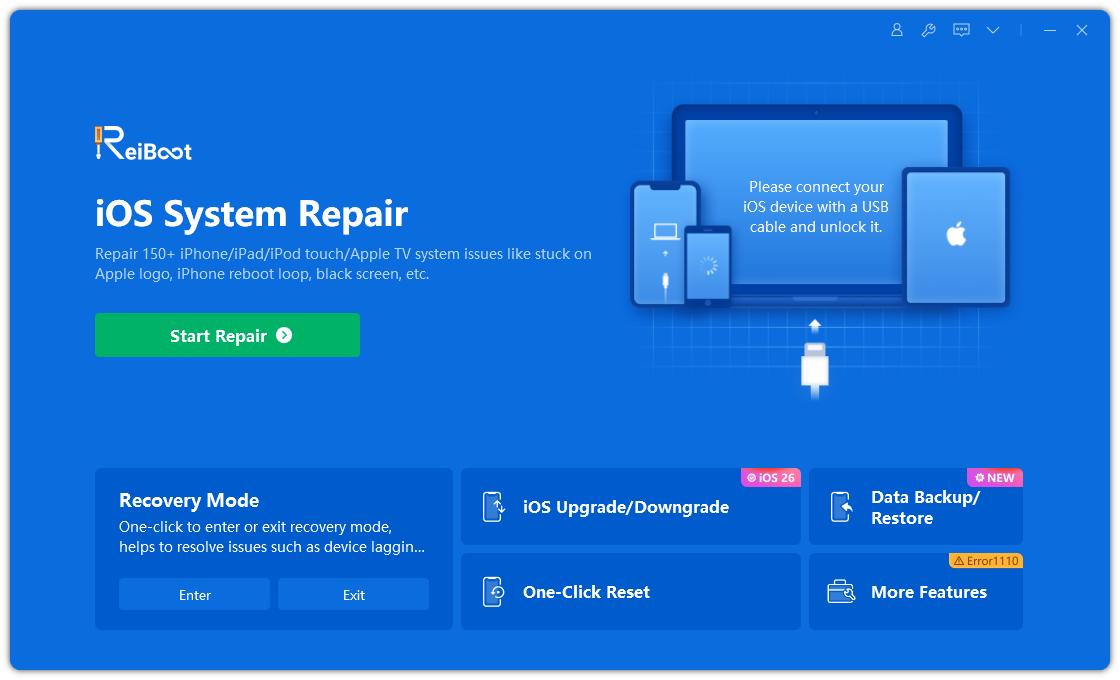
Download and install ReiBoot on your Windows PC or Mac. Open the program and connect your iPhone using a USB cable. Choose Start Repair.
-
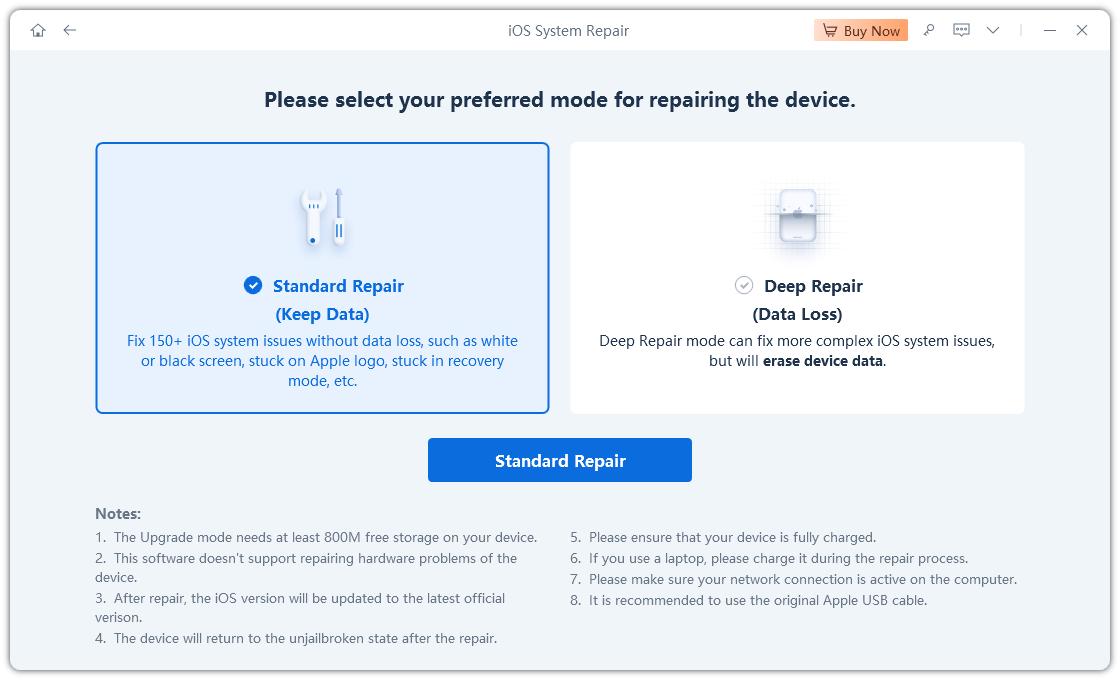
Choose Standard Repair to repair the iOS system without intentionally erasing your personal data.
-
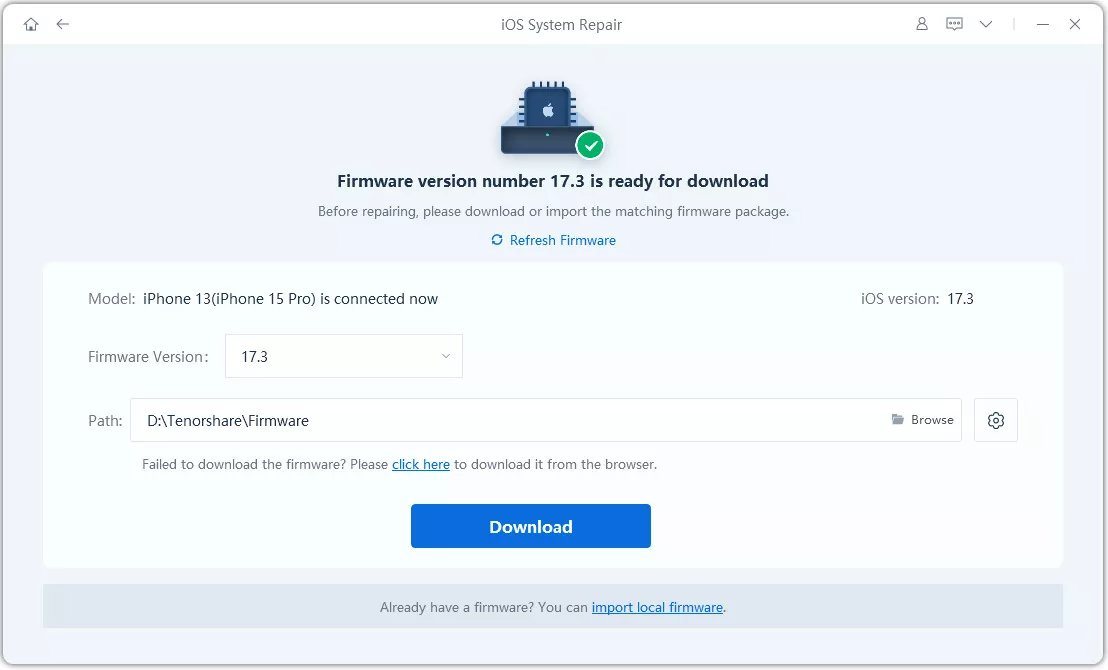
ReiBoot will show the firmware package for your device. Click Download and wait until the firmware is downloaded completely.
-
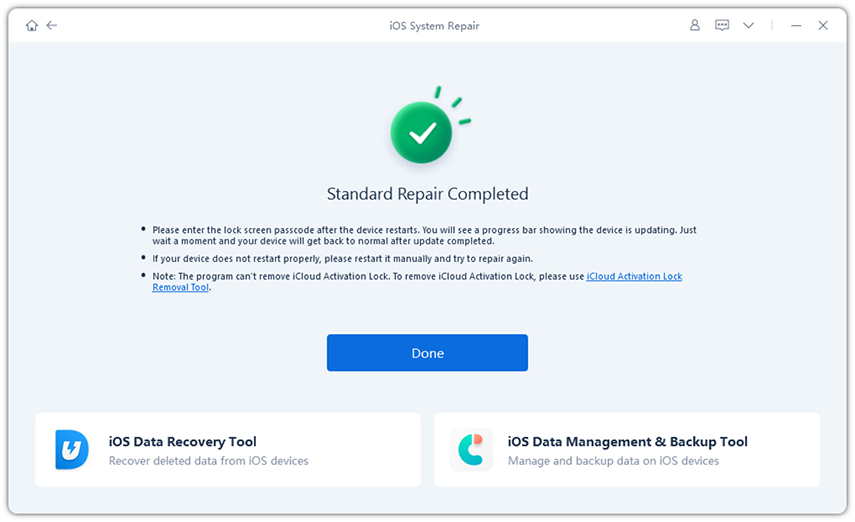
Click Start Standard Repair and let ReiBoot complete the process. Keep your iPhone connected until the repair finishes and the device restarts.
7. Update Your iPhone Using a Computer
Wi-Fi updates aren't the only option when your iPhone keeps repeating the "Preparing Update" issue. Updating through Finder or iTunes can offer a more reliable way to install iOS 27, especially on older iPhones like the iPhone 11.
Steps:
-
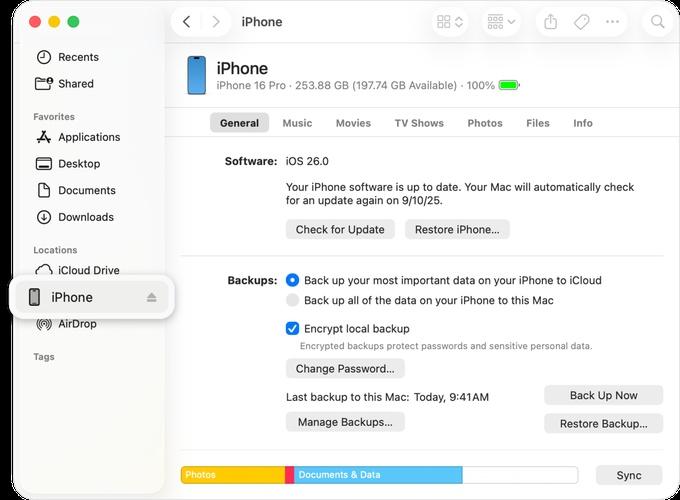
Connect your iPhone to your Mac or Windows PC using a USB cable.
-
Open Finder on a Mac or Apple Devices/iTunes on a Windows computer.
Select your iPhone when it appears on the screen.
-
Click Check for Update, then choose Download and Update if an update is available.
-
Keep your iPhone connected until the iOS 27 update is complete.
8. Use Recovery Mode as a Last Resort
Recovery Mode can help if your iOS 27 stuck on preparing update iPhone 11 or another iPhone model and none of the other fixes work. Since restoring your iPhone can erase its data, try Update first. Choose Restore only if updating does not fix the problem.
Steps:
-
Connect your iPhone to a Mac or Windows PC and open Finder, Apple Devices, or iTunes.
-
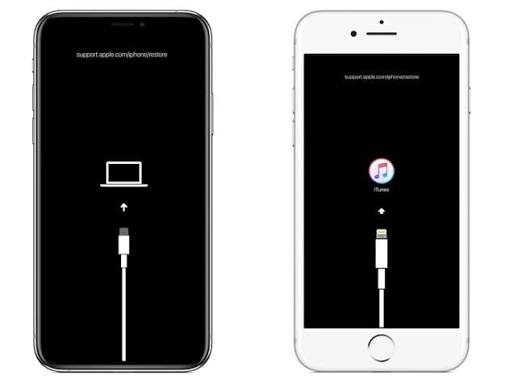
Put your iPhone into Recovery Mode using the button combination for your iPhone model.
-
Keep holding the required button until you see the Recovery Mode screen.
-
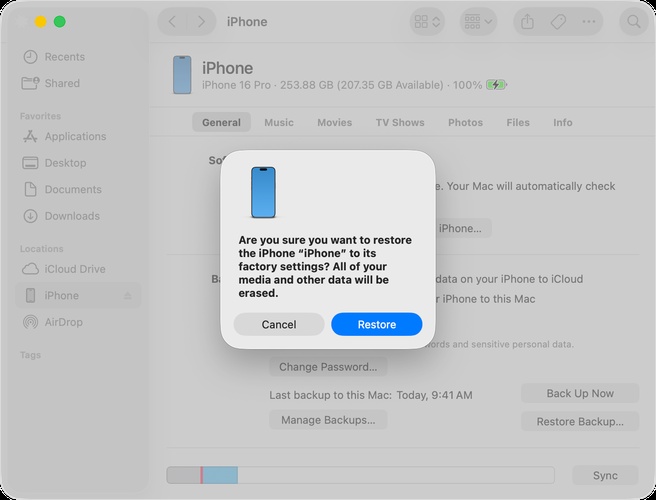
When the update or restore options appear on your computer, select Update first to reinstall iOS without erasing your data.
-
Wait for the process to finish. If the update fails, you may need to select Restore, which erases the iPhone.
Part 4: Can You Cancel an iOS 27 Update?
Yes, you can cancel an iOS 27 update while it's still preparing. Go to Settings > General > iPhone Storage, find iOS 27 in the list, and tap Delete Update. This stops the process safely without harming your data. However, once the update starts actually installing, it's best to let it finish instead of interrupting it.
FAQs About iOS 27 Stuck on Preparing Update
1. How long should Preparing Update take?
The Preparing Update process usually takes a few minutes to around 30 minutes. Large updates or slow internet connections may take longer.
2. Why is my iPhone stuck on Preparing Update when setting up?
A weak internet connection, low storage, or a temporary software glitch can cause the update to get stuck during setup.
3. Can I cancel an iOS update while it is preparing?
Yes. You can delete the downloaded update from iPhone Storage and download it again later.
4. How do I delete a stuck iOS update?
Go to Settings > General > iPhone Storage, find the iOS update, tap it, and select Delete Update.
Final Words
Don't let an iOS 27 stuck on preparing update keep you waiting. A quick restart, stable Wi-Fi, enough storage, or a fresh update download can often get things moving again. Still no luck? ReiBoot offers a simple Standard Repair option to fix common iOS issues without wiping your personal data. Give it a try and get your iPhone back on track.
