
Updated on 2026-09-16 / iOS 26
If you’re excited about trying the new features in iOS 26/27, you might be looking for a safe way to get it on your device. The easiest method is to use the iOS 26/27 IPSW download. IPSW files are official firmware files that let you install or restore iOS versions on your iPhone or iPad. In this guide, we’ll show you where to find the IPSW iOS 26/27 file and how to download iOS 26/27 IPSW safely in 2026. No matter if you're a developer or just interested in trying it out, this guide will get you started with iOS 26/27.

- Part 1: Is an IPSW File Safe? Everything You Need to Know
- Part 2: How to Download iOS 26/27 IPSW? [Step-by-Step Guide]
- Part 3: Best Way to Install iOS 26/27 Without iTunes (IPSW Alternative)
- Part 4: How to Download iOS 26/27 IPSW throughprofile?
- Part 5: iOS 26/27 IPSW Installation Issues & Quick Fixes
Part 1. Is an IPSW File Safe? Everything You Need to Know
An IPSW file is a firmware package used by Apple devices to install or restore iOS, iPadOS, tvOS, or macOS. These files are typically downloaded from Apple's official servers or through iTunes and Finder when updating or restoring your device.
So, is an IPSW file safe?
Yes—IPSW files are generally safe to use, as long as they come from a trusted source like Apple. When you download them directly via iTunes, Finder, or Apple’s official website, there’s no risk of malware or corruption.
However, risks arise when downloading IPSW files from unofficial third-party sites. These files might be outdated, incompatible, or even tampered with. Installing such firmware could lead to system instability, data loss, or even device bricking.
Safety Tips When Using IPSW Files:
- Always download from Apple's official site or use tools like iTunes or Finder.
- Double-check the IPSW version to ensure it matches your device model.
- Avoid modified IPSW files that promise “unlocked” features—they’re risky and may violate Apple’s terms.
In short, IPSW files are safe if you get them from the right source and use them properly.
Part 2. How to Download iOS 26/27 IPSW? [Step-by-Step Guide]
If you’re ready to try the new features of iOS 26/27 before its official release, you can manually install it using an IPSW file. This method gives you more control and can help if Over-The-Air (OTA) updates don’t work or if you're managing multiple devices.
To get started with your iOS IPSW download, follow these steps carefully:
Step 1: Open Finder on your Mac or iTunes on your Windows PC, then connect your iPhone to the computer with a USB cable.
Step 2: If prompted, unlock your iPhone and tap 'Trust This Computer,' then follow the on-screen instructions.

Step 3: Once your iPhone appears in Finder or iTunes, hold the Option key on Mac or Shift on Windows, then click 'Check for Update.
Step 4: Select the IPSW file you downloaded, then click 'Open' to begin the installation. Once the update finishes, your iPhone will reboot. Remember to switch on Developer Mode once you're done.
Related read: How to enable developer mode on iOS 26/27.
Part 3. Best Way to Install iOS 26/27 Without iTunes (IPSW Alternative)
If you prefer not to use iTunes for installing the iOS 26/27 firmware, there’s a simpler option available. Tenorshare ReiBoot is a handy tool that allows you to download and install iOS 26/27 without relying on manual IPSW downloads or iTunes. It makes upgrading easy and safe, keeping your data intact throughout the process.
This tool isn’t just for installing firmware iOS 26/27 — it can also fix over 150 common iOS problems, like devices stuck on the Apple logo, Recovery Mode, or blank screens. Plus, it can help you downgrade to the latest stable iOS version without iTunes, reset your device, remove passcodes, and erase data permanently before selling your device.
Why Use ReiBoot Instead of IPSW Downloads?
- Skip iTunes/Finder Entirely – No manual IPSW steps needed.
- No Jailbreak Needed – Stay within Apple’s safety limits while testing versions.
- Safe Upgrades – Install iOS 26/27 without erasing your files or settings.
- Fix Common iOS Bugs – Stuck screens, boot loops, or Apple logo issues? It handles 150+ iOS glitches.
- Easy Downgrade – Not happy with iOS 26/27? Roll back to the latest stable iOS version without iTunes.
- Reset Without iTunes – Perform factory resets or clean wipes for resale.
- Bypass Lock Screens – Remove passcodes or access issues even without Apple ID or iTunes.
Here’s a quick step-by-step guide:
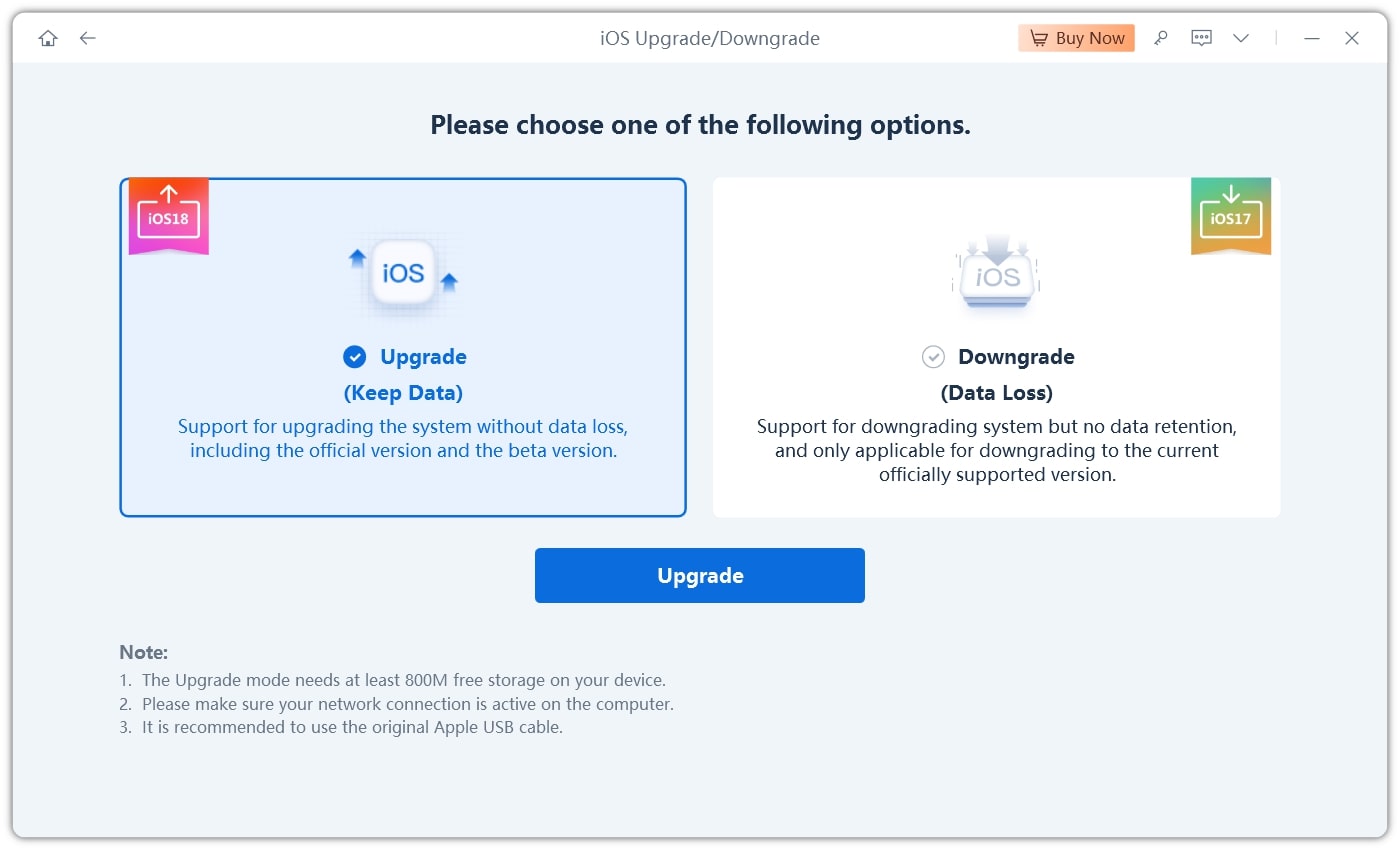
- Step 1: Plug your iPhone or iPad into your computer. Open ReiBoot on the computer. When your device asks, choose “Trust.” Then, click on “iOS Upgrade/Downgrade.”
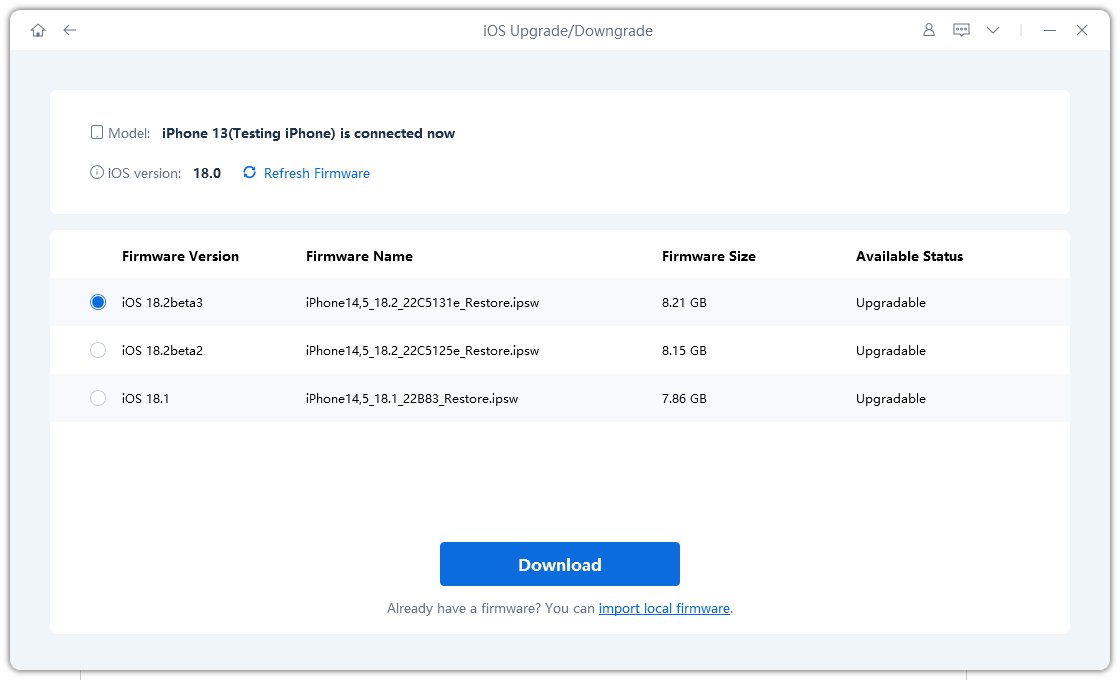
- Step 2: After that, press “Upgrade.” Then, click “Download” to start getting the iOS 26/27 firmware file.
- Step 3: Then, select “Start Upgrade.” Tap “Start Upgrade” once more. Once your device finishes upgrading to iOS 26/27, it will restart automatically.

Part 4. How to Download iOS 26/27 IPSW throughprofile?
A simple way to get iOS 26/27 is by adding a Profile directly to your iPhone or iPad. This profile is a small setup file that enrolls your device in Apple’s Program. Once installed, your device will receive software updates directly through its regular update system, without needing to manually download the IPSW firmware file.
This method simplifies the process by letting your device automatically check for and install the iOS 26/27 version. Here’s how you can get iOS 26/27 using a Profile website:
Step 1: Go toprofile.dev and find the iOS 26/27 Profile that matches your device. Then, download the profile to your iPhone or iPad.
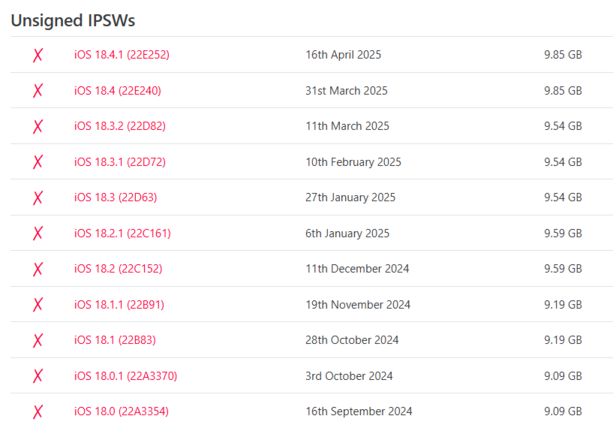
Step 2: Open the Settings app on your iPhone and install the downloaded Profile. Once installed, your device will receive future updates (such as iOS 26/27) just like normal OTA updates, so you won’t have to install the profile again.
Step 3: Go back to “Settings,” select “General,” and then tap “Software Update.” From there, you can download and install the iOS 26/27 update.
Part 5. iOS 26/27 IPSW Installation Issues & Quick Fixes
Installing iOS 26/27 IPSW manually may cause a few common issues. Here's how to fix them:
1. File Not Compatible
Fix: Ensure the IPSW matches your exact device model. Check via Settings > General > About.
2. iTunes/Finder Errors (e.g., 3194, 4013)
Fix: Update iTunes/Finder, switch USB cables or ports, restart both devices, and disable security software temporarily.
3. Stuck on Apple Logo or Verifying Step
Fix: Force restart your iPhone. If stuck persists, use tools like ReiBoot to repair without data loss.
4. Profile Conflict
Fix: Go to Settings > General > VPN & Device Management and remove any profiles, then reboot.
5. Stuck in Recovery/DFU Mode
Fix: Try restoring via iTunes/Finder. If it fails, use iPhone recovery mode tool like ReiBoot which can exit recovery or repair the system safely.
Recommended Tool: Tenorshare ReiBoot
If you run into these common problems, a handy solution is Tenorshare ReiBoot. This easy-to-use tool helps fix iPhones stuck on the Apple logo, recovery mode, or update screens. It also resolves many iTunes and Finder errors, making the IPSW installation process much smoother and less stressful. Using ReiBoot can save you time and help avoid data loss during troubleshooting.
Conclusion
Trying out the new iOS 26/27 is exciting, and downloading the iOS 26/27 IPSW file is one of the best ways to do it. However, sometimes you might face issues like the IPSW not installing properly or your device getting stuck on the Apple logo. These problems can be frustrating, but luckily, tools like Tenorshare ReiBoot can help. ReiBoot is designed to fix common update and installation problems quickly and safely, without risking your data. It makes the process of installing the iOS 26/27 IPSW much smoother and less stressful. If you want a reliable way to handle any issues during your iOS 26/27 IPSW download, ReiBoot is definitely worth trying.
