
Updated on 2026-09-16 / iPhone Tips
Have you recently updated your iPhone to iOS 26/27 and found yourself stuck in iOS 26/27 DFU mode? As Apple continues to release versions of iOS for developers and tech enthusiasts, bugs and glitches like iPhone stuck in DFU mode and won't restore can become common. Whether your iPhone is stuck in DFU mode or you’re just trying to understand what went wrong. Fortunately, there are proven methods to resolve this issue effectively, this guide offers you the top three reliable solutions to fix iOS 26/27 stuck in DFU mode without hassle or data loss.
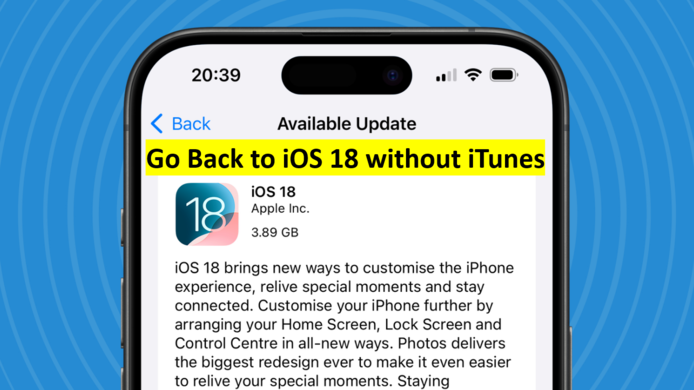
Part 1: Top 3 Ways to Go Back to iOS 18 in 2025
Before you begin the process to downgrade from iOS 26/27 to iOS 18, there are a few important things to understand. Downgrading your iPhone or iPad isn’t as simple as hitting a button — and skipping these steps might lead to issues or even data loss. To make sure everything goes smoothly, keep the following points in mind:
- Backup Your iPhone: Always back up your device using iCloud or Finder before starting. This protects your data in case something goes wrong during the downgrade.
- Check Compatibility: Make sure iOS 18 is still being signed by Apple. If it's not, you won’t be able to install it.
- Charge Your Device: Ensure your iPhone has at least 60% battery or keep it plugged in throughout the process.
- Turn Off “Find My iPhone”: Go to Settings > iCloud > Find My iPhone and turn it off. You’ll need your Apple ID password for this.
- Download the Right IPSW File (If Needed): If you’re manually downgrading, download the correct iOS 18 firmware for your device model.
- No Restore from Newer Backup: You can’t restore an iOS 26/27 backup on iOS 18. Only backups made on iOS 18 or earlier will work.
Method 1: Downgrade iOS 26/27 to iOS 18 Without Losing Data (No iTunes Needed)
You can downgrade iOS 26/27 to iOS 18 without iTunes and avoid complicated manual steps with Tenorshare ReiBoot. It is among the most secure tools available. It’s designed to simplify iOS system tasks no technical skills required. Whether you're facing issues with iOS 26/27 or just want to remove iOS 26/27 without iTunes, ReiBoot helps you downgrade smoothly without data loss.
Tenorshare ReiBoot is more than just a downgrade tool. It also allows users to upgrade iOS versions, fix over 150+ system problems (like black screen, stuck on Apple logo, etc.), and enter/exit recovery mode with just one click.
Key Features of ReiBoot:
- Downgrade iOS without using iTunes or Finder
- No data loss during upgrade or downgrade
- One-click to enter or exit Recovery Mode
- Fix iOS stuck issues like black screen, boot loop, etc.
- Compatible with the latest iOS 26/27 and iPhone models
- Clean, user-friendly interface for beginners
- Supports Standard and Deep Repair modes
How to Downgrade iOS 26/27 to iOS 18 Without iTunes Using ReiBoot
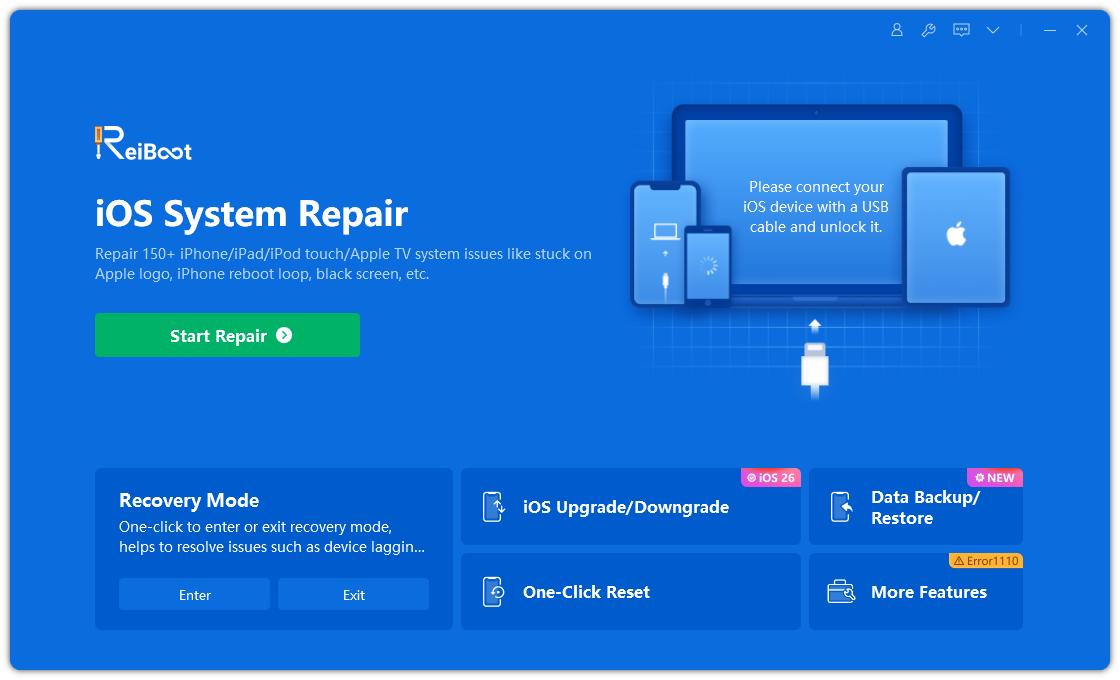
- Step 1: Download and install Tenorshare ReiBoot on your computer. Launch the program and connect your iPhone using a USB cable. Once connected, choose "iOS Upgrade/Downgrade" from the home screen.
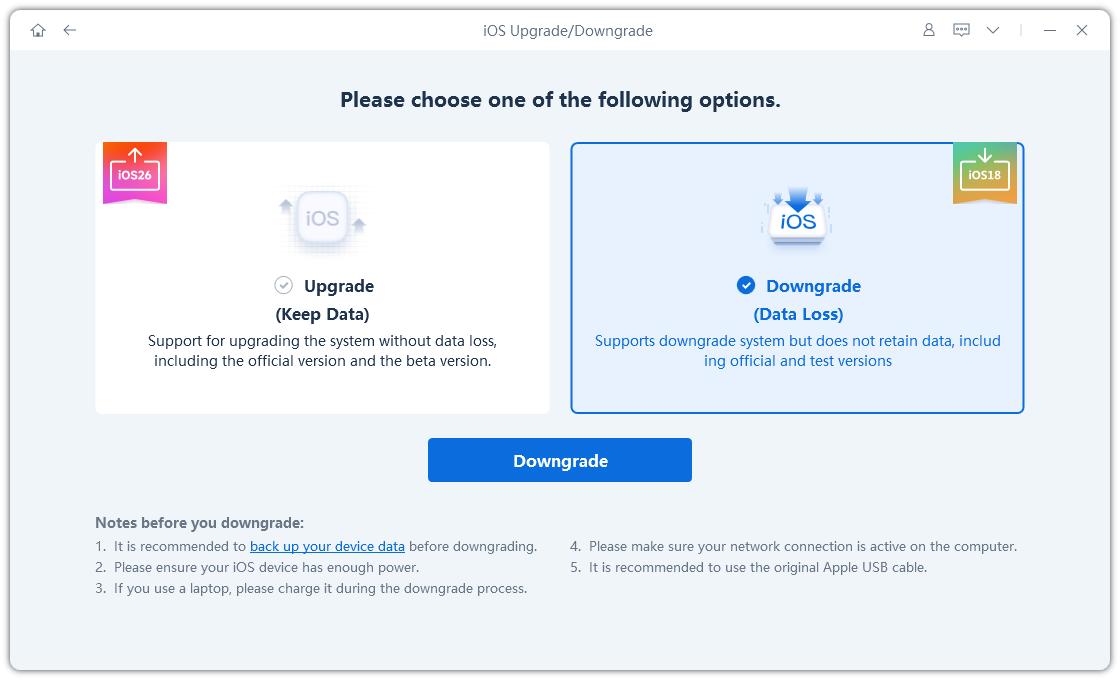
- Step 2: Then select "Downgrade" to start the downgrade process.
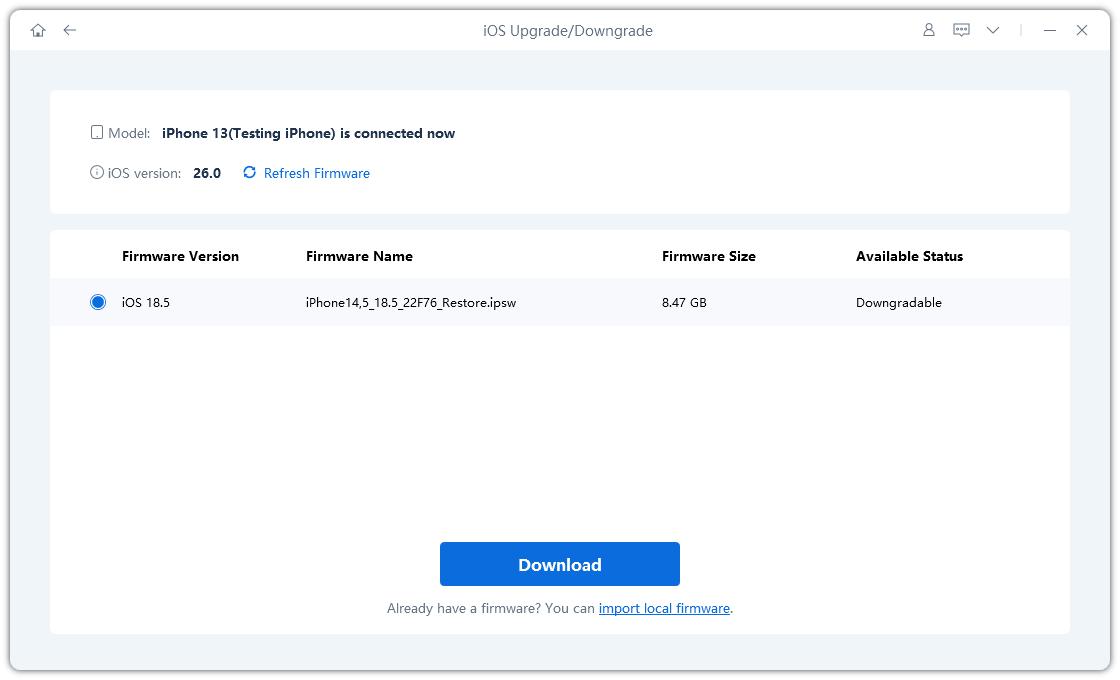
- Step 3: ReiBoot will detect your device and display available iOS firmware versions. Select iOS 18 from the list and click "Download".
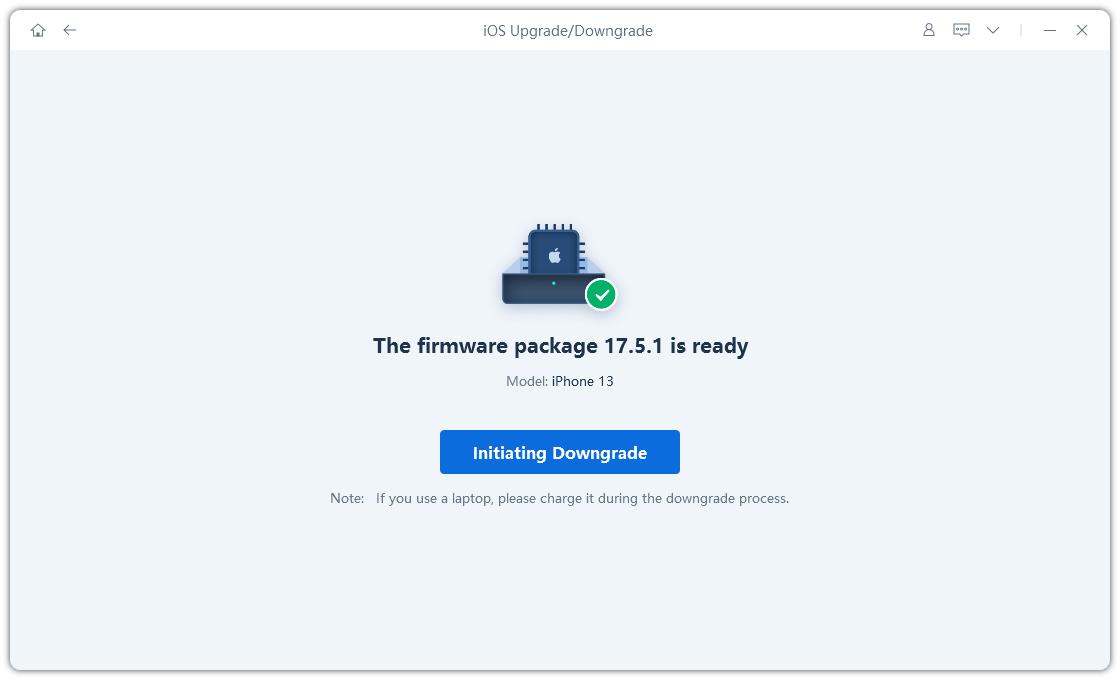
- Step 4: After the firmware downloads, click "Start Downgrade". ReiBoot will begin downgrading your device without erasing any data.
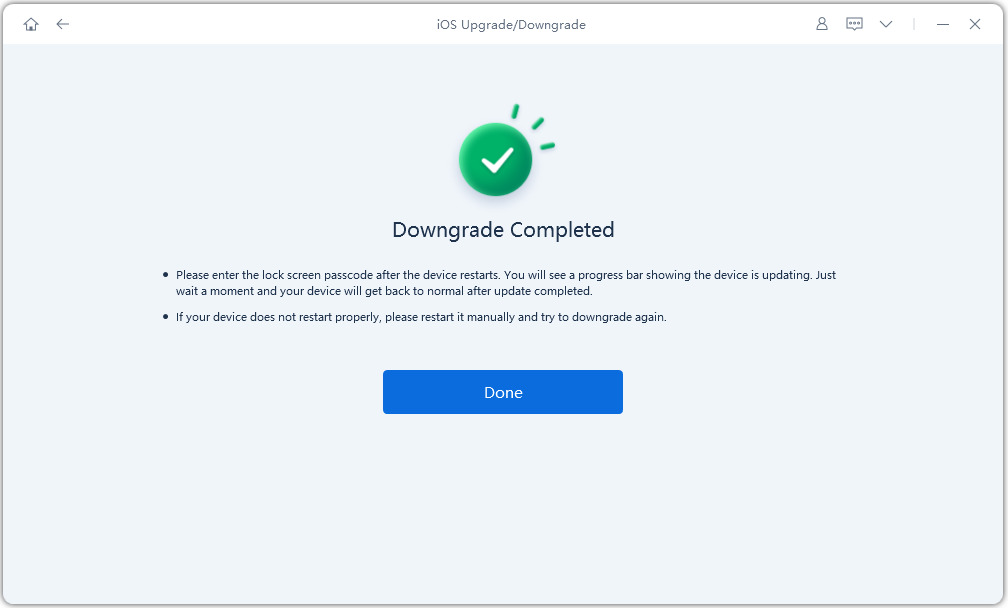
- Step 5: Wait for the process to complete. Your device will restart automatically and boot into iOS 18.
Method 2: Remove iOS 26/27 Without a Computer
Not everyone has a computer handy and that’s okay. If you installed iOS 26/27 and now want to go back to iOS 18, there’s a quick way to do it right from your iPhone. This method doesn’t require iTunes, Finder, or even a laptop.
But before you begin, know this: this trick only works if your iPhone is running a profile like the developer or public version of iOS 26/27. And it’s not a full downgrade to a specific version it just takes you out of the program and stops your device from receiving test updates.
Here's how to do downgrade iOS 26/27 to 18 without computer
Step 1: On your iPhone, open the Settings app.
Step 2: Scroll and tap General.
Step 3: Look for VPN & Device Management. Tap it.
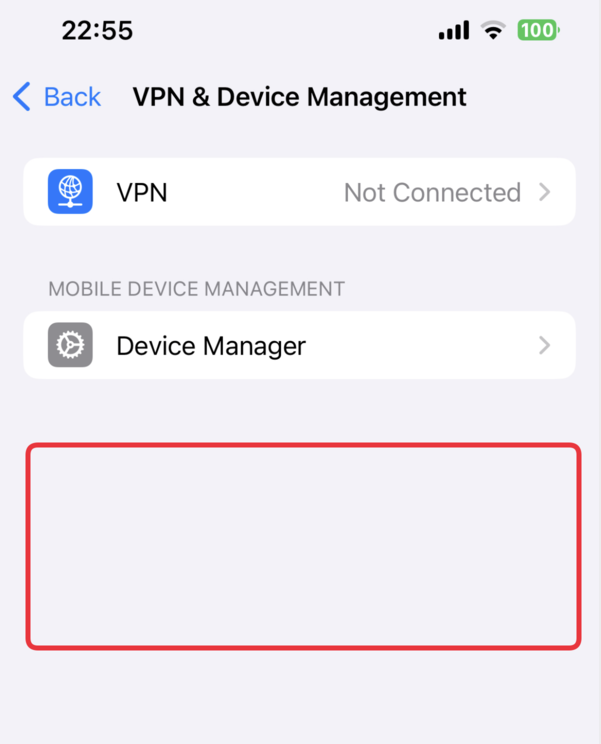
Step 4: You’ll see a profile called something like iOS 26/27 Software Profile.
Step 5: Tap that profile, then hit Remove Profile.
Step 6: Enter your device passcode if prompted, and confirm the removal.
Important to Note:
If you don’t see a profile listed, this method won’t work. That means your iPhone is running the full iOS 26/27 system, not just a version. In that case, head back to Method 1, which helps you go back to iOS 18 without iTunes.
Method 3: How to Go Back to iOS 18 from iOS 26/27 with a computer and iTunes
Using iTunes on your computer is still one of the traditional ways to do it. This method is especially helpful if you prefer the official Apple route. However, there’s a catch Apple only allows you to downgrade from iOS 26/27 to iOS 18 for a short window after a new version is released. So, act fast if you’ve just updated!
This process involves downloading the right iOS 18 firmware from IPSW and restoring it to your iPhone using iTunes or Finder.
Here how to go back to ios 18 from 19
Step 1: Connect your iPhone to your computer using a lightning cable. Open iTunes (or Finder if you're on a Mac running macOS Catalina or later).
Step 2: Go to IPSW.me and select your iPhone model. Then, download the latest signed iOS 18 firmware available. If Apple has stopped signing iOS 18, you won’t be able to use this method.
Step 3: Now, put your iPhone into Recovery Mode:
- Press and quickly release the Volume Up button.
- Then press and quickly release the Volume Down button.
- Press and hold the Side button until you see the recovery screen.
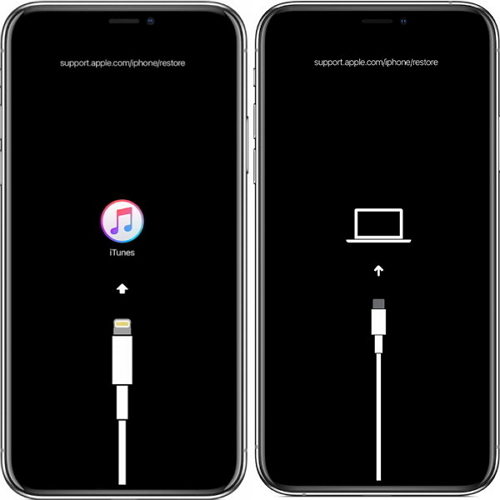
Step 4: Once your iPhone is in recovery mode, iTunes will detect it and show a prompt. Choose “Restore and updated” while holding the Option key (Mac) or Shift key (Windows) and select the iOS 18 firmware file you downloaded.
Step 5: Let the restore process complete. It may take a while, so don’t disconnect your iPhone. Once done, your device will reboot into iOS 18, and you can restore your backup or set it up as new.
Note: This method won’t work if Apple has stopped signing iOS 18. Always check IPSW.me for firmware status before starting the process.
FAQ About Going Back to iOS 18 Without iTunes
1.How to revert iOS 18?
In order to revert to iOS 17 from iOS 18, you'll need to remove the update using a tool like ReiBoot or do it manually through iTunes.
2.Is it possible to downgrade iOS without losing data?
If you have reliable tools such as Tenorshare ReiBoot installed, you can downgrade the iOS version without losing your pictures, messages, and applications.
Final words:
It's okay to not like iOS 26/27, you're not stuck with it. You can go back to iOS 18 without iTunes, and you don’t need to be tech-savvy to do it. Tools like Tenorshare ReiBoot make the process super easy. Just a few clicks and your iPhone is back to the version that felt right for you no data loss, no headaches.
