
Updated on 2026-09-15 / iPhone Tips
Many iPhone users experience their device getting stuck on the “Signing In” screen during setup or data transfer. This problem often appears when connecting to iCloud or restoring backups. If you're transferring data to a new iPhone running iOS 27, temporary software or iCloud issues may also cause the process to get stuck on the signing-in screen. The process may seem frozen, but don't worry it's fixable.
In this guide, we’ll walk you through simple and effective methods to fix the iPhone transfer stuck on signing in issue and complete your setup.
Part 1: Why Does My iPhone Get Stuck on Signing In During Transfer?
A new phone stuck on signing in is common during setup or data transfer. Here are the main reasons:
1. Different iOS Versions on Both iPhones
If your old iPhone and new one are not running the same iOS version, the transfer can stop halfway. For example, if you're setting up a new iPhone with iOS 27, make sure your old iPhone is also updated to a compatible version before starting the transfer.Keeping both devices up to date can help prevent compatibility issues during setup.
2. Apple ID Verification Problem
Sometimes your Apple ID doesn’t sign in properly during setup. This might happen because of a temporary glitch. Try changing your Apple ID password or signing out and back in again; it often solves the issue quickly.
3. Weak Wi-Fi Connection
A poor internet connection is one of the biggest reasons why the transfer gets stuck. Make sure both phones are connected to a strong and stable Wi-Fi network and placed close together.
4. iCloud or Apple Server Issue
Apple’s servers can sometimes go down or slow down during busy times, especially after a new iPhone release. If that’s the case, just wait a while and try again later it usually starts working once the servers are back up.
5. Small Software Bug or Temporary Glitch
Sometimes, your iPhone may freeze due to a random software glitch. A quick force restart usually helps and lets the setup continue smoothly.
Part 2: How to Fix iPhone Transfer Stuck on Signing In (Proven Methods)
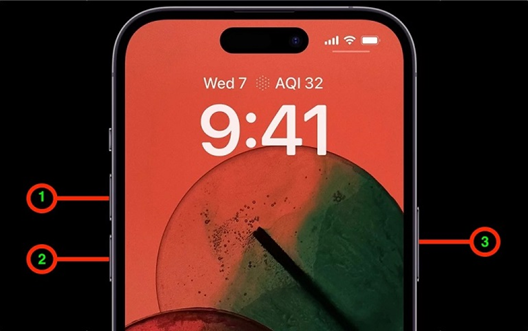
Fix 1: Force Restart Your iPhone
A frozen transfer screen can be caused by temporary software glitches that block the device from completing the sign-in process. Performing a force restart gives your iPhone a clean slate, clearing background tasks that might be causing the freeze. Many users with a New iPhone 17 stuck on Signing in have found this simple method works quickly.
Step 1: Press and quickly release the volume up button.
Step 2: Press and quickly release the volume down button.
Step 3: Press and hold the power button until the Apple logo appears.
Step 4: Wait for the iPhone to fully restart.
Step 5: Check the transfer screen to see if the process resumes.
Fix 2: Reinsert Your SIM Card and Reset Network Settings
Connectivity problems are a hidden culprit behind stuck iPhone transfers. A loose SIM or outdated network configuration can prevent your device from communicating with Apple’s servers. Re-seating the SIM and refreshing network settings often fixes the New iPhone stuck on signing in iCloud problem.
Step 1: Carefully remove the SIM card from its tray.
Step 2: Check the SIM card for dust or scratches.
Step 3: Reinsert the SIM card securely.
Step 4: Go to Settings then General then Transfer or Reset iPhone then Reset then Reset Network Settings.

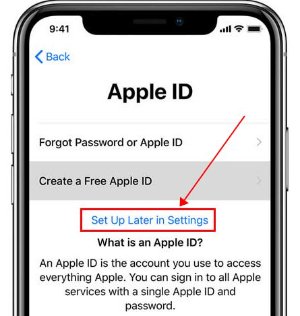
Fix 3: Skip Apple ID Setup Temporarily
Sometimes the Apple ID sign-in step itself can slow down or stall the transfer, especially if the servers are busy or there’s a minor glitch with your account. Skipping this step for a while allows the phone to finish setting up and transferring data first. Many users with a new iPhone 17 stuck on signing in notice that signing in works smoothly once the main setup is done.
Step 1: On the new iPhone screen, choose “Set Up Later in Settings” instead of entering your Apple ID.
Step 2: Complete the rest of the iPhone setup, including Wi-Fi connection, Face ID or Touch ID, and transfer options.
Step 3: Once the setup finishes and your apps are in place, go to Settings then tap on Apple ID at the top.
Step 4: Sign in with your Apple ID manually at this stage.
Step 5: Confirm any verification codes and allow iCloud to sync.
Fix 4: Check Apple’s System Status Page
Sometimes the issue isn’t with your device at all. A new iphone stuck on signing in might result from iCloud problems or outages on Apple's systems. Checking Apple’s system status page helps you know if the problem is on Apple’s side, so you don’t waste time troubleshooting unnecessarily.
Step 1: Open Safari or any browser on another device.
Step 2: Go to Apple’s official System Status page at https://www.apple.com/support/systemstatus.
Step 3: Look for iCloud, Apple ID, and related services in the list.
Step 4: If there are reported issues, wait until Apple resolves them before trying the transfer again.
Step 5: If all systems are green, retry signing in on your new iPhone and continue the setup.
Fix 5: Restore iPhone Using iTunes or Finder
A new iPhone stuck on signing in iCloud can be really frustrating. Using iTunes or Finder to restore your iPhone gives it a clean start. This fixes hidden glitches and refreshes the system, making the transfer process smooth again.
Step 1: Connect your iPhone to your computer using a Lightning or USB-C cable.
Step 2: Open iTunes on Windows or older macOS versions, or Finder on macOS Catalina and later.
Step 3: Locate your iPhone in the program’s sidebar or top menu.
Step 4: Select Restore iPhone. This will erase the device and install the latest iOS version available.
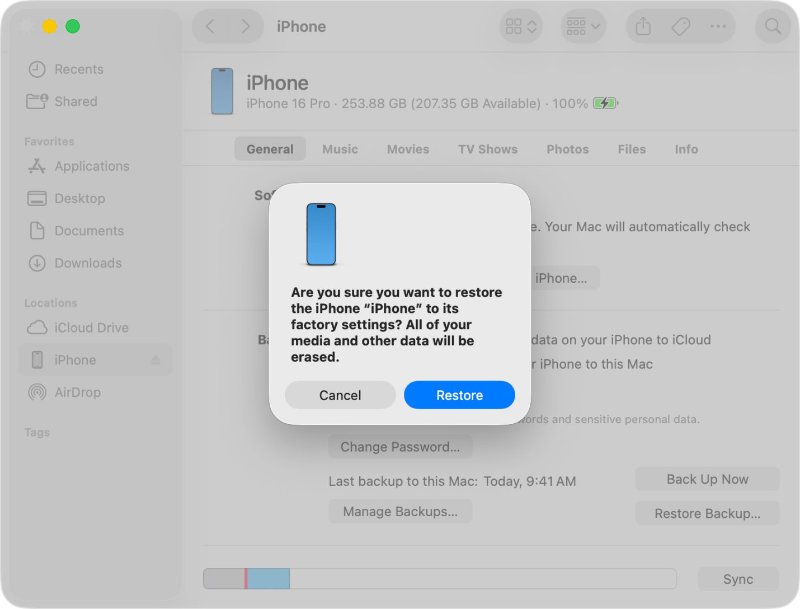
Step 5: Follow the prompts on the screen and wait for the restoration to finish. Don’t disconnect your phone during this process.
Step 6: After the device restarts, set it up as new or attempt the transfer again. Most users notice the signing-in problem disappears, and the transfer completes without delays.
Fix 6: Use Tenorshare iCareFone to Transfer Data Without Getting Stuck on Signing In
Dealing with a new iPhone stuck on signing in iCloud can be really frustrating, especially when you just want to start using your device. Tenorshare iCareFone makes this process much easier. It helps you move photos, contacts, messages, apps, and other data from one iPhone to another without getting stuck on the signing-in screen. It works with iOS 26 and older models, making it a reliable choice for anyone having trouble with transfers.
iCareFone is more than just a transfer tool. It also lets you backup your iPhone, manage files, and even download apps that aren’t available in your country. Some of its key features include:
- Transfer Data Easily: One-click transfer of photos, music, videos, messages, and contacts between iPhone/iPad and PC/Mac, preserving original quality.
- Manage Files Without iTunes: Organize, import, export, and delete files on your iPhone directly from your computer.
- Backup and Restore Freely: Backup everything from WhatsApp chats to contacts and restore selectively without overwriting data.
- Download Apps Anywhere: Safely install apps not available in your region.
- Free Features: Developer mode, iPhone test, AI wallpapers (Mac only), and more.
Part 3: Extra Tips to Prevent Your iPhone Getting Stuck Again
1. Update iOS
Users found that older iOS versions often freeze during signing in. Updating to the latest version fixes bugs and makes setup smoother.
2. Keep Your Original SIM Card
Using the original SIM card during setup helps avoid transfer problems. Third-party SIMs or eSIMs sometimes cause freezes.
3. Turn Off VPNs or Security Apps
VPNs or security apps can block Apple servers. Turning them off during transfer prevents getting stuck.
4. Use Tenorshare iCareFone
Users who struggled with iCloud transfer successfully moved their data with iCareFone. It handles photos, contacts, messages, and apps easily.
Part 4: Final Words:
Watching your iPhone get stuck on the signing-in screen is frustrating, especially when you just want to use your new phone. Often, it happens because of small glitches in iCloud, your network, or the system. Tenorshare iCareFone makes this process much easier. It allows you to transfer photos, contacts, messages, and apps quickly without getting stuck on signing in. With iCareFone, saying goodbye to the “iPhone transfer stuck on signing in” problem is simple and reliable.
