
Updated on 2026-09-15 / iPhone Tips
Backing up your iPhone to iCloud should be quick and effortless, but sometimes the process drags on endlessly. This usually happens due to slow Wi-Fi, large data files, or outdated settings.
In this 2026 guide, you’ll discover the real reasons behind iCloud backup taking forever. You’ll also learn the most effective ways to make your iCloud backup complete faster.
How Long Should an iCloud Backup Take?
iCloud backup time can vary for every iPhone. It mainly depends on your Wi-Fi speed, data size, and how often you back up your device. Usually, an iCloud backup takes 30 minutes to 2 hours.
However, if your iCloud backup time keeps increasing, it may indicate a slow Wi-Fi connection or too much data to upload.
For new iPhones, the first backup usually takes longer since everything needs to be uploaded for the first time, while later backups complete much faster.
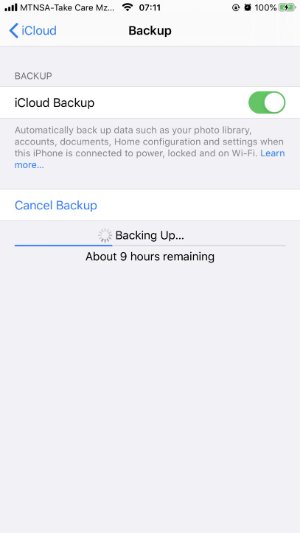
Why Is iCloud Backup Taking Forever on My iPhone?
If your new iphone icloud backup taking forever, here are some common reasons why:
1. Slow or Weak Wi-Fi
A weak internet connection is one of the biggest reasons your backup takes longer than usual.
2. Too Much Data
Large photos, videos, or app data increase backup time.
3. Not Backing Up Regularly
If you don’t back up often, iCloud has to upload more data the next time, making it slower.
4. Low iCloud Storage
When your iCloud space is almost full, backups can slow down or get stuck.
5. Other Apps Running
Using your iPhone or running apps while backing up can delay the process.
How to Fix iCloud Backup Taking Forever (Step-by-Step)
Fix 1: Check and improve your Wi-Fi connection
Your internet connection plays the biggest role in how long does it take for icloud to backup. Since the process uploads data to Apple’s cloud servers, a slow or unstable Wi-Fi network can make it feel like the backup will never end. When your Wi-Fi is fast and stable, data uploads are smoother helping your backup complete quickly without constant interruptions.
Fix 2: Restart your iPhone before retrying backup
Restarting your iPhone can frequently resolve the issue immediately if your iCloud backup is requiring an inordinate amount of time. A simple reboot clears background apps, fixes small system bugs, and refreshes your phone’s connection to iCloud.
Restarting gives your iPhone a clean start. It frees up memory, improves performance, and helps your backup run faster and smoother.
- Press and hold the Power and Volume Down buttons until the slider appears.
- Drag the slider to turn off your iPhone and wait about 30 seconds.
- Turn your iPhone back on by pressing the Power button.
- Reconnect to Wi-Fi and open Settings.
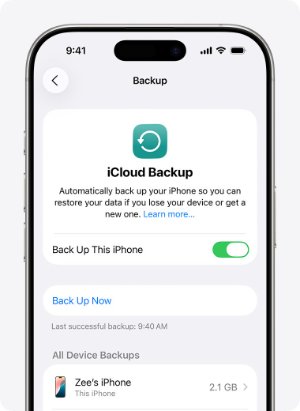
Tap your name, then tap iCloud, select iCloud Backup, and tap Back Up Now.
Fix 3: Disable unnecessary apps from backup
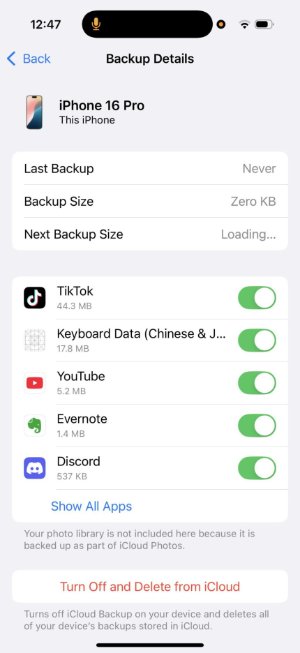
Too many apps syncing data to iCloud can make backups or restores take much longer. Turning off backup for apps that store large files can save time and space.
- Open Settings on your iPhone. Tap your Apple ID name at the top and select iCloud.
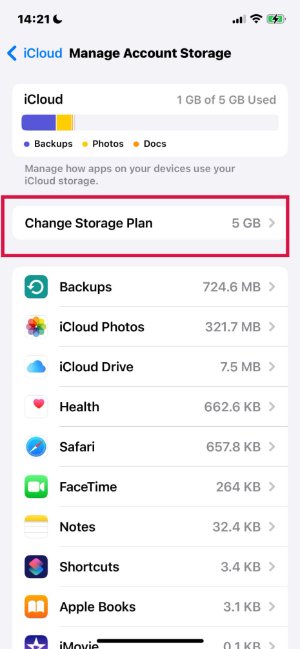
Choose Manage Account Storage, then tap Backups.
- You’ll see a list of devices linked to your Apple ID select the one you’re using.
- Scroll through the list and tap on older backups you no longer need.
Select Delete Backup and confirm your choice when prompted. Once deleted, return to the main iCloud menu and start a new backup.
Fix 4: Update iOS to the Latest Version
When your new iPhone iCloud backup taking forever, it may be due to outdated software. Apple often fixes bugs and improves backup speed in newer iOS updates. If your iPhone is running iOS 27, make sure you have the latest available update installed, as software updates can include fixes for backup and syncing issues. Updating your device ensures smooth syncing and prevents the system from getting stuck during the backup or restore process.
- Open Settings on your iPhone.
Tap General, then select Software Update.
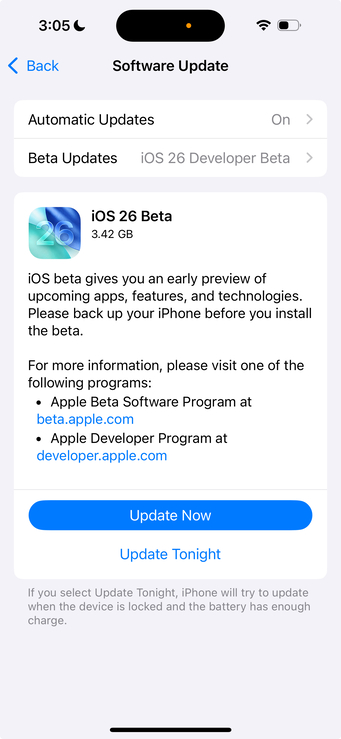
- Tap Download and Install if an update is available.
Fix 5: Reset network settings
A slow or unstable Wi-Fi connection can make your iCloud backup take ages. Resetting your network settings helps clear out old configurations or connectivity bugs, allowing your iPhone to reconnect fresh and perform faster backups or restores.
- Open Settings and select General.
Tap Transfer or Reset iPhone.

- Choose Reset, then tap Reset Network Settings.
- Enter your passcode if asked, then confirm. Reconnect to your Wi-Fi and try running the iCloud backup again.
Fix 6: Sign out and back in to iCloud
Sometimes, your Apple ID session can glitch, making restoring from iCloud backup take forever. Signing out and back in refreshes your iCloud connection, clears temporary issues, and helps the system sync properly.
- Open Settings and tap your Apple ID name.
- Scroll down and tap Sign Out.
- Restart your iPhone.
- Go back to Settings, sign in again with your Apple ID, and start the backup.
Best Alternative – Back Up iPhone in Minutes Without iCloud
Tenorshare iCareFone offers a faster and more reliable way to back up your iPhone without using iCloud. It provides complete control over your data, allowing you to select what to back up and restore without erasing your phone.
This tool helps save time and avoids common issues like slow iCloud backups or storage limits. With iCareFone, you can complete your backup in just a few minutes, making sure your data stays safe and accessible anytime you need it.
Advantages of Using Tenorshare iCareFone:
- Selective Backup and Restore: Back up only the files you need like photos, videos, contacts, or messages instead of the entire phone.
- Fast Backup Speed: Create backups within minutes, even for large files.
- No Data Loss: Restore your data safely without erasing existing files.
- Supports 10+ Data Types: Photos, videos, contacts, messages, notes, music, calendars, reminders, and more.
- Works on All Devices: Fully compatible with the latest iPhone 17 and iPads.
FAQs About iCloud Backup Taking Forever
1. Why is iCloud backing up taking so long?
iCloud backup can take a long time due to a slow Wi-Fi connection, large file size, or limited iCloud storage. Background apps and outdated software can also slow down the process.
2. How can I speed up my iCloud backup?
Connect to a strong Wi-Fi network, delete old backups, disable unnecessary apps from backup, and keep your iPhone updated. This helps speed up the backup process.
3. How long does it take to backup 1000 photos to iCloud?
Backing up 1000 photos to iCloud usually takes 30 minutes to 1 hour, depending on your Wi-Fi speed and photo file size.
Final Words:
Waiting for your iCloud backup taking forever can be really annoying, especially when you just want to save your data safely. Slow Wi-Fi or not enough iCloud space often causes the delay. If iCloud continues to take ages, it’s worth switching to a smarter and faster solution like Tenorshare iCareFone. It lets you back up and restore your iPhone in minutes, no iCloud limits, no waiting, just complete control over your data.
