
Updated on 2026-09-15 / iPhone Tips
Sometimes, being locked out of your iPhone can feel overwhelming, especially if you forgot your passcode or bought a device that’s already locked. This process wipes all data, including photos, contacts, messages, apps, and accounts, returning your device to its original settings.
In this guide, we’ll show simple, step-by-step methods how to factory reset a locked iPhone. These methods will help you start using your device again quickly and without stress.
- Part 1: How to Factory Reset Locked iPhone [One-Click Solution]
- Part 3: How to Factory Reset Locked iPhone via Erase iPhone (iOS 15.2+)
- Part 4: How to Factory Reset Locked iPhone via iPhone Reset (iOS 17+)
- Part 5: How to Factory Reset a Locked iPhone with iTunes/Finder
- Part 6: How to Reset Locked iPhone with iCloud
- Part 7: FAQ About How to Factory Reset a Locked iPhone
Part 1: How to Factory Reset Locked iPhone [One-Click Solution]
Tenorshare ReiBoot is a simple and reliable tool for fixing locked or unresponsive iPhones. If 3uTools feels confusing or doesn’t fully solve your issue, ReiBoot gives you a cleaner and easier option. It helps you reset, repair, update, or downgrade your iOS device without stress.
The tool also supports deep system repairs and full data wiping, making it useful for users who want a smooth, quick, and safe solution. Its clean interface makes every step easy even for beginners.
Features of Tenorshare ReiBoot
- Fixes common iOS problems like freezing, boot loops, black screen, and system crashes.
- Permanently wipes all data so nothing can be recovered later.
- Supports all iPhones, iPads, and iPods on every iOS version.
- Lets you upgrade or downgrade iOS without losing your data.
- Beginner-friendly interface that anyone can use.
How to factory reset a locked iphone without passcode with Tenorshare ReiBoot
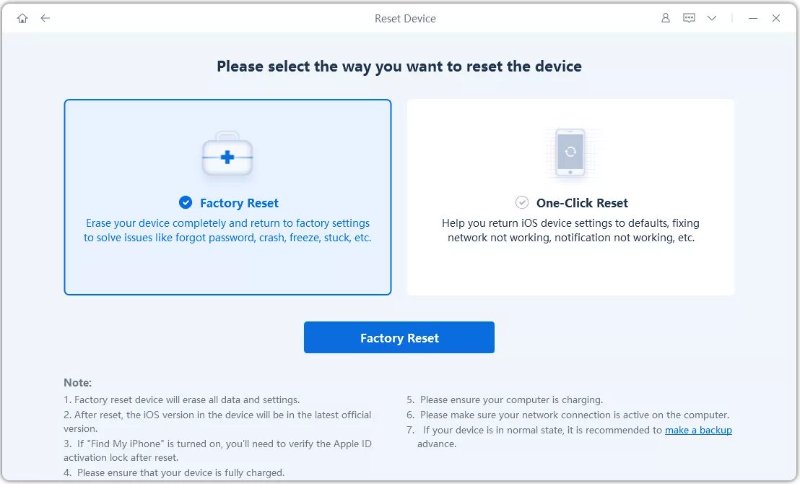
- Step 1: Download and install ReiBoot on your computer. Open the software and connect your iPhone. Click “One-Click Reset.”
- Step 2: You will see two reset options. Choose “Factory Reset” to return your device to its original settings.
- Step 3: When ReiBoot detects your iPhone, click “Download” to get the latest firmware package.
- Step 4: After the firmware downloads, click “Start Reset.” The process takes around 10 minutes because the firmware file is large (about 5GB). When it finishes, your iPhone will restart and be ready for setup.



Part 2: How to Factory Reset Locked iPhone via Erase iPhone (iOS 15.2+)
The Erase iPhone option is the simplest way to reset a locked device if you’re using iOS 15.2 or later. This feature appears automatically after multiple wrong passcode attempts. It’s a convenient way to wipe your iPhone without using a computer, but it requires an internet connection and your Apple ID to complete the reset.
It’s helpful for users searching for how to unlock iPhone passcode without computer, but note that it does reset the device completely.The following method is also available on supported iPhones running newer versions such as iOS 27.
- Enter the wrong passcode several times until the “Erase iPhone” option appears at the bottom of the screen.
- Tap “Erase iPhone” and confirm to start wiping the device.
- Sign in with your Apple ID password to complete the authentication step.
Wait for the iPhone to erase and restart. Once the Hello screen appears, set it up as new.

Part 4: How to Factory Reset Locked iPhone via iPhone Reset (iOS 17+)
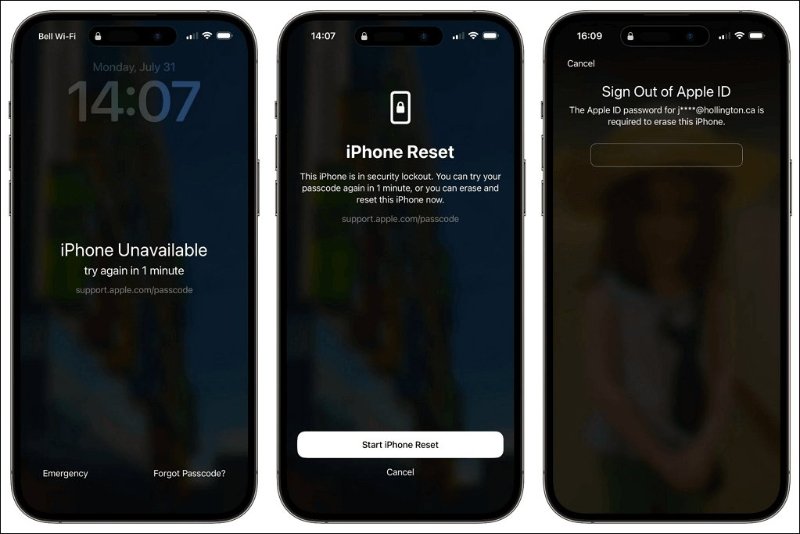
Apple introduced this iPhone reset option in iOS 17, and it is also available on supported iPhones running newer versions such as iOS 27. This method works directly from the lock screen without needing iTunes or a PC.
It’s helpful if you’re looking for how to unlock iPhone without passcode without resetting, but keep in mind that this feature does reset the phone. However, it gives a smoother, more secure reset flow for forgotten passcodes.
- Enter the wrong passcode several times until your iPhone shows “Forgot Passcode?”
- Tap “Start Factory Reset” on the screen.
- Enter your Apple ID password to confirm the reset.
Your iPhone will wipe itself and restart. When the Hello screen appears, you can set up the device from scratch.
Part 5: How to Factory Reset a Locked iPhone with iTunes/Finder
Using iTunes or Finder is a solid option if you forgot your passcode but previously trusted the computer you’re connecting to. This method works well for users searching for how to reset iPhone without passcode and computer, but note that it requires a PC or Mac and a past connection history.
If you haven’t synced your device before or if the iPhone was restarted after the last connection, iTunes may not detect it. Still, it’s a free and effective method if the conditions match.
How to factory reset a locked iphone with itunes/Finder
- Connect your iPhone to your computer using the original USB cable and open iTunes/Finder.
On the left panel, select your device and click the “Summary” tab. Then choose “Restore iPhone.”
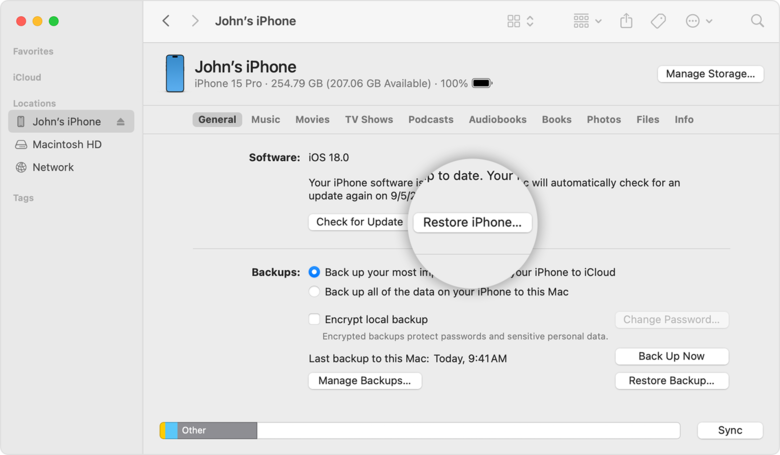
A confirmation pop-up will appear. Click “Restore” again.
- iTunes will check for available updates. If any appear, click “Restore and Update” to begin the factory reset.
- Wait for the process to finish. Your iPhone will restart and return to the setup screen.
Part 6: How to Reset Locked iPhone with iCloud
iCloud’s Find My iPhone feature offers a simple way to reset a locked iPhone without using a computer. You can perform the reset from any device that has a browser, which makes it very convenient.
However, this method only works when Find My iPhone is already enabled on your device and you still remember your Apple ID password. It fully erases the phone, so it’s not suitable for users searching for how to unlock iPhone without passcode without resetting. Still, it’s one of the quickest official methods available.
- On another device, open a browser, go to iCloud.com, and select Find iPhone.
Tap All Devices and choose the locked iPhone you want to wipe.
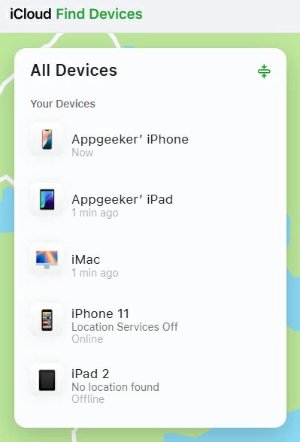
Click Erase iPhone and enter your Apple ID password to confirm.
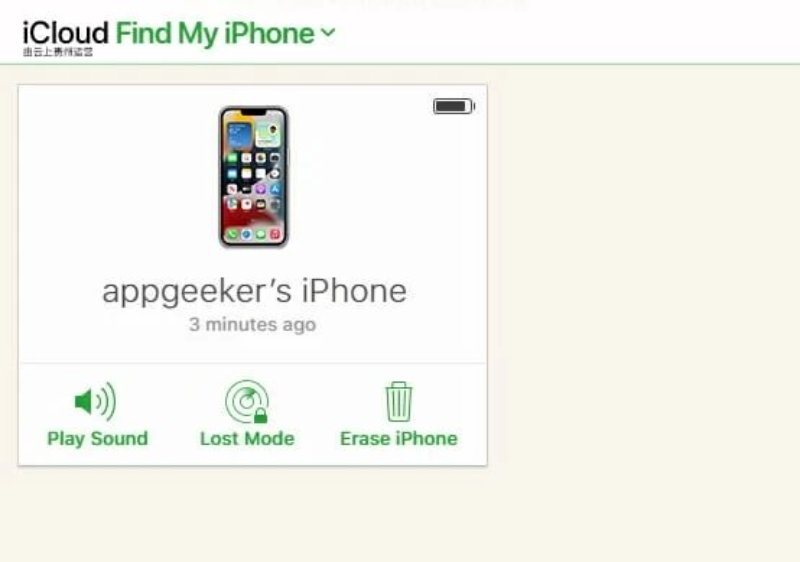
- Wait for the erase process to finish. The iPhone will restart and return to the setup screen.
Part 7: FAQ About How to Factory Reset a Locked iPhone
1. Is there a way to factory reset an iPhone without passcode?
Yes. You can reset it using Erase iPhone, iTunes/Finder, iCloud Find My, or tools like ReiBoot. All methods will erase your data.
2. How to hard factory reset an iPhone?
Put the iPhone into Recovery Mode, connect it to a computer, open iTunes/Finder, and choose Restore iPhone to complete a hard reset.
3. Can I factory reset a locked iPhone I found?
No. A found iPhone is protected by Activation Lock, and you cannot reset or use it without the owner’s Apple ID.
4. How to factory reset iPhone if I lost my password?
Use Erase iPhone, iTunes/Finder, or iCloud Find My to wipe the device. You will still need your Apple ID password to reactivate it.
Part 8: Conclusion
Factory resetting a locked iPhone is possible through several official methods, whether you use Erase iPhone, iTunes/Finder, Recovery Mode, or iCloud. Each option works, but they all erase your data and require your Apple ID for activation.
If you want the easiest and most reliable way to handle how to factory reset a locked iPhone, a dedicated tool like Tenorshare ReiBoot offers a smoother, faster, and beginner-friendly experience. With one click, you can reset, repair, and get your iPhone working again without any stress.
