
Updated on 2026-09-22 / iPhone Tips
Here's how to put iPhone Duo in recovery mode: quickly press and release Volume Up, quickly press and release Volume Down, then hold the Side button until "Connect to Computer" appears --- the same sequence Apple uses on every iPhone 8 or later. Because iPhone Duo ships with iOS 27, there's also a second option --- hold the Side button after a full shutdown until "Loading recovery options..." appears, then select Recovery Mode on-screen, no computer required.
Entering Recovery Mode by itself never erases your data; only choosing Restore afterward does. If you want to keep your files, always try Update first.
Part 1. When Should You Put iPhone Duo in Recovery Mode?
Recovery Mode is mainly useful when your iPhone has a serious software problem that normal restarting cannot fix. You may need it when the phone stays on the Apple logo, fails during an update, or shows the Connect to Computer screen.
Apple lists several situations where Recovery Mode can help:
-
The Apple logo stays on the screen for several minutes without a progress bar.
-
Your Mac or Windows computer does not recognize the iPhone.
-
The iPhone already shows the Connect to Computer screen.
-
The device repeatedly opens Recovery Assistant but cannot complete recovery.
-
You forgot the passcode and need to reset the device.
-
An iOS update or restore fails and the iPhone will not start normally.
Recovery Mode vs. Force Restart vs. DFU Mode
These three methods are not the same.
| Method | Main purpose | Does it normally erase data? |
|---|---|---|
| Force Restart | Fix a frozen or unresponsive iPhone | No |
| Recovery Mode | Update or restore iOS when normal startup fails | Entering it does not erase data |
| DFU Mode | Deeper firmware-level troubleshooting | The result depends on the repair or restore method |
A force restart should usually be your first step when the iPhone simply freezes. Recovery Mode makes more sense when the system cannot start normally or a computer needs to update or restore iOS. DFU Mode goes further than normal Recovery Mode and is generally used for more advanced troubleshooting. You should not use DFU Mode unless you understand why you need it.
What You Need Before Starting
Before you try the classic button-combo method, prepare these things (the newer iOS 27 on-device method below skips most of this):
-
A USB cable that can connect the iPhone to your computer.
-
A Mac with an updated macOS and Finder.
-
Or a Windows PC with the latest Apple Devices app.
-
A stable internet connection for downloading iOS.
-
Enough time for the software download and restore process.
If possible, back up your iPhone before starting. If the phone cannot start or you forgot the passcode, you may not be able to make a new backup. Apple states that resetting a forgotten-passcode iPhone erases the data currently stored on the device.
Part 2. How to Put iPhone Duo in Recovery Mode
If your iPhone Duo cannot start normally, there are two ways into Recovery Mode: the classic button sequence that connects to a Mac or Windows PC, or the new on-device recovery screen introduced in iOS 27 that needs no computer at all. Both get you to the same place, so pick whichever fits your situation --- start with the button sequence below if a computer is handy.
iPhone Duo Recovery Mode Button Combination
Use the following button sequence to enter Recovery Mode:
Press and quickly release Volume Up.
Press and quickly release Volume Down.
Press and hold the Side button.
-
Keep holding the Side button when the Apple logo appears.
-
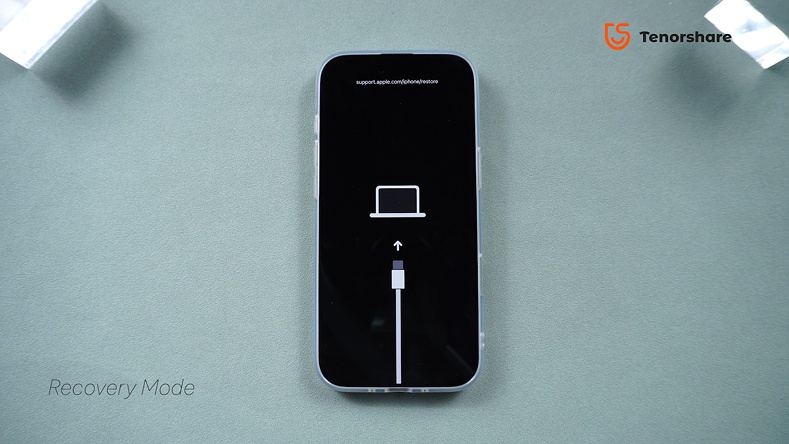
Release the Side button when the Connect to Computer screen appears.
The first two buttons require quick presses and releases. Do not hold either volume button. After pressing Volume Down, immediately press and hold the Side button. Keep holding it through the Apple logo. Release the Side button only when the Recovery Mode screen with the computer and cable appears.
iOS 27's New Recovery Screen: No Computer Needed
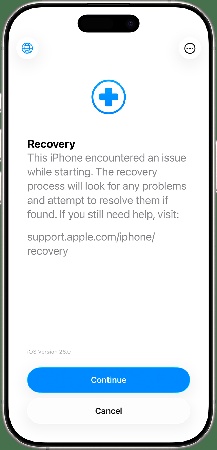
Since iPhone Duo ships with iOS 27, there's a second way into Recovery Mode that doesn't need a Mac, PC, or cable at all.
How to access it:
-
Turn off iPhone Duo completely and wait about a minute to make sure it has fully shut down.
-
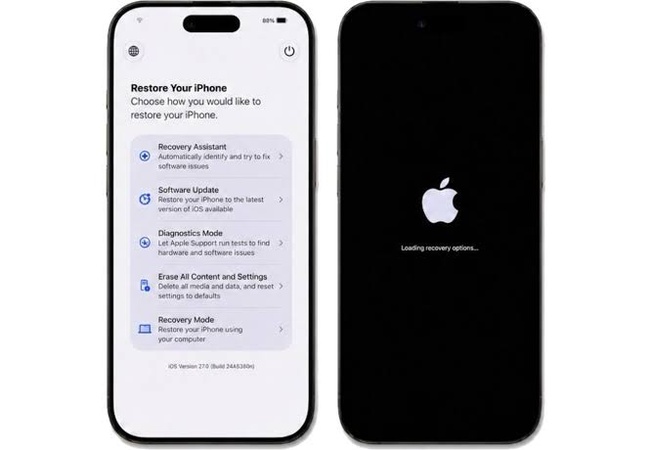
Press and hold the Side button. The Apple logo appears as usual --- keep holding until "Continue holding for recovery..." appears.
-
Release the Side button when "Loading recovery options..." appears.
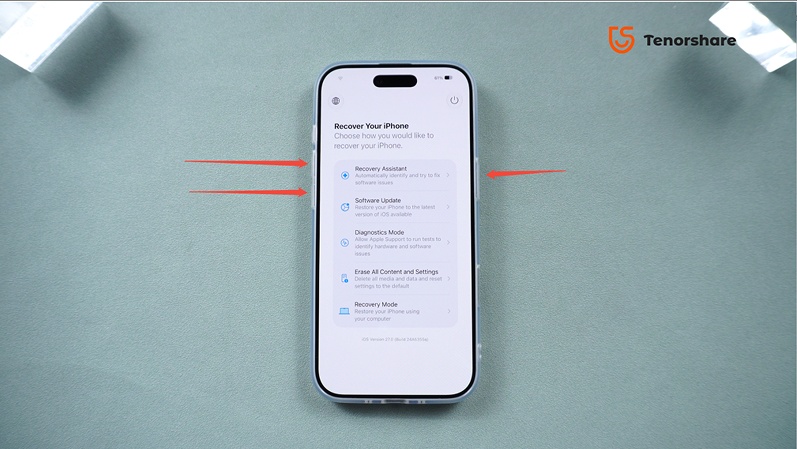
iPhone Duo then boots into a recovery screen with five options instead of loading iOS:
- Recovery Assistant --- scans for and attempts to fix software issues automatically, no computer needed.
-
Software Update --- reinstalls the latest iOS if a failed update left the device in a boot loop.
-
Diagnostics Mode --- checks for hardware and software problems and can recommend repairs.
-
Erase All Content and Settings --- factory-resets the device directly from this screen.
-
Recovery Mode --- puts iPhone Duo into the traditional computer-based recovery state, without needing the manual button sequence first.
On this screen, pressing and holding the Side button again opens a hidden Nearby Device Recovery option, which uses another unlocked Apple device nearby to restore iPhone Duo over Wi-Fi.
To exit, tap the power icon in the top-right corner and confirm restart, or press and hold the Side button and choose Restart or Shut Down.
Note: This on-device recovery screen is new to iOS 27. If you're used to older iPhones, you'll still need the classic Volume Up / Volume Down / Side button sequence covered above --- this new screen is an additional option, not a replacement.
How to Put iPhone in Recovery Mode When Disabled
If iPhone Duo is disabled because you forgot the passcode, Recovery Mode is the only way back in --- but there's a trade-off: it works by erasing the device, not by removing just the passcode.
-
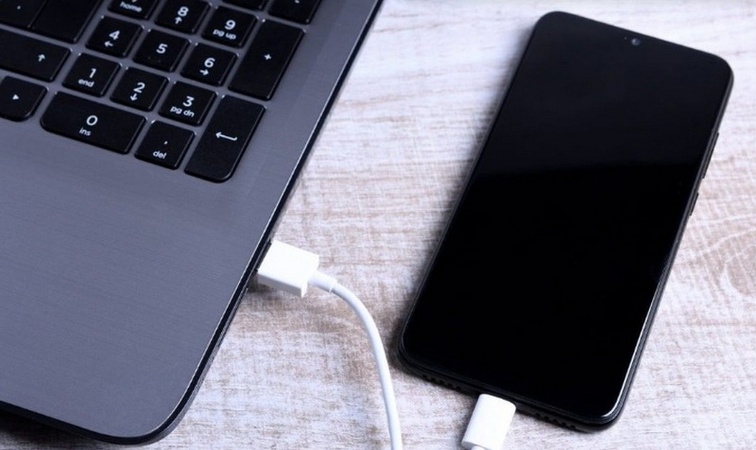
Step 1: Connect iPhone Duo to a Mac or Windows PC with a USB cable.
-
Step 2: Use the button sequence above (Volume Up, then Volume Down, then hold the Side button) to put the disabled iPhone into Recovery Mode.
-
Step 3: Open Finder on Mac, or the Apple Devices app on Windows. Your iPhone Duo will appear as a device in Recovery Mode.
-
Step 4: Choose Restore when the option appears. This is the only way to regain access to a passcode-disabled iPhone --- it erases all data on the device and reinstalls iOS.
-
Step 5: Wait for the software to download and the restore to finish, then follow the onscreen setup assistant.
-
Step 6: If you have an iCloud or computer backup, choose to restore from it during setup to get your data back.
Recovery Mode itself doesn't touch your passcode or your data --- it's only choosing Restore that erases the device, so back up regularly if losing your passcode is a real risk for you.
Part 3. How to Restore or Update iPhone Duo in Recovery Mode
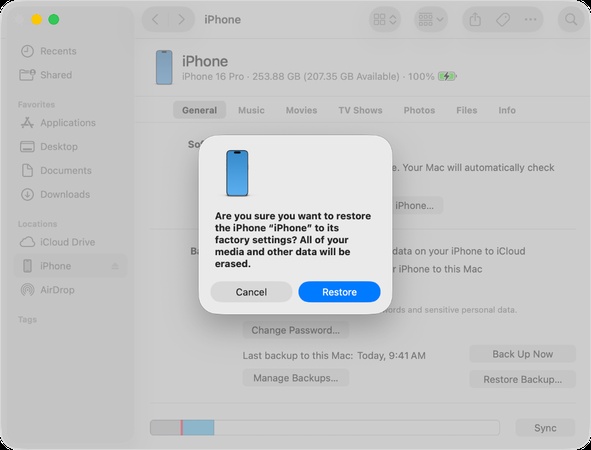
Once your iPhone Duo enters Recovery Mode, you can use a Mac or Windows PC to update or restore iOS. Update should be your first choice when available if you want to reinstall iOS without intentionally erasing your personal data. Choose Restore when an update does not fix the problem or when you need to reset the device.
How to Restore iPhone Duo in Recovery Mode
-
Step 1: Connect the iPhone Duo to your Mac or Windows PC using a compatible USB cable. Make sure the iPhone is in Recovery Mode.
-
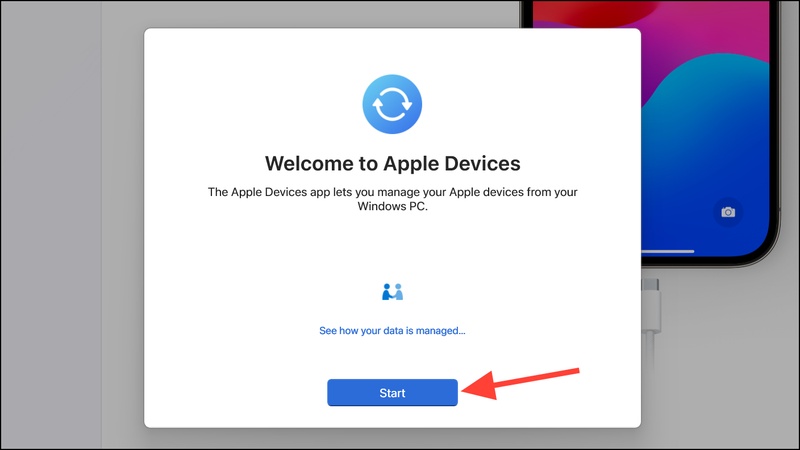
Step 2: Open Finder on Mac or the Apple Devices app on Windows. Select your iPhone Duo when it appears in Recovery Mode.
-
Step 3: Select Update first if you want to reinstall iOS without intentionally erasing your data. If the update does not fix the problem, choose Restore to erase the iPhone and reinstall iOS.
-
Step 4: Allow the computer to download the required iOS software. Keep the iPhone connected throughout the update or restore process.
-
Step 5: When the process finishes, follow the onscreen instructions to set up your iPhone Duo. If you used Restore, you can recover available data from an existing backup.
What If the iPhone Exits Recovery Mode During the Download?
This can happen when the software download takes a long time. Apple says that if the download takes more than 15 minutes, the iPhone may leave the Connect to Computer screen. Do not assume that the process has completely failed. Let the software download finish on the computer. Then put the iPhone Duo back into Recovery Mode and repeat the restore or update process.
Can You Use Recovery Mode Without a Computer?
Traditionally, restoring an iPhone through Recovery Mode required a Mac or Windows PC. But if you triggered the hidden Nearby Device Recovery option mentioned earlier, or your iPhone Duo is already in Recovery Mode by any method, Apple's Restore Nearby feature can finish the job without a computer.
Apple's current support information lists iPhone Duo among the compatible iPhone models for nearby-device restoration. In this process, the recovery-mode iPhone can be placed near another unlocked iPhone or iPad connected to Wi-Fi. The recovery-mode device needs to be connected to power, and the nearby device helps provide the wireless connection for the restore.
The process works like this:
Connect the iPhone Duo in Recovery Mode to power.
-
Place it near a compatible unlocked iPhone or iPad connected to Wi-Fi.
Wait for the Restore Nearby iPhone message.
Tap Continue.
-
A six-digit code may appear on the recovery-mode iPhone.
Enter the code on the nearby device.
Wait for the restoration to complete.
This does not mean every Recovery Mode operation works without a computer. If the nearby restore option does not appear, you can use a Mac or Windows PC instead. Apple also notes that certain restricted Wi-Fi networks are not supported for this nearby restore process.
Part 4. How to Fix iPhone Duo Recovery Mode Not Working
If the iPhone Duo recovery mode not working problem continues, check the connection and repeat the button sequence carefully.
iPhone Duo Is Not Detected by Mac or Windows
Try these steps:
-
Check that the USB cable is properly connected.
-
Try another USB port.
-
Try another compatible cable.
-
Restart the Mac or Windows PC.
-
Update macOS or the Apple Devices app.
-
Try another computer if available.
-
Re-enter Recovery Mode.
-
Check the iPhone charging port for dirt or damage.
Apple recommends keeping the computer software up to date and using a USB connection when restoring through Recovery Mode. If the computer still cannot recognize the device, the issue may require further troubleshooting or service.
iPhone Duo Is Stuck in Recovery Mode
If the iPhone Duo keeps showing the recovery screen, first try a force restart. If the problem started after a failed update, connect the iPhone to your computer and try Update rather than immediately choosing Restore. An update may reinstall iOS while preserving your personal data. If the phone still cannot start, you may need to restore it. Remember that a computer-based Restore erases the device. If a button does not work or remains stuck, Apple recommends getting service because you may not be able to enter or use Recovery Mode correctly.
Use ReiBoot to Repair a Persistent iOS Problem
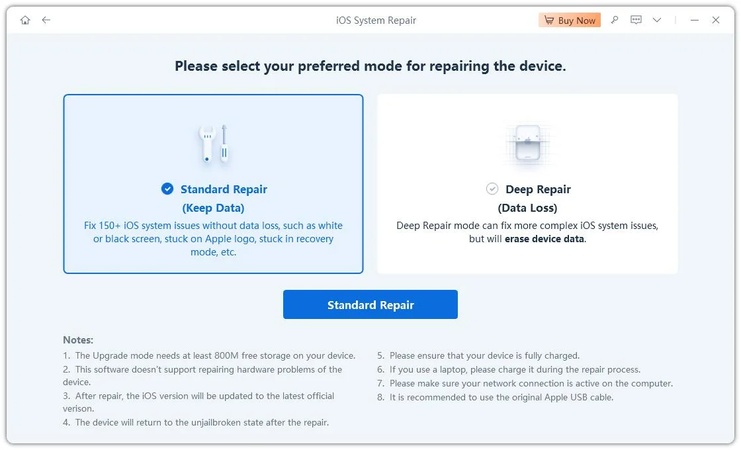
If normal Apple troubleshooting methods do not solve the problem, Tenorshare ReiBoot provides another option for managing Recovery Mode and addressing certain iOS system issues. The software can help you enter or exit Recovery Mode from a Mac or Windows PC without relying only on the physical button combination. ReiBoot also includes iOS system repair tools for problems such as failed updates, startup issues, and devices stuck in Recovery Mode. Its repair options include Standard Repair and Deep Repair, depending on the type of problem. Standard Repair is designed to preserve user data, while Deep Repair may erase the device during the repair process.
Key features include:
-
One-click Recovery Mode: ReiBoot can help enter Recovery Mode without manually using the button sequence.
-
Recovery Mode exit: It provides an option to exit Recovery Mode when the iPhone remains on the recovery screen.
-
Standard Repair: Tenorshare says its Standard Repair mode is designed to fix common iOS 27 bugs and other system-level problems without deleting user data.
-
Deep Repair: Tenorshare states that Deep Repair can address more serious problems, such as an iPhone stuck in a boot loop, but the process can erase device data.
-
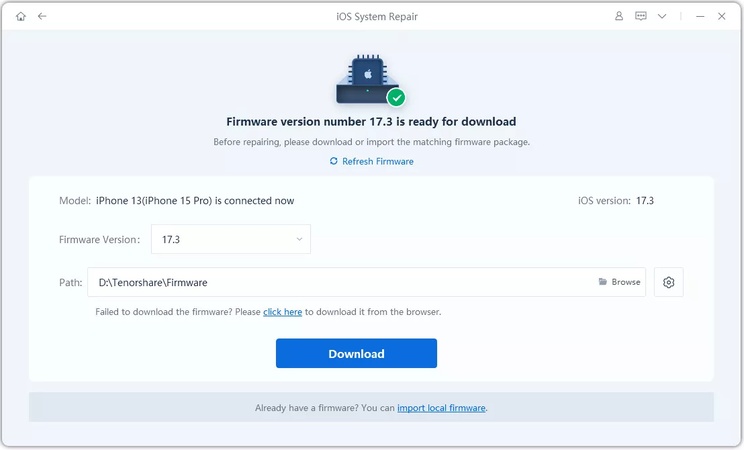
Firmware download: ReiBoot can download the firmware package needed for its repair process --- the same engine it uses when an Apple Intelligence download gets stuck and needs to be re-pulled.
How to use ReiBoot:
-
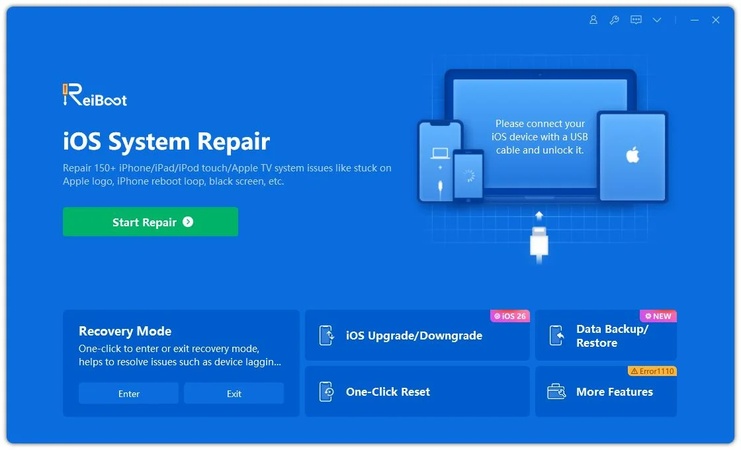
Step 1: Download ReiBoot on your Windows PC or Mac. After installation, open the software and connect your iPhone Duo using a working USB cable.
-
Step 2: Once ReiBoot detects the device, click the Repair Operating System option from the main screen.
-
Step 3: Select Standard Repair to fix the iPhone Duo stuck-in-recovery-mode issue without deleting your photos, apps, or personal data.
-
Step 4: ReiBoot will automatically detect the correct iOS firmware for your iPhone. Click Download and wait for the firmware package to finish downloading.
-
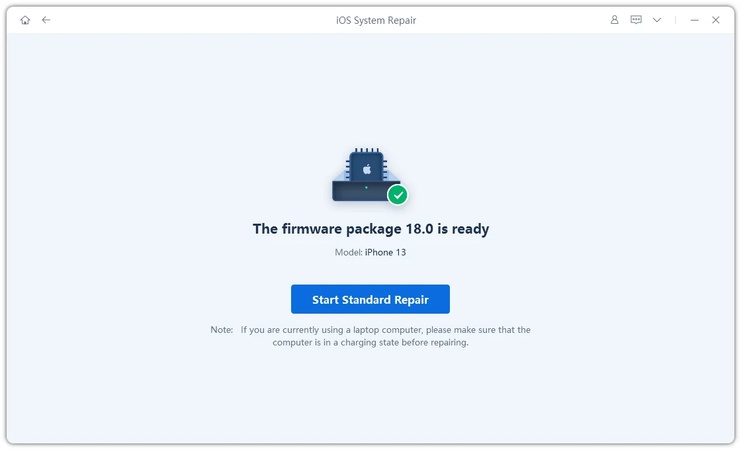
Step 5: Click Start Standard Repair and keep your iPhone connected during the process. ReiBoot will repair the damaged system files and fix the iPhone Duo stuck-in-recovery-mode problem safely.
-
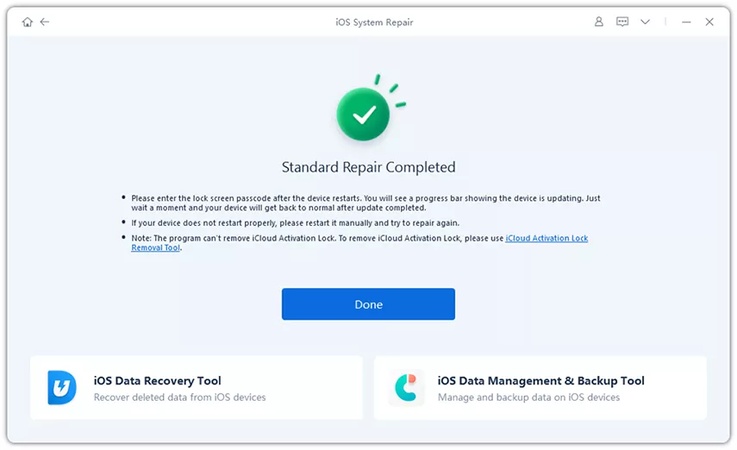
Step 6: After the repair finishes, your iPhone will reboot normally. Once the Apple logo appears, the device should successfully exit Recovery Mode.
FAQs
1. How to exit recovery mode on iPhone Duo?
If you entered Recovery Mode by mistake, try a force restart. Disconnect the cable if necessary, then press and quickly release Volume Up, press and quickly release Volume Down, and hold the Side button until the Apple logo appears. Tenorshare ReiBoot also provides a one-click Recovery Mode exit feature through its computer software.
2. How long does iPhone Duo recovery mode take?
Entering Recovery Mode normally takes only a short time. The longer part comes when you update or restore iOS because the computer may need to download the software. Apple notes that downloads taking more than 15 minutes can cause the iPhone to leave the recovery screen. If this happens, let the download finish and then enter Recovery Mode again.
3. Does recovery mode erase my iPhone Duo?
Simply entering Recovery Mode does not erase your iPhone. However, choosing Restore erases the device and reinstalls iOS. If you have not tried an update yet, Apple recommends trying the update first when appropriate.
4. What's the difference between recovery mode and DFU mode on iPhone Duo?
Recovery Mode lets your computer communicate with the iPhone when iOS cannot start normally. You can use it to update or restore the device. DFU Mode is a deeper device state used for advanced firmware troubleshooting. Most users should start with a force restart or Recovery Mode rather than using DFU Mode.
Conclusion
That's how to put iPhone Duo in recovery mode: two paths --- the classic button combo (Volume Up, Volume Down, then hold Side until "Connect to Computer" appears), or, since iPhone Duo runs iOS 27, holding the Side button after a shutdown to reach the new on-screen Recovery Mode option with no computer needed. If Update doesn't fix a boot loop, failed update, or forgotten passcode, Restore will, but it erases the device, so back up first whenever you can.
Still stuck after checking your cable and software? Tenorshare ReiBoot offers a one-click way to enter, exit, or repair Recovery Mode issues without the manual button sequence.
