
Updated on 2026-07-21 / iPhone Tips
Everything looks ready for the iOS 27 update until your iPhone suddenly shows the unable to verify update iOS 27 error. The update may download normally, but the installation stops before it begins, leaving many users confused and stuck.
This problem is especially common during releases. Fortunately, most users can fix it quickly. In this guide, we'll cover 11 proven solutions to help you successfully verify and install the iOS 27 update on your iPhone.
Part 1. Comparison Table: Fixes for "Unable to Verify Update" Error
| Solutions | Success Rate | Data Loss | Ease of Use | Time Required |
|---|---|---|---|---|
| Check Apple System Status | Medium | No | Very Easy | 1–2 Minutes |
| Restart Your iPhone | Medium | No | Very Easy | 2–3 Minutes |
| Fix with ReiBoot (Standard Repair) | Very High | No | Very Easy | 5–10 Minutes |
| Switch to Stable WiFi | Medium | No | Easy | 3–5 Minutes |
| Delete & Redownload Update File | High | No | Easy | 10–30 Minutes |
| Free Up iPhone Storage | Medium | No | Moderate | 10–20 Minutes |
| Disable VPN | Medium | No | Easy | 1–2 Minutes |
| Reset Network Settings | High | No | Easy | 5 Minutes |
| Remove & Reinstall Profile | Medium | No | Moderate | 5–10 Minutes |
| Update via Finder/iTunes | High | No | Moderate | 15–30 Minutes |
| Install IPSW File Manually | High | Possible Risk if Interrupted | Advanced | 20–40 Minutes |
Part 2. What Does It Mean When It Says "Unable to Verify Update"?
When your iPhone shows "unable to verify update iOS 27 is temporarily unavailable try again later," it means your device cannot confirm the update with Apple's servers. This step is needed to check if the update file is correct and safe.
This error usually happens due to weak internet, busy Apple servers, low storage, or a small system glitch. Sometimes Apple's servers are just overloaded after a new release.
Part 3. How to Fix "Unable to Verify Update" Error? (11 Verified Solutions)
1. Check Apple System Status Before Retrying
The most common reason for the unable to verify update iOS 27 error is Apple's update servers being overloaded or temporarily down. In such cases, fixing your device will not help because the issue is not on your side.
During major iOS releases, Apple servers often slow down or stop responding properly because millions of users try to update at the same time. Checking system status first helps you decide whether to wait or continue with other fixes.
-
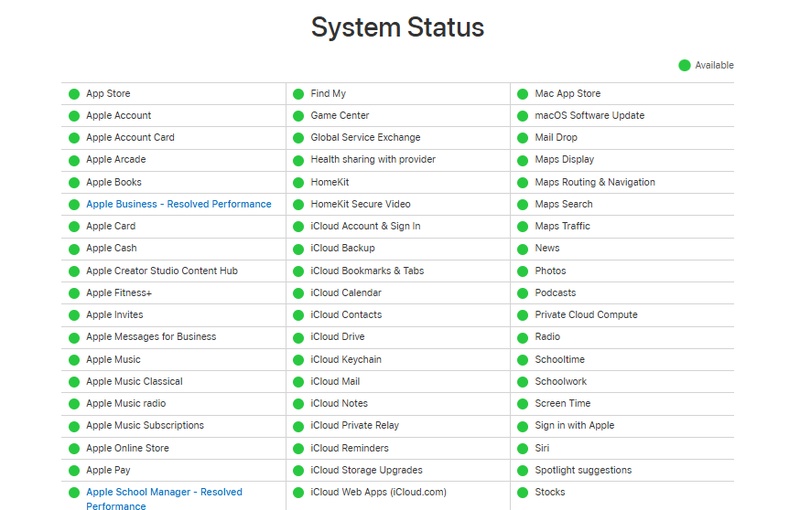
On any browser, open apple.com/support/systemstatus
Find "iOS Software Updates" in the list
-
Check status:
-
Green = working fine
-
Yellow/Red = server issue
-
-
If there is an issue, wait 30--60 minutes before trying again
Once green, retry the update
2. Restart Your iPhone
A simple restart clears temporary system cache, resets active network connections, and terminates background processes interfering with the update verification sequence.
Steps
-
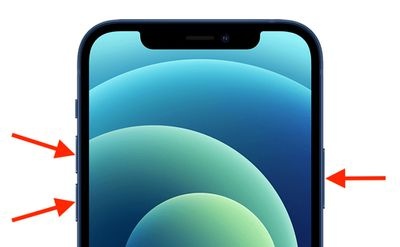
For iPhone X and later (Face ID models): Press and hold the Side button and either Volume button simultaneously until the power slider appears. Drag the slider, wait 30 full seconds, then hold the Side button until the Apple logo appears.
-
For iPhone SE (2nd/3rd gen) and iPhone 8: Press and hold the Side button until the power slider appears. Drag the slider, wait 30 seconds, then hold the Side button to restart.
3. One-Click Fix for "Unable to Verify Update" with ReiBoot (No Data Loss)
Basic fixes may fail if your iPhone is stuck in a verification loop, as a deeper iOS system glitch may be causing the issue. Tenorshare ReiBoot is a dedicated iOS system repair tool that fixes 150+ system-level issues, including the iOS 27 update verification failed error, without erasing any data.
It repairs corrupted system components that block the update process and restores the device to a stable, verifiable state. Reiboot works well if basic troubleshooting steps fail or if the iPhone remains stuck on the verification screen for an extended time.
Key Features of ReiBoot
-
Fix iOS update verification failed issues
-
Repair 150+ iOS system problems
-
No data loss during Standard Repair
-
Fix iPhone stuck on verifying update screen
-
Enter and exit Recovery Mode in one click
-
Compatible with latest iOS 27 and iPhone models
-
Simple repair process for beginners
Steps to Fix unable to verify update ios 27 with ReiBoot:
- Step 1: Launch ReiBoot on Your Computer
Download and install Tenorshare ReiBoot on your Windows PC or Mac from the official Tenorshare website.Connect your iPhone to your computer. On the ReiBoot home screen, click "Start Repair" to begin system repair.

- Step 2: Select "Standard Repair"
Select "Standard Repair" this mode fixes system issues without deleting any data.

- Step 3: Download Firmware Package
ReiBoot will prompt you to download the latest firmware package for your device. Click "Download" and wait for the process to complete.

- Step 4: Start Standard Repair
Once the firmware is ready, click “Start Standard Repair” to fix the “Unable to Verify Update” error. Wait until the repair process is completed.

- Step 5: Update Verification Fixed
After the repair completes, your iPhone will reboot to a clean system state. Go to Software Update and attempt the iOS 27 installation again.

4. Switch to a Stable Wi-Fi Connection
The update verification process requires a sustained, reliable connection to Apple's servers. An unstable Wi-Fi signal can cause the verification handshake to fail mid-process, resulting in a temporary iphone stuck on verifying update ios 27 message. Public or congested networks are frequent culprits.
-
Go to Settings → Wi-Fi and check your signal strength. If it is weak, move closer to your router.
-
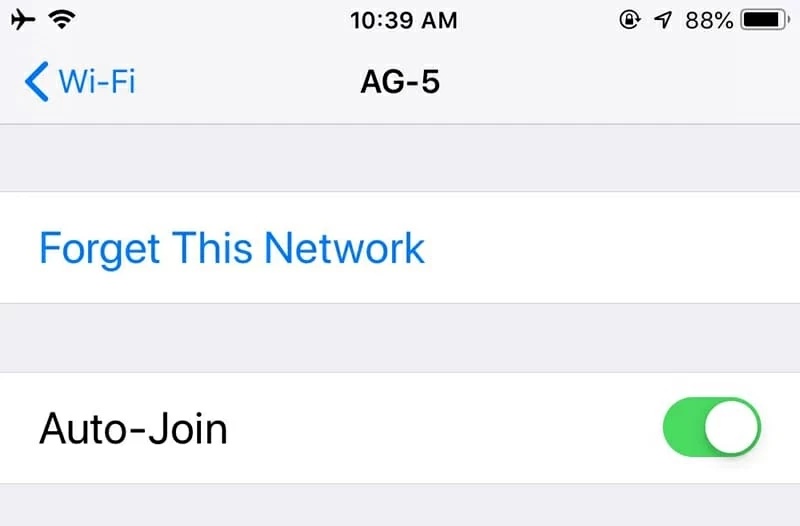
To switch or refresh networks, tap on your current network name and select Forget This Network, then reconnect.
-
Avoid using public or shared networks for system updates.
-
If your home Wi-Fi is acting up, try restarting your router: unplug it for 30 seconds, plug it back in, and wait 60 seconds before retrying the update.
5. Delete and Redownload the Update File
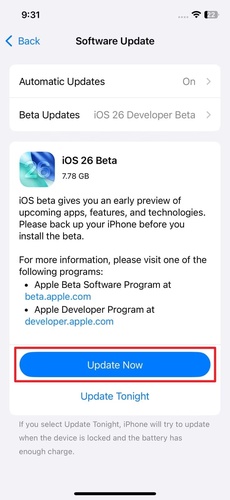
If the update file was interrupted during download or corrupted during storage, the verification step will fail every single time because it cannot verify a broken file. Deleting the cached package forces your iPhone to download a fresh, intact copy.
Open Settings on your iPhone.
-
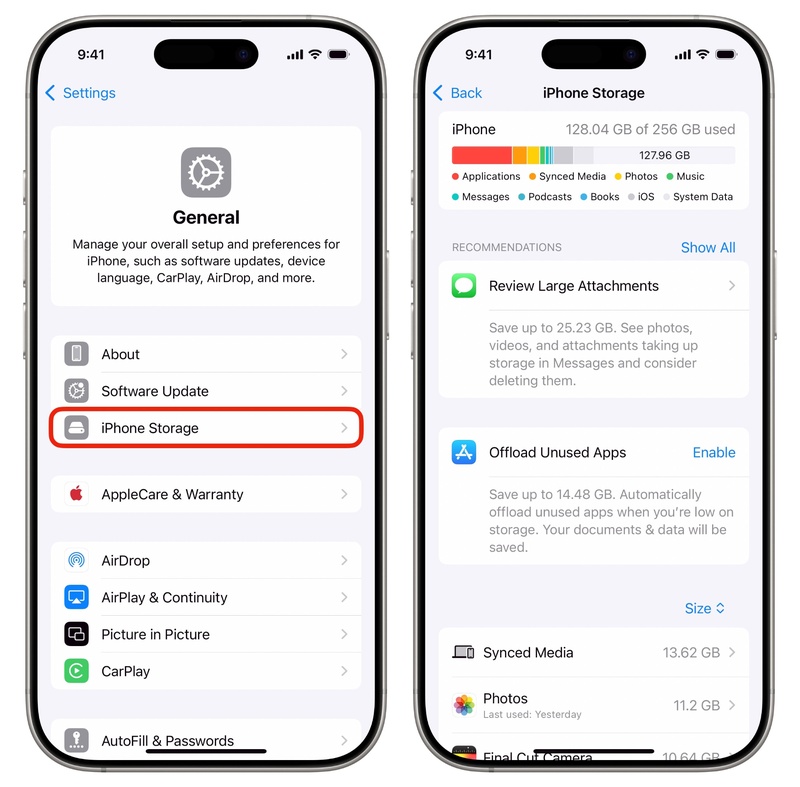
Tap General, then tap iPhone Storage (allow 10--20 seconds for the list to load).
-
Scroll through the list and look for an item labeled iOS 27 or iPhone Software Update.
-
Tap on it, select Delete Update, and confirm.
-
Restart your iPhone, then go back to Settings → General → Software Update to redownload the file. Keep your screen active or plug into power during the download.
6. Free Up iPhone Storage
Insufficient storage space is one of the most common reasons why iOS updates fail during the verification process. Even if the update file downloads successfully, your iPhone still needs extra free space to unpack, verify, and install the update properly. If your storage is nearly full, the verification may get stuck or repeatedly show the “Unable to Verify Update” error.
-
Go to Settings and tap General.
-
Select iPhone Storage and wait for your device to analyze storage usage.
-
Delete large unused apps, old videos, downloaded files, or duplicate photos to free up space.
-
If you use apps like TikTok, Instagram, or Safari heavily, clear their cache and offline downloads whenever possible.
-
Try to keep at least 10 GB of available storage before installing iOS 27 to reduce update verification issues.
-
After freeing up storage, restart your iPhone and attempt the update again from Settings → General → Software Update.
7. Disable VPN
VPN services route your traffic through external servers, which can interfere with Apple's localized update verification system. Disabling your VPN removes this layer of routing interference and allows a direct connection to Apple's servers.
-
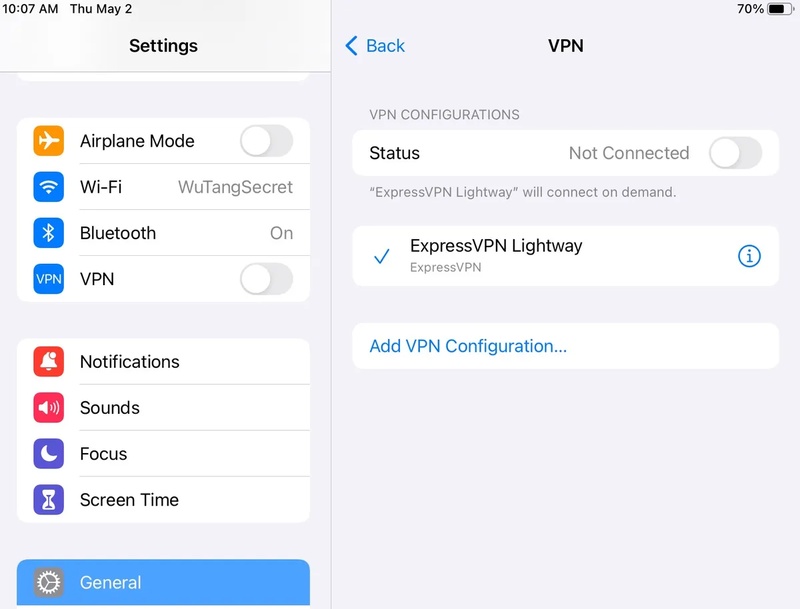
If using a dedicated app (like NordVPN, ExpressVPN, or ProtonVPN), open the app and turn off the connection.
-
Alternatively, go to Settings → VPN & Device Management → VPN and toggle the status to Not Connected.
-
Once the update installs successfully, you can re-enable your VPN service.
8. Reset Network Settings
Over time, network configurations can accumulate corrupt data, conflicting DNS entries, or misconfigured proxy settings that silently block iOS update verification. Resetting network settings wipes these configurations back to factory defaults.
Note: This will remove all saved Wi-Fi passwords, so make sure you have your home password handy before proceeding.
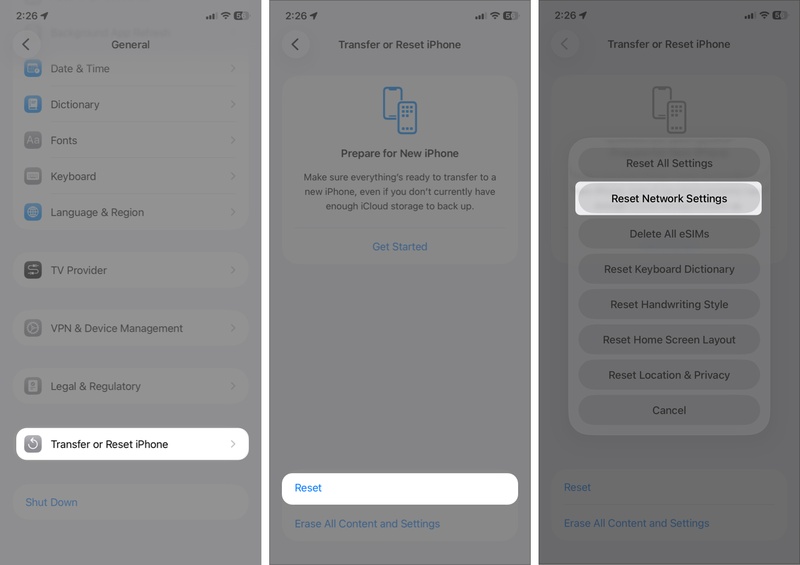
Go to Settings → General.
-
Scroll down and tap Transfer or Reset iPhone → Reset.
-
Select Reset Network Settings (do not tap "Erase All Content and Settings").
-
Enter your passcode and confirm. Your iPhone will restart.
9. Remove Profile & Retry
The enrollment profile becomes corrupted or conflicts with your current software version. This can cause iphone stuck on verifying update iOS 27 and lead to persistent verification failures.
Removing and reinstalling the profile restores a clean enrollment state and helps fix the issue.
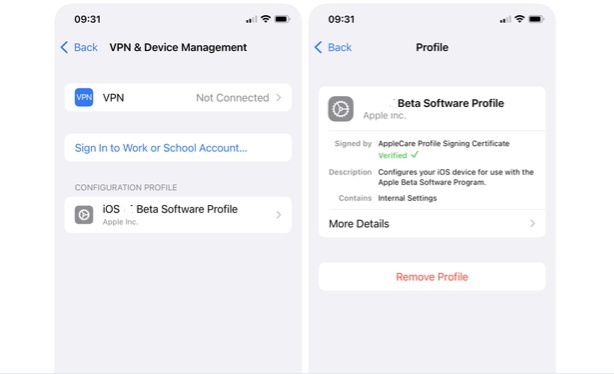
- Go to Settings → General → VPN & Device Management.
- Tap the Software Profile under Configuration Profiles.
- Tap Remove Profile, enter your passcode, and confirm. Restart your iPhone.
- Re-enroll by visiting.apple.com in Safari on your iPhone, signing in with your Apple ID, and downloading the profile fresh.
10. Update iPhone Using Finder or iTunes
When over-the-air (OTA) wireless updates repeatedly fail verification, using a wired computer connection helps bypass device-level network bugs.
It also avoids local storage caching issues, which can help fix the ios 27 update verification failed error.
On Mac (macOS Catalina or later --- use Finder):
-
Connect your iPhone to your Mac using a USB cable and unlock your iPhone.
-
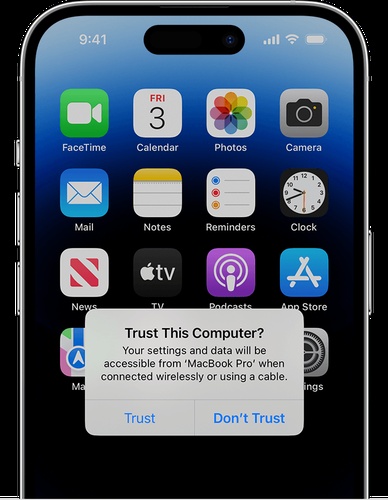
If prompted on your iPhone, tap "Trust This Computer" and enter your passcode.
-
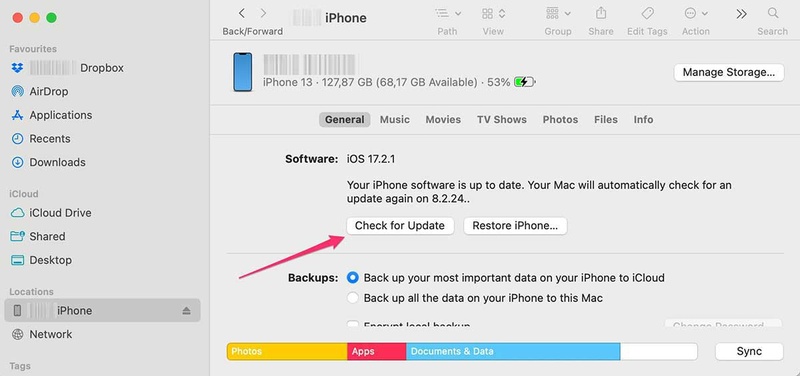
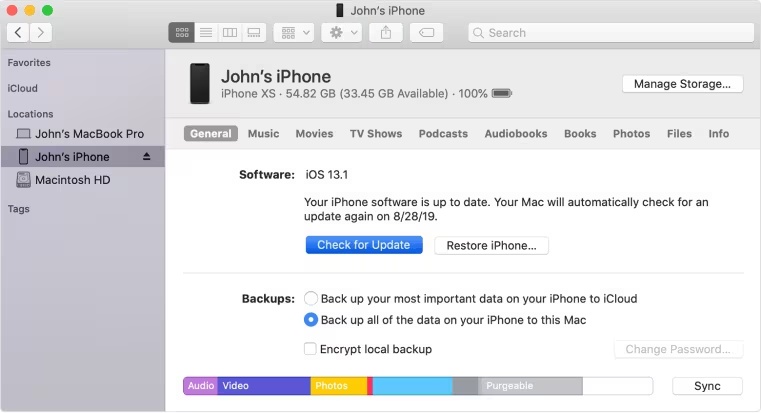
Open Finder and click on your iPhone in the left sidebar under "Locations."
-
Click the "General" tab and then click "Check for Update".
-
If iOS 27 appears as an available update, click "Update" and follow the on-screen prompts.
-
Finder will download and verify the update on your computer, then install it on your device.
On Windows or macOS Mojave/earlier (use iTunes):
-
Download the latest version of iTunes from apple.com or the Microsoft Store.
-
Connect your iPhone via USB, unlock it, and trust the computer if prompted.
-
Open iTunes and click the iPhone icon near the top left.
-
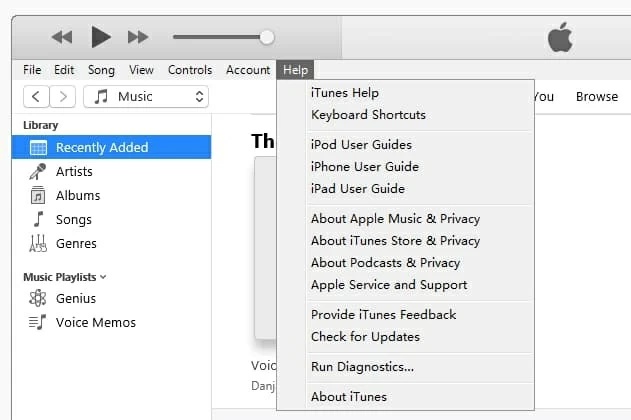
Click "Check for Update" in the Summary panel.
-
Click "Update" if iOS 27 is available and follow the installation prompts.
11. Install the iOS Update Manually
Installing iOS manually using an IPSW file is a direct and reliable method. It bypasses OTA update delivery, Apple's verification servers, and any corrupted update cache on the device. This method is especially useful when all other fixes fail and you are facing a persistent iphone stuck on verifying update iOS 27 issue. You simply download the firmware file and install it using Finder or iTunes.
-
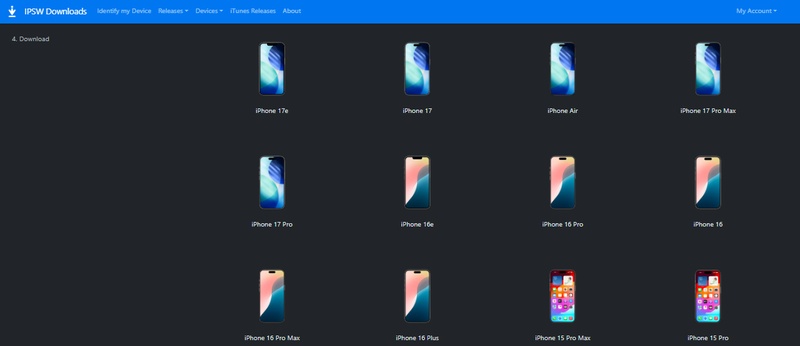
On your computer, go to ipsw.me a trusted IPSW download directory.
-
Select "iPhone", then choose your specific iPhone model from the list.
-
Locate the iOS 27 firmware in the list and click the download link. The file will be large (typically 5--7 GB) make sure you have a stable connection and sufficient disk space.
-
Once downloaded, connect your iPhone to your computer via USB, unlock it, and trust the computer if prompted.
-
Open Finder (Mac) or iTunes (Windows).
-
On Mac: Click your iPhone in the Finder sidebar, hold the Option key, and click "Check for Update".
-
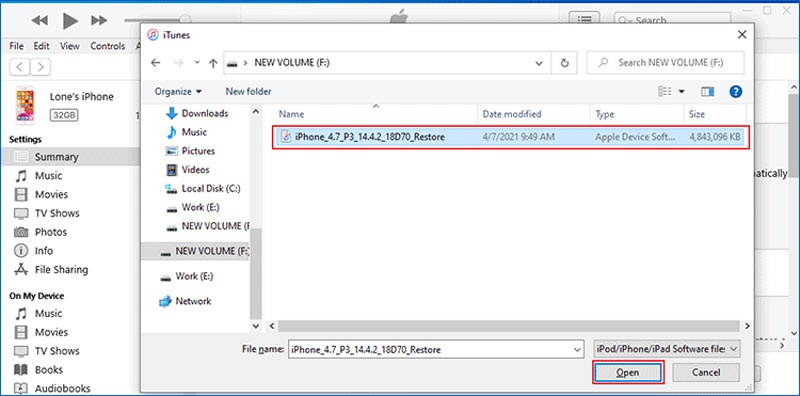
On Windows: In iTunes, hold the Shift key and click "Check for Update".
-
-
A file picker dialog will open. Navigate to your downloaded IPSW file, select it, and click "Open" (or "Choose").
-
Finder/iTunes will verify the file locally and begin the installation. This process takes 10--20 minutes.
-
Your iPhone will restart once installation is complete, landing on the iOS 27 setup or lock screen.
Conclusion:
The unable to verify update iOS 27 error often appears when something interrupts the update process, such as server overload, weak connectivity, or a damaged update file. When the problem refuses to go away, it usually means the system needs a deeper repair. Tenorshare ReiBoot offers a dependable way to fix these stubborn iOS update issues and get the installation working smoothly again without data loss.
