
Updated on 2026-07-21 / iPhone Tips
Are you trying to get the new iOS 27, but a screen says "Unable to Check for Update"? Don't worry! This is a very common issue. It usually happens when Apple's servers are too busy with thousands of people trying to download it at the exact same time. It can also be caused by a small glitch in your phone's Wi-Fi.
You do not have to wait around. These quick and easy steps will fix your connection so you can download the iOS 27 right away.
Part 1. Quick Comparison: Solutions to iOS 27 Unable to Check for Update
| Solution | Success Rate | Data Loss | Ease of Use | Time Required |
|---|---|---|---|---|
| Check iPhone Compatibility | Very high | No | Very easy | 1-2 min |
| Restart Your iPhone | Low | No | Very easy | 2-3 min |
| Select the Correct Channel | High | No | Very easy | 1-2 min |
| Enroll Apple ID in Program | High | None | Very easy | 3-5 min |
| Upgrade with ReiBoot | Very high | None | Very easy | 5-10 min |
| Remove Old Profiles | Moderate | None | Moderate | 5-10 min |
| Update to the Latest iOS 26 First | Moderate | None | Easy | 15-30 min |
| Update via Finder/iTunes | Moderate | None | Moderate | 20-40 min |
| Reset Network Settings | Low | Yes, settings only | Moderate | 5-10 min |
Part 2. Why Does It Say "Unable to Check for an Update"?
Unable to Check for an Update appears when the iPhone fails to verify or reach Apple's update servers. It means the system is interrupted somewhere between the device and the update process, so the latest cannot be detected or loaded properly. This is usually caused by network, software, or configuration issues.
Common reasons include:
-
Unstable or weak internet connection
-
Apple servers are temporarily overloaded or down
-
VPN, proxy, or firewall blocking update access
-
Corrupted or incomplete iOS profile
-
Low storage space affecting system processing
-
Software glitches or temporary system bugs
-
Incorrect date and time settings
-
Network settings conflicts or cached data errors
Part 3. How to Fix iOS 27 Unable to Check for Update (Top 11 Ways)
The ios 27 unable to check for software update issue often appears due to small glitches in network, system services, or update verification. In most cases, the problem is not serious and can be fixed with a few simple steps. Below are the most effective methods to get your iPhone back to normal and fix iPhone stuck on checking for updates.
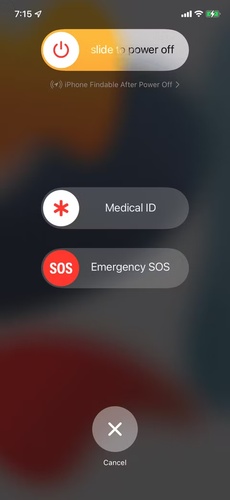
1. Restart iPhone to Refresh Update Service
Temporary system glitches can cause iPhone stuck on checking for updates, preventing the update screen from loading properly. A simple restart refreshes system services and clears minor bugs.
- Press and hold the power button (or volume + power on newer iPhones).
- Slide to power off.
- Wait 10--15 seconds.
- Turn the iPhone back on.
2. Fix iOS 27 Unable to Check for Update Error Easily via ReiBoot
The ios 27 unable to check for software update error can be frustrating. It is usually caused by system glitches, corrupted files, or failed update processes. In such situations, ReiBoot is a helpful tool that can repair iOS problems without complicated manual troubleshooting.
It can fix update-related errors, system freezes, and iPhone stuck on checking for updates issues. It also allows users to upgrade or downgrade iOS safely without data loss in most cases, making it a reliable option for system repair.
Key Features of ReiBoot
-
Repairs iOS system glitches without data loss
-
Fixes update problems like "unable to check for update"
-
Unfreezes iPhone stuck on Apple logo or loading screen
-
Enters and exits Recovery Mode with a single click
-
Works with latest iOS versions and all major iPhones
-
Supports clean iOS upgrade and downgrade process
Steps to Fix ios 27 unable to check for update with reiboot:
- Step 1: Launch ReiBoot on Your Computer
Download and install Tenorshare ReiBoot on your computer. Open the program and connect your iPhone showing the "Unable to Check for Update" error.

- Step 2: Click on "Standard Repair"
Click on "Standard Repair" when ReiBoot detects your device to fix the "Unable to Check for Update" error without affecting your data.

- Step 3: Download Firmware Package
Download the latest firmware package when prompted. ReiBoot will automatically prepare the correct firmware package for your device.

- Step 4: Start Standard Repair
Once the firmware is ready, click “Start Standard Repair” to repair the "Unable to Check for Update" issue. Wait for the repair process to complete.

- Step 5: Update Check Working Again
Your iPhone will restart automatically after repair. Check whether your device can now check for and download iOS updates normally.

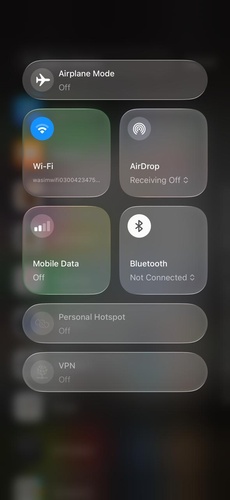
3. Toggle Airplane Mode to Reset Network
Network glitches can temporarily interrupt communication between your iPhone and Apple servers. This can lead to the ios 27 unable to check for software update error. Refreshing the network connection often fixes this quickly.
Steps:
-
Open Control Center from the top-right corner (or swipe up on older iPhones).
-
Tap the Airplane Mode icon to turn it ON.
-
Keep it enabled for 15--30 seconds so all network signals reset completely.
-
Turn Airplane Mode OFF again to reconnect to mobile network and WiFi.
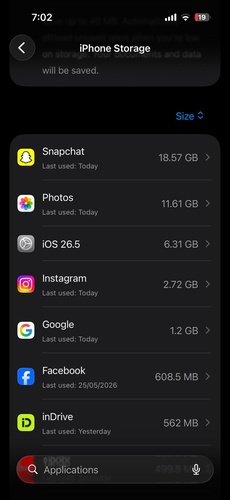
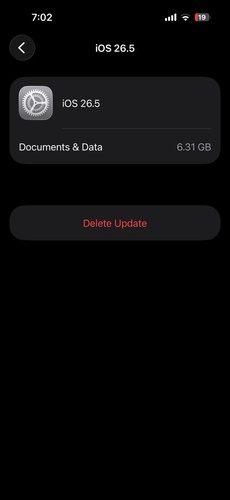
4. Delete iOS Update File and Retry
A partially downloaded or corrupted update file can stop the installation process and also cause iPhone stuck on checking for updates. Removing the existing update file allows the system to start fresh and download a clean version from Apple servers without conflicts.
Steps:
Open Settings on your iPhone.
Go to General > iPhone Storage.
-
Scroll down and locate the iOS update file in the list.
-
Tap on it and select Delete Update to remove the corrupted file.
5. Disable VPN or Security Apps
VPNs and security apps can sometimes block or reroute Apple's update servers, which interrupts the connection needed for checking updates. When this happens, the device may show the ios 27 unable to check for update error. Turning these services off helps the iPhone connect directly to Apple servers without interference.
Steps:
Open your VPN app and disconnect it completely.
-
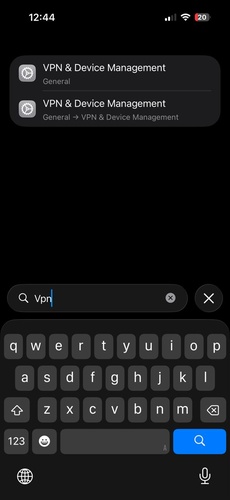
Go to Settings > VPN and make sure it is turned off.
-
Temporarily disable any security, firewall, or network protection apps.
Restart your WiFi connection to refresh the network.
6. Sign Out and Back Into Apple ID
Your Apple ID plays an important role in verifying software updates and communicating with Apple services. If there is a temporary account synchronization issue, the update process may fail and trigger the ios 27 unable to check for update error.
Signing out and signing back in refreshes your account connection and can resolve update verification problems.
Steps:
-
Open Settings and tap your name at the top of the screen.
-
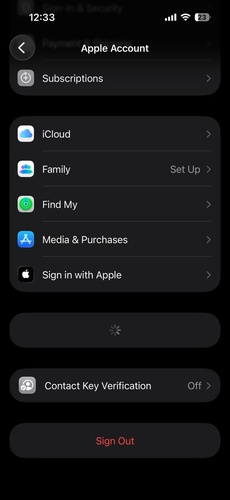
Scroll to the bottom and tap Sign Out.
-
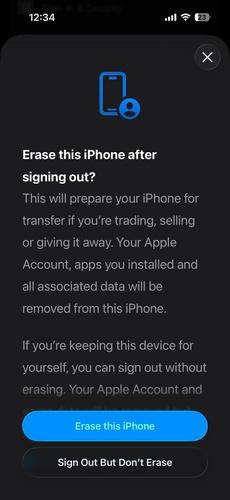
Choose erase this iPhone or sign out but don't erase. Enter your Apple ID password and follow the prompts to complete the sign-out process.
Restart your iPhone to refresh background services.
-
Return to Settings, sign back into your Apple ID, and allow the device to finish syncing.
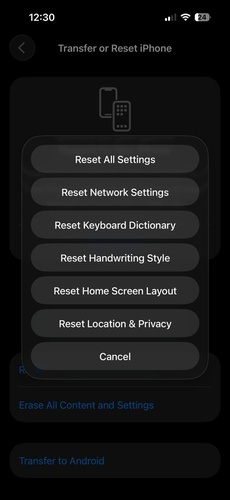
7. Reset Network Settings
Incorrect network configurations, corrupted WiFi settings, or connection conflicts can prevent your iPhone from reaching Apple's update servers. This often leads to the ios 27 stuck on preparing update issue. Resetting network settings removes problematic configurations and creates a fresh network connection.
Steps:
Open Settings and go to General.
-
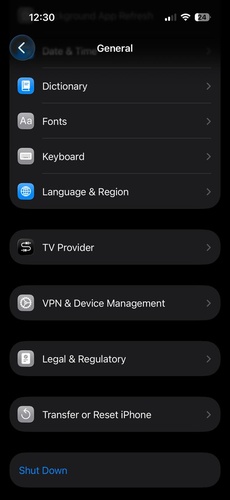
Scroll down and select Transfer or Reset iPhone.
-
Tap Reset and choose Reset Network Settings.
-
Enter your passcode when prompted and confirm the reset.
-
Wait for the iPhone to restart automatically. Reconnect to your WiFi network by entering the password again.
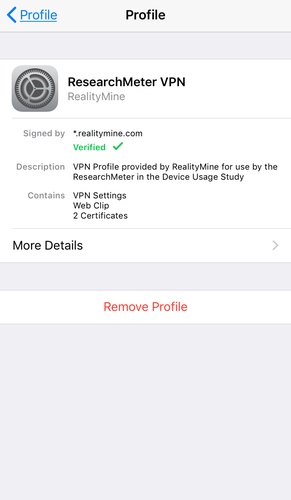
8. Remove and Re-add iOS Option
A corrupted or outdated profile can trigger the ios 27 unable to check for update error. Refreshing the configuration helps restore proper communication with Apple's update servers and fixes stuck or failed update checks.
Steps:
-
Go to Settings > General > VPN & Device Management.
Tap the iOS Profile.
-
Select Remove Profile and confirm.
Restart your iPhone.
9. Update iPhone Using Finder or iTunes
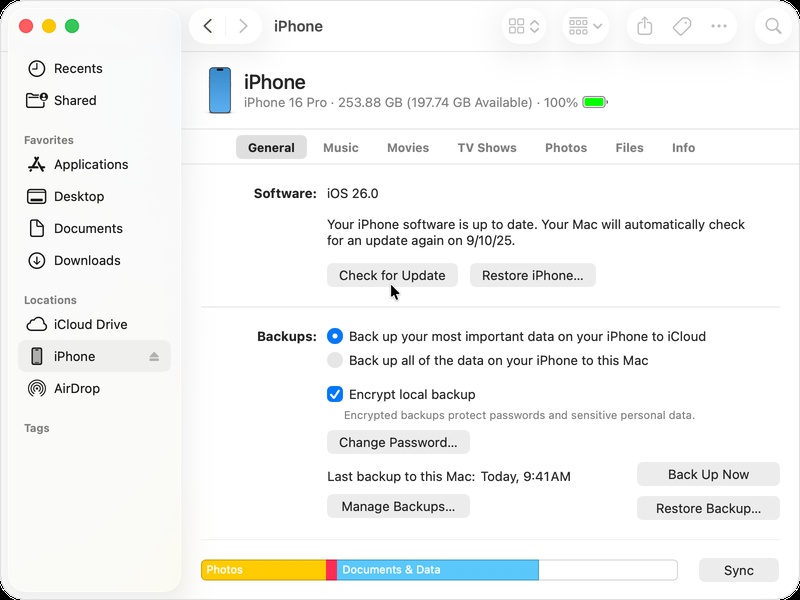
When over-the-air updates fail repeatedly, using Finder or iTunes provides a more stable way to install updates. This method helps bypass network-related issues that often cause ios 27 stuck on preparing update. It also provides a direct and reliable connection with Apple servers for a smoother update process.
Steps:
-
Connect your iPhone to a Mac or Windows PC using a USB cable and open Finder or iTunes.
Select your iPhone when it appears on the screen.
-
Click on Check for Update to let the system search for the latest version.
-
Choose Download and Update to begin the installation process.
-
Keep your iPhone connected until the update is fully completed and the device restarts.
10. Install iOS 27 Using IPSW File
Installing iOS through an IPSW file is a manual method used when normal updates fail completely. Itunes performs a clean installation of iOS and can fix deep system-level problems.
Steps:
-
Download the correct and signed iOS 27 IPSW file for your exact iPhone model from a trusted source.
-
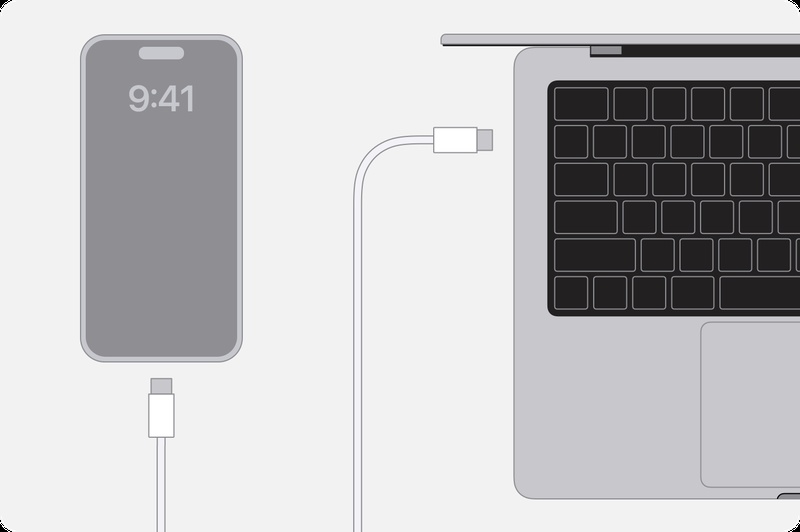
Open Finder on Mac or iTunes on Windows and connect your iPhone using a certified USB cable.
-
If your iPhone is not detected, put it into Recovery Mode before continuing.
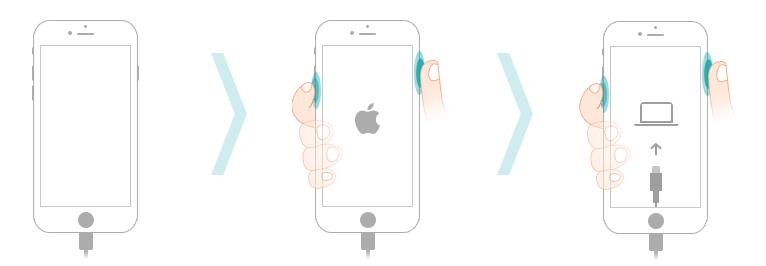
-
Select your iPhone when it appears in Finder or iTunes.
-
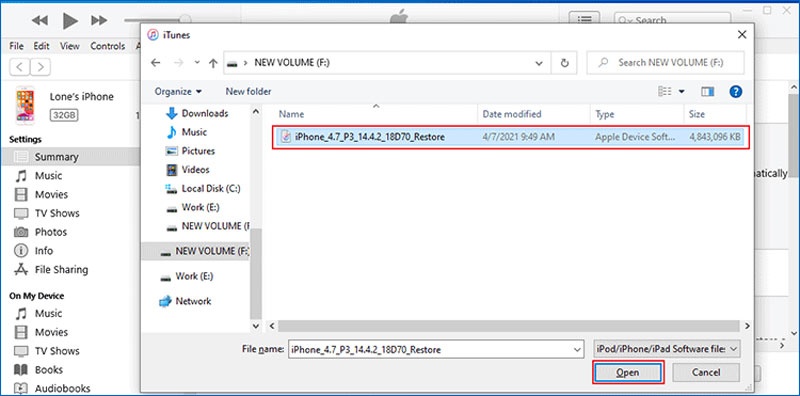
Hold Shift (Windows) or Option (Mac) and click Restore iPhone.
-
Choose the downloaded IPSW file from your computer.
-
Confirm the restore process and allow the system to verify and install the firmware.
-
Wait for the process to finish without disconnecting your device, and let the iPhone restart automatically.
Conclusion:
Stuck on the iOS 27 update screen? Don't stress! Whether your iPhone is trapped on "Preparing Update" or hitting a server error, it's usually just a quick digital traffic jam that a fast system refresh can fix. Want a completely hassle-free solution? A smart tool like ReiBoot can eliminate stubborn update bugs in minutes. It helps get the installation process back on track and saves valuable time with just a few clicks.
