
Updated on 2026-07-21 / iPhone Tips
Entering DFU mode is usually the final safety net for iPhone users, but when your device refuses to leave, it's a crisis. If you're facing an iOS 27 stuck on DFU mode error, your phone's hardware is powered on, but the system is unable to load the OS.
This typically happens due to corrupted code or interrupted firmware installations. In this guide, you'll learn 7 proven ways to exit DFU mode and fix your iPhone without stress. Just follow the steps carefully and get your device back to normal in no time.
- Part 1: iOS 27 Stuck on DFU Mode Fixes Compared
- Part 2: Why iOS 27 Stuck on DFU Mode
- Part 3: How to Fix iOS 27 Stuck on DFU Mode
- Part 4: FAQs on iOS 27 Stuck on DFU Mode
Part 1. iOS 27 Stuck on DFU Mode Fixes Compared
Different fixes work differently depending on how serious the DFU mode issue is. Some methods are quick and safe without data loss, while others completely reinstall iOS for deeper repair. The comparison table below helps you choose the best solution.
| Solutions | Success Rate | Data Loss | Ease of Use | Time Required |
|---|---|---|---|---|
| Force Restart iPhone | Low | No | Very Easy | 1–5 minutes |
| ReiBoot Standard Repair | High | No | Very Easy | 5–10 minutes |
| Finder / iTunes Restore | High | Yes | Medium | 20–40 minutes |
| Recovery Mode Fix | Medium–High | Maybe | Medium | 15–30 minutes |
| IPSW Restore Method | Medium–High | No | Advanced | 20–60 minutes |
| Apple Configurator Revive | High | No (Revive only) | Advanced | 20–40 minutes |
| Battery Drain Method | Low | No | Easy | Several hours |
Part 2. Why iOS 27 Stuck on DFU Mode
The ios 27 stuck on dfu mode issue happens when the update process fails and the iPhone gets locked in a deep recovery state. This usually means the system could not complete startup or restore properly.
Common reasons:
-
iOS 27 update fails before finishing installation
-
Firmware files become corrupted during download or setup process
-
iPhone restarts suddenly in the middle of updating
-
Battery drains during system update or restore
-
Weak or unstable internet connection interrupts update files
-
software bugs cause system crash during reboot
-
Restore process from iTunes or Finder stops midway
-
Device freezes while loading Apple logo after update
-
Storage space runs out during installation process
Part 3. How to Fix iOS 27 Stuck on DFU Mode
The ios 27 stuck on dfu mode issue can be fixed using a few simple methods that help restart the system or safely repair iOS. Try these solutions one by one to bring your iPhone back to normal.
1. Force Restart iPhone Stuck in DFU Mode
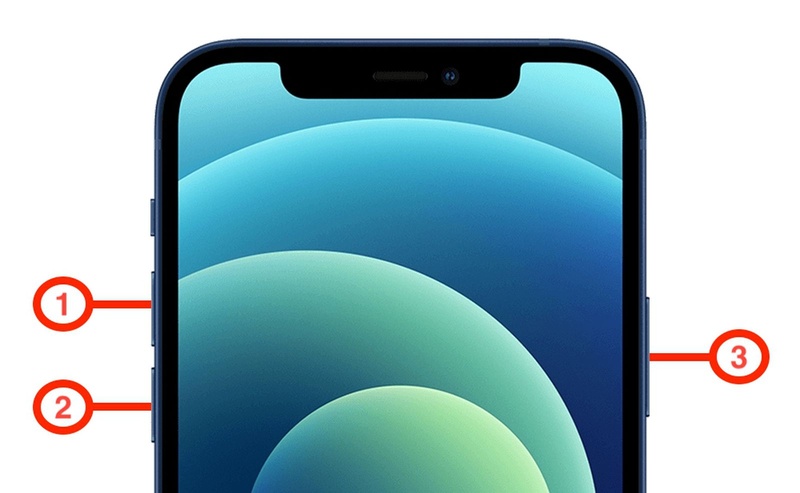
A force restart can quickly help your iPhone exit DFU mode by refreshing the system without affecting your data. It is the simplest fix to try first after a failed update or system crash.
Step to fix iphone 17 stuck on dfu mode after ios 27 update
-
Quickly press and release the Volume Up button, then do the same with the Volume Down button.
-
Press and hold the Side Button until the screen goes black.
-
Keep holding until the Apple logo appears on the screen.
2. Exit DFU Mode Using ReiBoot Without Data Loss
ReiBoot is a powerful and easy-to-use iOS system repair tool. It fixes serious iPhone issues like DFU mode, recovery loop, stuck Apple logo, and failed updates. Especially useful when your device stops responding after an update, it helps when normal restart methods do not work.
Unlike iTunes or manual recovery methods, ReiBoot simplifies the entire process and helps restore your iPhone system in just a few clicks. Its Standard Repair mode fixes iOS issues without deleting your data in most cases, making it a safe and easy option for everyday users.
Key Features of ReiBoot
-
Fixes DFU mode, recovery loop, and stuck Apple logo issues quickly
-
Works without iTunes, jailbreak, or complex technical steps
-
Standard Repair helps solve iOS problems without data loss in most cases
-
Supports latest iPhone models and newest iOS versions including updates
-
One-click enter and exit recovery mode for easy troubleshooting
-
Detects and repairs common iOS system errors automatically
Steps to Exit DFU Mode Using ReiBoot:
- Step 1: Launch ReiBoot and Connect Your iPhone
Download and install Tenorshare ReiBoot on your computer. Open the program and connect your iPhone that is stuck in DFU mode using a USB cable.

- Step 2: Select "Standard Repair"
Once ReiBoot detects your device, click on "Standard Repair" to fix iOS 27 stuck on DFU mode without data loss.

- Step 3: Download Firmware Package
Download the latest firmware package shown on the screen. ReiBoot will automatically prepare it after confirmation.

- Step 4: Start Standard Repair
Once the firmware is ready, click “Start Standard Repair” to begin fixing the DFU mode issue. Keep your iPhone connected during the process.

- Step 5: iPhone Back to Normal
Your iPhone will restart automatically after repair. Check whether the iOS 27 stuck on DFU mode issue has been fixed successfully.

3. Restore iPhone via Finder, iTunes, or Apple Devices
Restoring your iPhone using Finder, iTunes, or the Apple Devices app is a common way to fix serious system issues like DFU mode loop or failed updates. This method reinstalls iOS completely and can bring your device back to working condition. However, it requires a computer and a stable connection. In most cases, it may erase your data, so a backup is strongly recommended before starting.
Steps to Restore iPhone to fix detect an apple smartphone in dfu mode
-
Connect your iPhone to the computer using a USB cable and open Finder, iTunes, or Apple Devices.
-
Put your iPhone into Recovery Mode using button combinations based on your model.
-
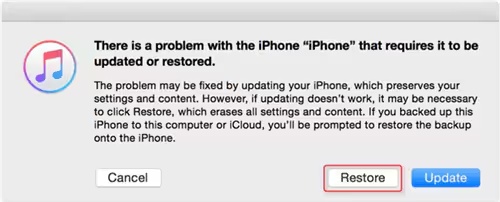
When your device appears on the screen, choose "Update" or "Restore".
-
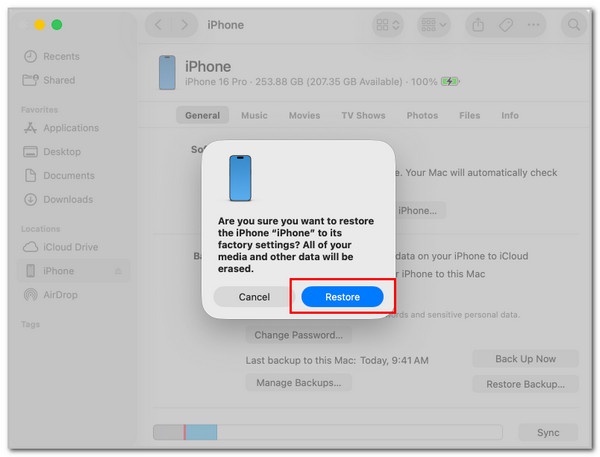
Select Restore to reinstall iOS completely (this may erase all data).
-
Keep your iPhone connected until the process finishes and it restarts automatically.
4. Enter Recovery Mode Instead of DFU Mode Loop
Recovery Mode is a safer and simpler alternative to DFU mode when your iPhone is stuck after an update. It allows your computer to detect the device and reinstall iOS without going into deeper system recovery. This method is useful when your phone is stuck on the Apple logo or keeps entering DFU mode repeatedly. A computer and USB cable are required for this process.
Steps to use recovery mode
-
Connect your iPhone to the computer using a USB cable and open Finder, iTunes, or Apple Devices.
-
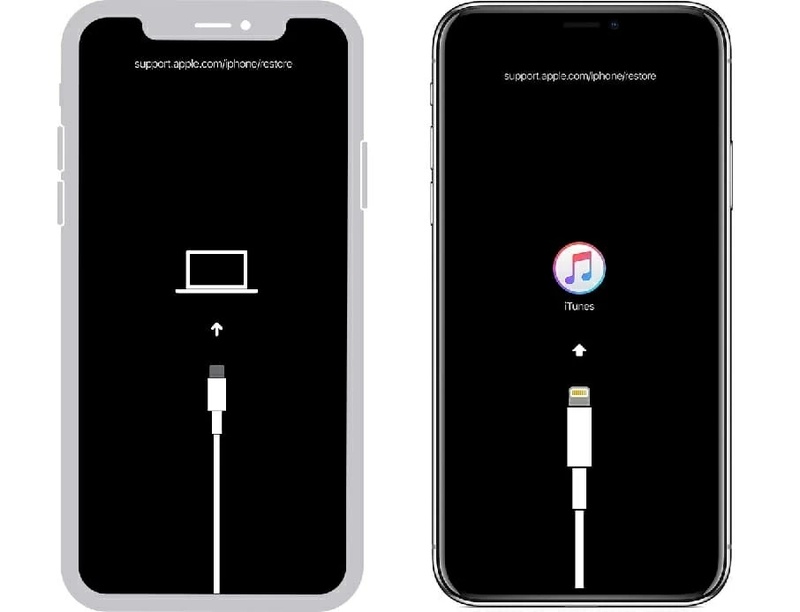
Press the correct button combination for your iPhone model and keep holding until the Recovery Mode screen appears.
-
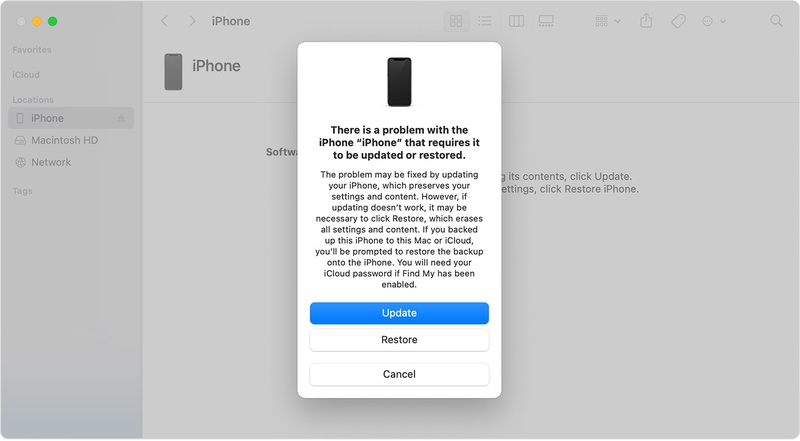
Wait for the computer to detect your device and show the options Update or Restore.
-
Click Update first to reinstall iOS without erasing data, or choose Restore if the issue is severe.
-
Keep the iPhone connected and do not interrupt the process until it completes.
-
Let the device restart automatically and check if it boots normally after installation.
5. Reinstall iOS Firmware Using IPSW Restore
Reinstalling iOS using an IPSW file is a manual but powerful way to fix serious system problems like recover iphone from dfu mode. It replaces the entire iOS system with a fresh firmware file, which helps remove corrupted system data causing DFU issues. It requires careful selection of the correct firmware and a stable computer connection.
Here how to fix iphone 17 stuck on dfu mode after ios 27 update:
-
Connect your iPhone to the computer using a USB cable and open Finder or iTunes so the device is detected properly.
-
Put your iPhone into Recovery Mode or ensure it is already showing on the restore screen.
-
Download the correct IPSW firmware file for your specific iPhone model from a trusted source.
-
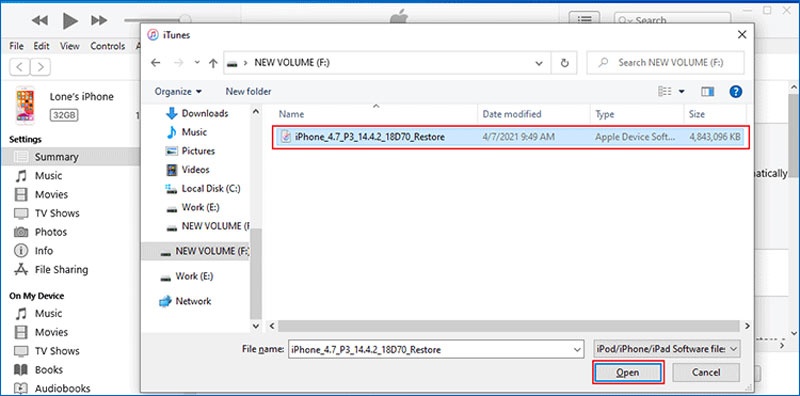
In Finder or iTunes, press Shift (Windows) or Option (Mac) and click Restore iPhone to open file selection.
-
Choose the downloaded IPSW file and confirm the restore process to begin full iOS reinstallation.
-
Keep your iPhone connected and do not interrupt the process until the installation completes and the device restarts normally.
6. Use Apple Configurator to Revive iPhone
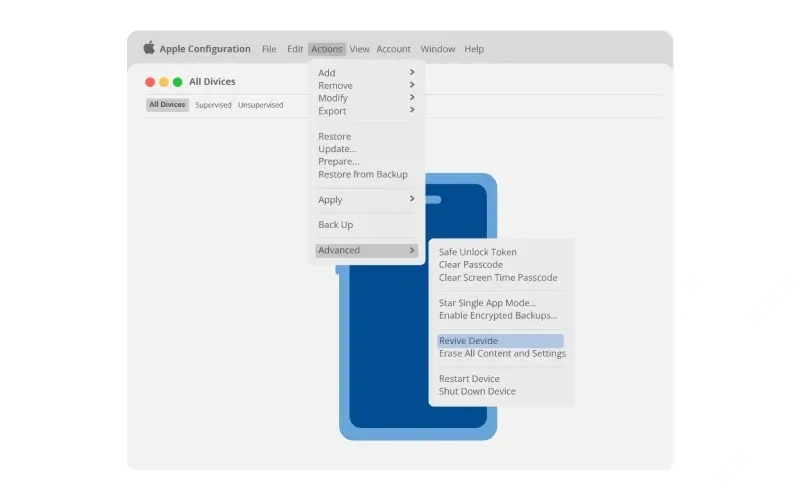
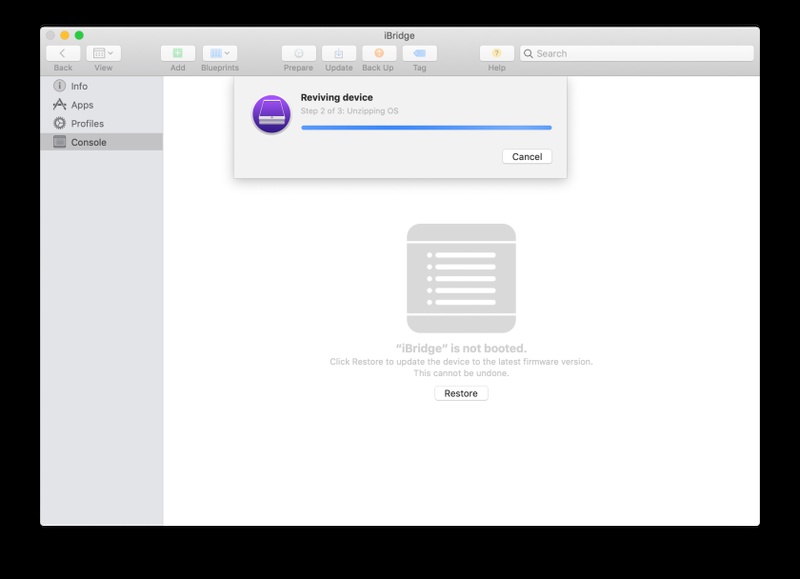
Apple Configurator is an official Mac tool that helps fix iPhones stuck in Recovery Mode or DFU loops. It is useful for get out of recovery mode on iOS 27 when normal methods fail. It can "revive" the device without erasing data in many cases.
Steps to Revive when iphone stuck in dfu mode loop on ios 27 :
-
Open Apple Configurator on your Mac and connect your iPhone using a USB cable.
-
Put your iPhone into Recovery Mode or DFU Mode so it appears in the app.
-
Right-click the device and go to Actions > Advanced > Revive Device.
-
Wait while Configurator repairs system firmware without erasing data.
-
Once completed, disconnect and restart your iPhone to check if it boots normally.
7. Let Battery Drain and Restart
The battery drain technique is a simple trick used to fix iphone stuck in dfu mode loop on ios 27 without using a computer. It works by fully draining the battery so the device forces a complete shutdown, which can sometimes break the DFU loop and allow a fresh restart. This method is not guaranteed but is worth trying before advanced tools.
Steps to fix get out of recovery mode on iOS 27:
-
Leave your iPhone in DFU mode without connecting it to power.
-
Let the battery drain completely until the screen goes fully black.
-
Wait for at least 20--30 minutes after shutdown to ensure full power loss.
-
Plug your iPhone into a charger using a certified cable. Try turning it on normally or perform a force restart.
Part 4. FAQs on iOS 27 Stuck on DFU Mode
Q1. Is DFU mode risky?
DFU mode itself is not risky, but using it incorrectly or interrupting the process can cause system issues. It should only be used when needed for serious iOS problems.
Q2. Will DFU mode erase my data?
DFU mode does not automatically erase data, but restoring the iPhone through DFU mode will remove all data from the device.
Q3. What are differences between DFU mode and recovery mode?
DFU mode is a deeper restore state that allows full system repair, while recovery mode is a simpler option used for standard updates or restores.
Conclusion:
The ios 27 stuck on dfu mode issue can look serious, but it is usually caused by software glitches and can often be fixed with the right methods. Force restart, Recovery Mode, IPSW restore, or Apple Configurator can help fix your iPhone step by step. ReiBoot is highly recommended for a quicker and simpler solution. It repairs iOS system issues in a few clicks and helps get your iPhone working again without complicated steps.
