
Updated on 2026-07-21 / iPhone Tips
The iOS 27 brings new features like improved Siri, a redesigned Camera app, and better multitasking. However, many users are facing an iOS 27 boot loop issue, where the iPhone keeps restarting and never reaches the home screen.
This is normal with early software. But most boot loops are caused by software problems and can usually be fixed without going to Apple or losing your data. This guide explains the 8 best solutions, starting from the easiest and safest to the most advanced.
Part 1. iOS 27 Boot Loop Fixes Compared
The following is a quick snapshot of all 8 methods explained in the latter section, so you can pick the right one for your situation:
| Solution | Success Rate | Data Loss | Ease of Use | Time Required |
|---|---|---|---|---|
| Force Restart | Low | No | Easy | 2 min |
| ReiBoot | Very high | No | Very easy | 5-10 min |
| Keep iPhone Charging | Low | No | Very easy | 30 min |
| Free Up iPhone Storage | Moderate | Only app data | Easy | 10-20 min |
| Update/Restore via Finder or iTunes | High | Yes | Moderate | 30-60 min |
| DFU Mode Restore | Very high | Yes | Hard | 60-120 min |
| Wait for Update to Finish | Low | No | Very easy | 60 min |
| Check for Hardware Issues | Varies | None | Hard | Varies |
Part 2. Why iPhone Is Stuck in Boot Loop After iOS 27 Update
Understanding why your iPhone 17 is stuck in a boot loop after the iOS 27 update helps you zero in on the right fix faster. Here are the most frequent reasons:
-
Incomplete update: The installation may have been interrupted, leaving system files damaged.
-
Software bugs: Early versions can have glitches that cause constant restarting.
-
Low storage: Not enough free space can stop iOS from booting properly, especially during updates.
-
Problem apps: Some outdated or incompatible apps can crash the system during startup.
-
iOS 27 recovery mode loop: The phone gets stuck between recovery and restart due to system verification failure.
-
Weak battery: An old or unhealthy battery may not supply enough power, causing repeated restarts.
-
Jailbreak leftovers: Old modified system files can conflict with the new iOS version.
-
Hardware damage: Issues like a faulty chip or internal damage can also cause a boot loop and usually need repair.
Part 3. Top 8 Ways to Fix iOS 27 Boot Loop
The following are 8 ways to resolve the iOS 27 boot loop issue on an iPhone with step-by-step instructions. Start with a force restart and then proceed to other advanced solutions:
1. Force Restart the iPhone
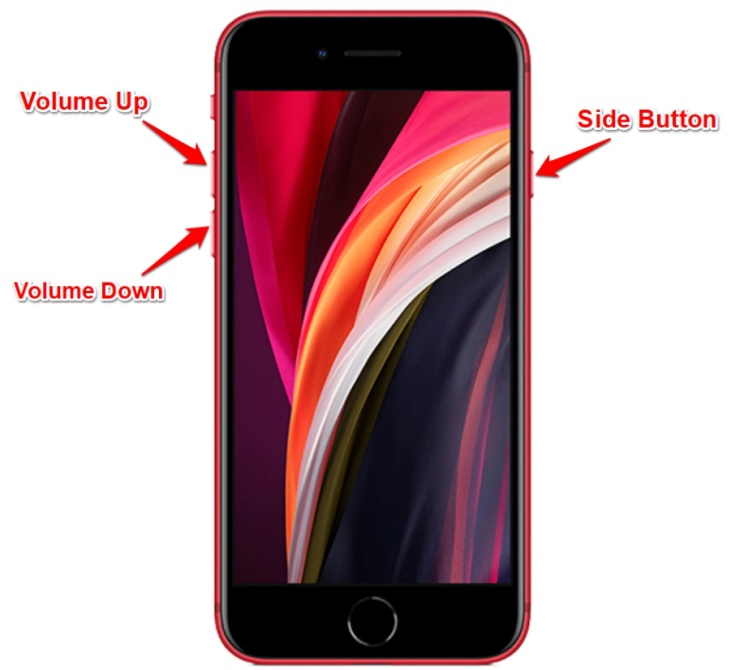
A force restart quickly forces your iPhone to shut down and restart fresh without deleting any data. It's a safe first step that often fixes small iOS glitches and temporary boot loops. This method is also best if the boot loop just started recently, and it's your first time trying to fix your iPhone 17 stuck in boot loop after iOS 27 update. Here's how to force restart your iPhone:
-
Step 1: Quickly press and release the "Volume Up" button. Then, quickly press and release the "Volume Down" button.
-
Step 2: Press and hold the "Side" (Power) button until the Apple logo appears on screen. Step 3: Release and allow the device to boot normally.
2. Fix iOS 27 Boot Loop without Losing Data via ReiBoot
If force restarting didn't do anything for you, Tenorshare ReiBoot can help repair the iPhone boot loop without losing data. It's a good option if your iPhone is stuck in an iOS 27 boot loop and you don't have a recent backup. It can fix severe firmware problems that manual tricks can't resolve.
Main Key Features of ReiBoot:
-
Resolves 150+ iOS system issues, such as boot loops, black screens, recovery mode loops, Apple logo freezes, and more.
-
One-click entry and exit from recovery mode.
-
Upgrade and downgrade iOS without iTunes and jailbreak.
-
Backup and restore iDevice data without iCloud or iTunes.
-
Reset iDevices without iTunes or a passcode.
-
Erase data permanently before selling or giving the iDevice away.
-
Simple wizard-style interface, with no technical knowledge required.
-
Compatible with both Windows and macOS, including the latest versions.
-
Supports all iPhone models and iOS versions, including the iPhone 17 series and iOS 27.
Steps to Use ReiBoot:
- Step 1: Launch ReiBoot on Your PC/Mac
Download and install Tenorshare ReiBoot on your computer. Open the program and connect your iPhone stuck in a boot loop after installing iOS 27.

- Step 2: Click "Standard Repair"
Click on "Standard Repair" when ReiBoot detects your device to fix the iOS 27 boot loop without erasing your data.

- Step 3: Download Firmware
Download the latest firmware package when prompted. ReiBoot will automatically prepare the correct package for your iPhone.

- Step 4: Start Standard Repair
Once the firmware is ready, click “Start Standard Repair” to fix the iOS 27 boot loop issue. Wait while the repair completes.

- Step 5: iPhone Starts Normally
Your iPhone will restart automatically after repair. Check whether the boot loop issue is gone and the device enters the Home screen normally.

3. Keep the iPhone Charging for 30 Minutes
If your iPhone battery was very low before the boot loop started, the issue may be related to the battery instead of iOS 27. It can also happen after heavy use when the battery cannot provide enough power for the phone to start properly. This is more frequent if your battery health is below 80%. So, here's what to do to fix iOS 27 boot loop without computer:
-
Step 1: Connect your iPhone to an original Apple charger or a certified MFi charger. Avoid low-quality third-party cables.
-
Step 2: Leave the phone charging for at least 30 minutes without pressing any buttons. After 30 minutes, try a force restart again.
-
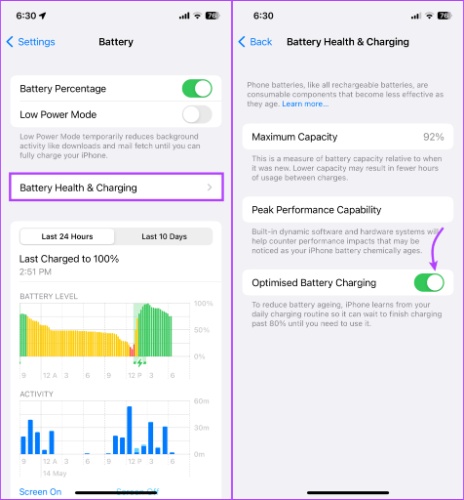
Step 3: If the iPhone turns on, check battery health in "Settings" → "Battery" → "Battery Health & Charging."
-
Step 4: If battery health is below 80%, the battery may be causing the restart problem and might need replacement.
4. Free Up iPhone Storage
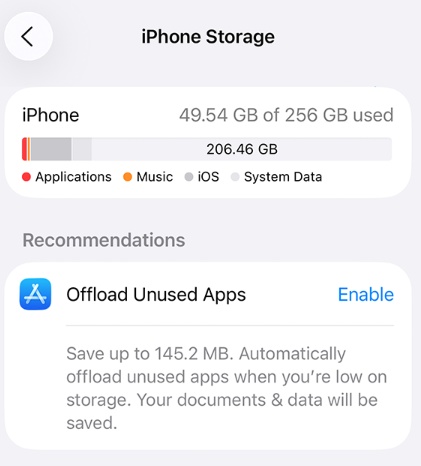
An iOS 27 boot loop after low storage can happen as well. If there isn't enough free space during startup, the system may crash and keep restarting. Clearing storage usually fixes it, but you may need special steps if the phone won't fully turn on. Here's what to do:
Option A: If the device briefly reaches the lock screen between restart cycles:
-
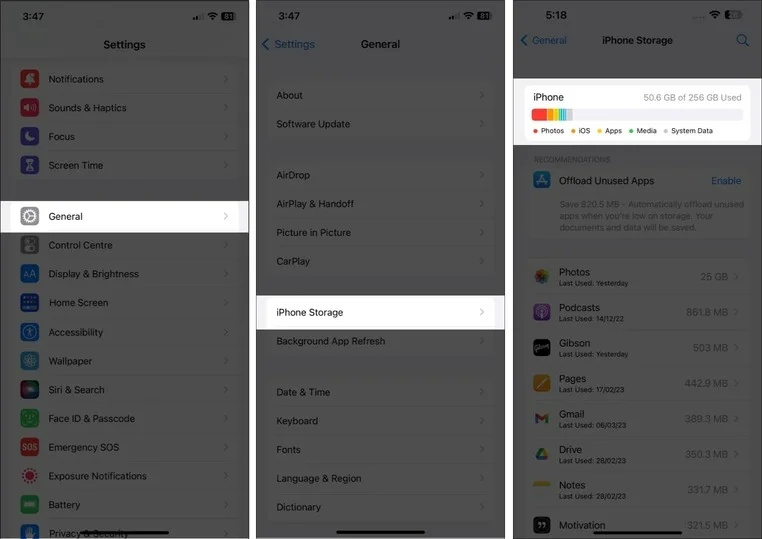
Step 1: Open "Settings." Then, choose "General." Tap "iPhone Storage."
-
Step 2: Click on any large app and select "Offload App" to free space without deleting its data.
-
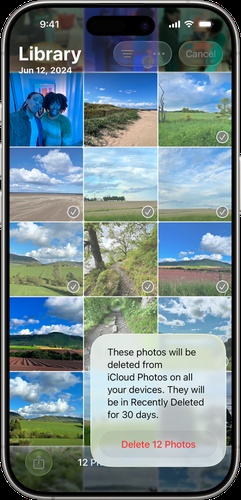
Step 3: Also, delete large video files from the "Photos" app. Allow the device to restart and see if the freed space resolves the loop.
Option B: After resolving the loop via another method:
-
Step 1: Once your iPhone boots normally, immediately head to "Settings." Then, choose "General." Tap "iPhone Storage."
-
Step 2: Remove large apps, offload unused ones, and clear cached data. Maintain at least 3--5 GB of free space to prevent recurrence.
5. Update or Restore with Finder or iTunes
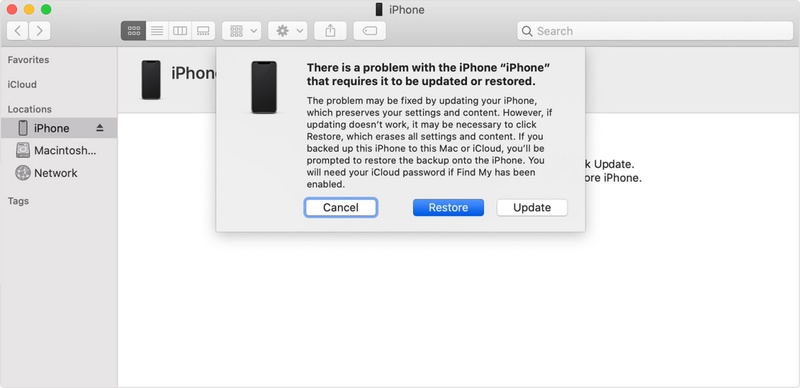
If you have a backup or are fine with data loss, you can use a Mac or Windows PC to fix the iOS 27 boot loop issue. Employ Finder/iTunes to reinstall iOS on your iPhone. You'll see two options. "Update," which tries to keep your data, and "Restore," which erases everything. So, always try "Update" first. Follow the instructions beneath to "Update" or "Restore" your iPhone with Finder/iTunes:
-
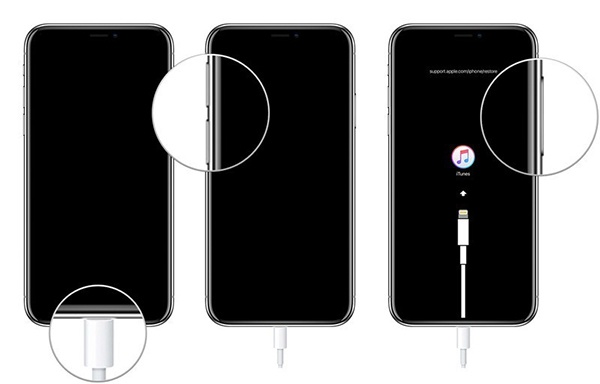
Step 1: Connect your iPhone to a computer with iTunes/Finder using a USB cable. Then, place the phone into Recovery Mode:
-
Press and release "Volume Up." Then, press and release "Volume Down."
-
Next, click and hold the "Side" button until the recovery mode screen (cable and laptop icon) appears.
-
-
Step 2: Finder or iTunes will detect your device in recovery mode and display a prompt. Step 3: Click "Update" first. iTunes/Finder will attempt to reinstall iOS 27 without erasing your data.
-
Step 4: If "Update" fails or the boot loop returns, you can choose "Restore."
6. Use DFU Mode Restore
In a situation where the boot loop still continues, and all other fixes fail, DFU mode is the last option. It is the deepest restore method and lets your computer fully reinstall iOS from scratch. However, it completely erases everything on your iPhone. Follow the steps beneath to use DFU Mode restore:
-
Step 1: Connect your iPhone to your computer. Then, open iTunes (Windows) or Finder (Mac).
-
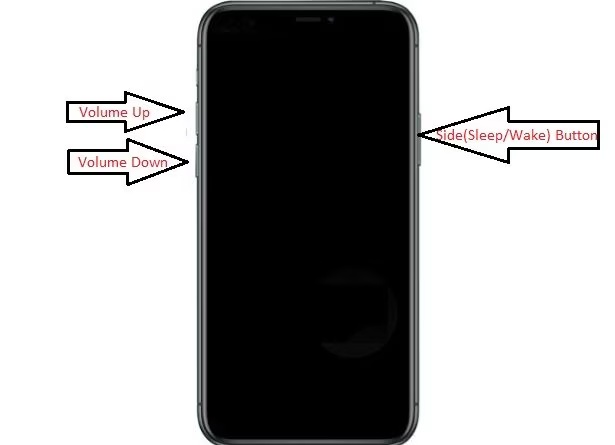
Step 2: Quickly press and release "Volume Up." Then, quickly press and release "Volume Down."
-
Step 3: Press and hold the "Side" button until the screen turns completely black.
-
Step 4: Immediately (within 1--2 seconds of the screen going black), press and hold "Volume Down" while continuing to hold the "Side" button.
-
Step 5: After 5 seconds, release the "Side" button. But keep holding "Volume Down" for another 5--10 seconds.
-
Step 6: The screen should remain completely black. If you see the Apple logo or the recovery screen, you exited DFU Mode. So, try again.
-
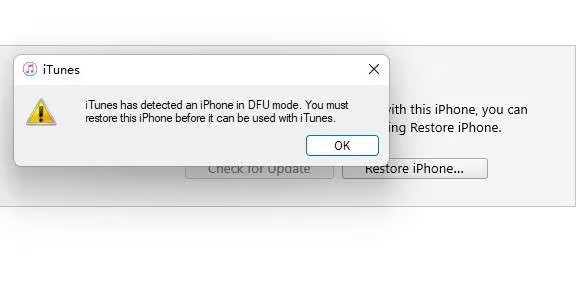
Step 7: iTunes or Finder will alert you that a device in recovery mode has been detected.
-
Step 8: Click "Restore" to perform a full DFU restore. The process will download the latest stable iOS and install it from scratch.
-
Step 9: Once complete, set up your iPhone as a new device or restore from backup.
7. Wait for the Update to Finish
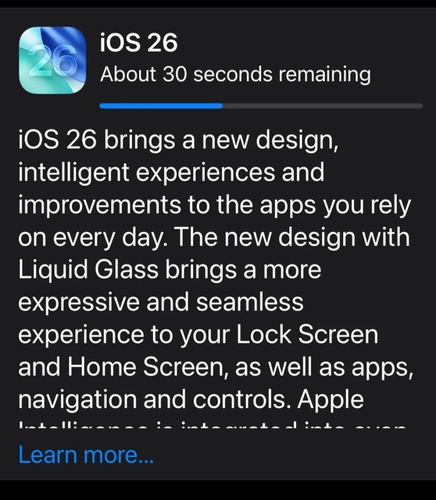
In case the boot loop started right after installing the iOS 27 , and it's only been 20--30 minutes, the update might still be running. Large iOS updates can take time and may cause the phone to restart several times while it installs and sets up the system. If you sometimes see a progress bar, it's likely still processing in the background.
8. Check for Hardware Issues
If your iPhone keeps showing Apple logo after iOS 27, the issue may be hardware-related instead of a software bug. Problems like internal damage or a failing storage chip can cause a boot loop that looks like a software issue but won't be fixed by reinstalling iOS. So, here's what you can do:
-
Step 1: Check your iPhone for physical damage like cracks, a bent frame, or signs of water exposure. You can also look at the SIM tray indicator, which turns red if it has been wet.
-
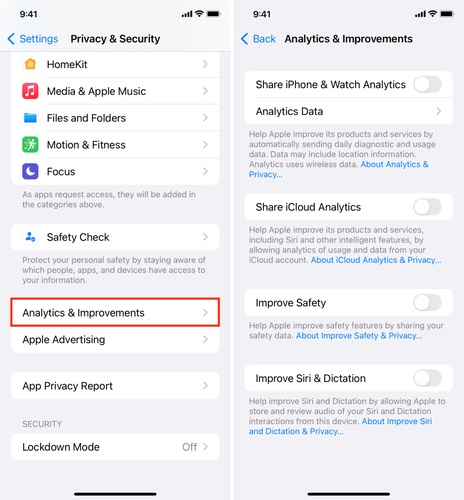
Step 2: If your iPhone turns on briefly, check crash logs in "Settings." Choose "Privacy & Security." Tap "Analytics & Improvements." Then, select "Analytics Data" to spot hardware issues.
-
Step 3: Book an appointment at the Apple Store or Genius Bar through the Apple Support app or Apple's website for proper diagnostics.
-
Step 4: Contact Apple Support to get repair pricing, especially if the issue may involve the logic board.
-
Step 5: If Apple repair is too expensive, try an Apple Authorized Service Provider for similar diagnostics at a lower cost.
Conclusion
An iOS 27 boot loop on an iPhone is mostly due to a software issue that can often be fixed without losing data. Start with basic steps like force restarting, charging the phone, and freeing up storage. Then, move to Recovery or DFU Mode for severe issues. But these usually cause data loss. If you don't have a backup, Tenorshare ReiBoot is the best option. It can fix severe iOS problems, like boot loops, without erasing data.
