The Issue
I work as a product manager, and part of my job involves testing new app features on actual devices. One morning, I was running through a test plan on my iPhone 18, checking how a new feature behaved and documenting a few issues for the development team.
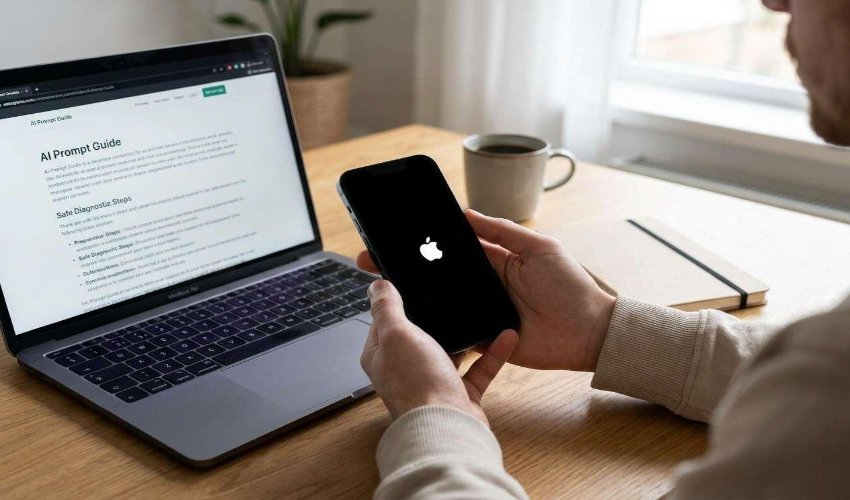
Everything was going as planned until I restarted the phone to check a particular function. It never made it back to the home screen. Instead, the Apple logo appeared and stayed there. I waited for several minutes, but nothing changed. The phone seemed completely stuck.
This threw off my entire day's schedule. I still had several test cases to complete, screenshots to collect, and feedback to send to the developers before the end of the day. Without access to the test device, I couldn't continue. I had to put the testing session on hold and let the team know that my feedback would be delayed.
What I Tried
My first thought was that the phone just needed a restart. I tried force restarting it, but it returned to the same Apple logo screen. I also connected it to a charger and waited, hoping it would eventually boot up.
When neither approach worked, I considered restoring the iPhone using a computer. But I was concerned about losing the data and settings I needed for testing. I didn't want to erase the device and spend even more time setting everything up again.
I started searching for a way to fix an iPhone stuck on the Apple logo without performing a full restore.
How ReiBoot Helped
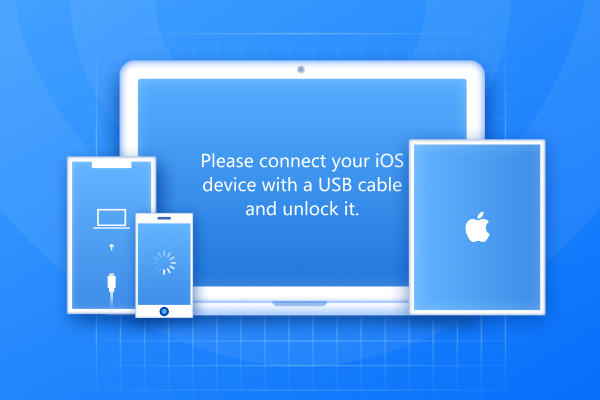
During my search, I came across Tenorshare ReiBoot. I downloaded the program to my computer and connected my iPhone 18 to see what repair options it offered.
I chose Standard Repair because it is designed to resolve common iOS system issues without erasing existing data. ReiBoot guided me through downloading the required firmware and starting the repair.
I followed the instructions on the screen and let the program complete the process. I didn't need to figure out complicated repair steps on my own.
The Result
After the repair was complete, my iPhone restarted and reached the home screen again. I checked my apps, settings, and the files I needed for work. Everything I checked was still accessible.
I couldn't recover the hours I'd lost that morning, but at least I could get back to testing. I reorganized the remaining tasks and sent the delayed feedback to the development team later that day.
It was a reminder that even a small device issue can throw an entire work schedule off track when your job depends on having a working phone.