
Updated on 2026-07-21 / iPhone Tips
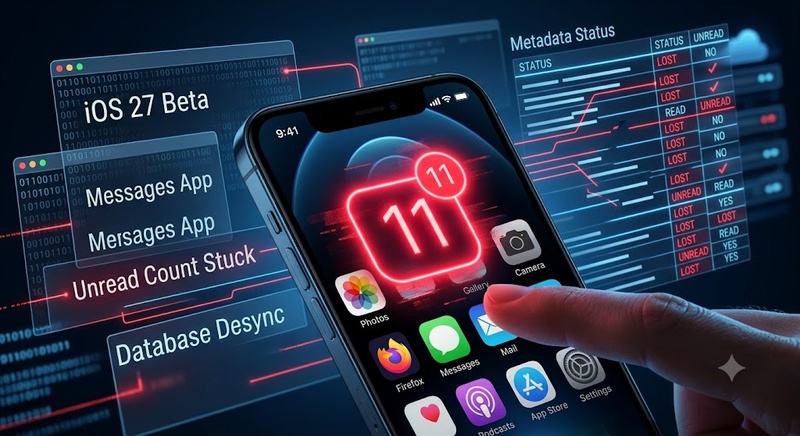
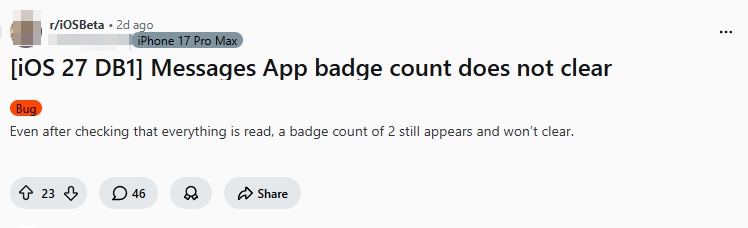
Running the iOS 27 brings many exciting interface updates, but it can also introduce persistent system bugs. One of the most annoying glitches reported by users is when the iOS 27 Messages App badge count does not clear, leaving a "ghost" unread notification number on the home screen even after all conversations have been opened.
If you are dealing with an incorrect notification badge that refuses to disappear, follow this complete troubleshooting guide to reset your app alerts.
Part 1: Why the iOS 27 Messages App badge count does not clear After Updating
Many users report that the iOS 27 Messages app badge count does not clear right after installing the latest update.
During the iOS 27 upgrade process, notification databases and message records are refreshed in the background. Temporary synchronization errors can cause unread message status to become inaccurate, resulting in a badge count that remains stuck even when no unread messages exist.
Part 2: 4 Ways to Fix iOS 27 Messages Badge Count Not Clearing
Solution 1: Force 'Read All' via Unknown Sender Filtering

-
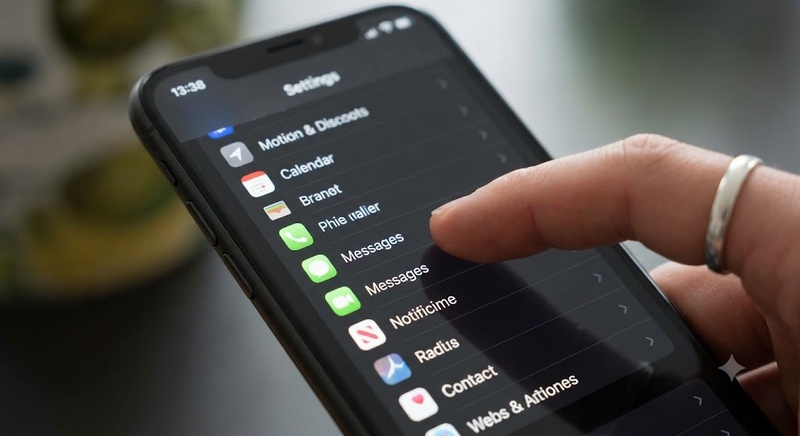
Step 1: Navigate to the Settings app on your iPhone, scroll down, and select Messages from the list.
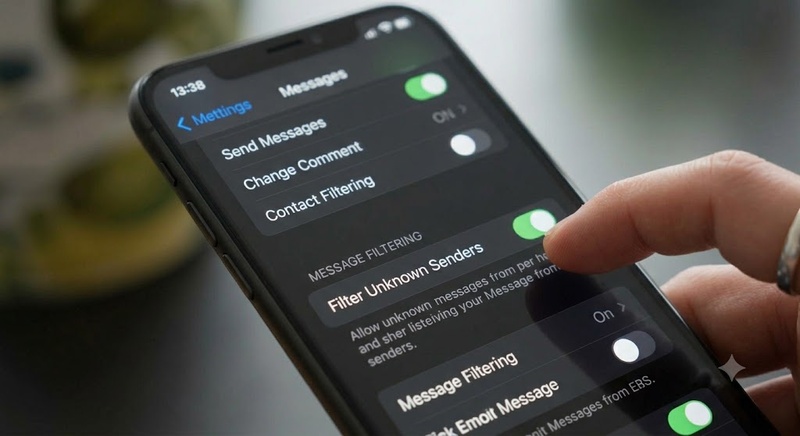
Step 2: Scroll down to the Message Filtering section and toggle the switch next to Filter Unknown Senders to the ON position.
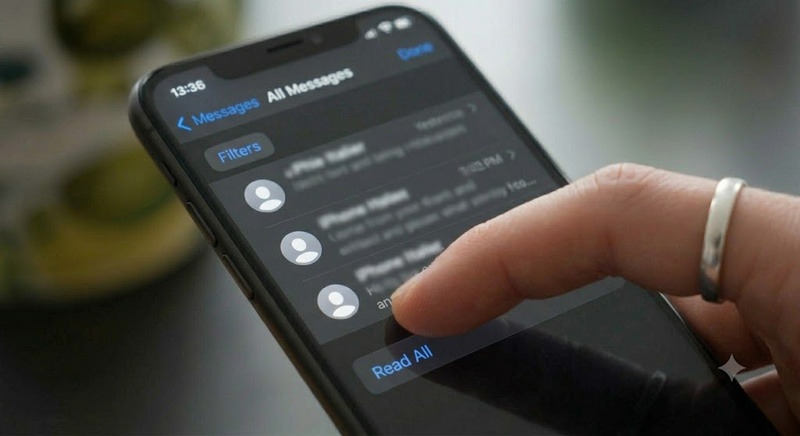
Step 3: Open your native Messages app, tap the new Filters option in the top-left corner, and select All Messages.
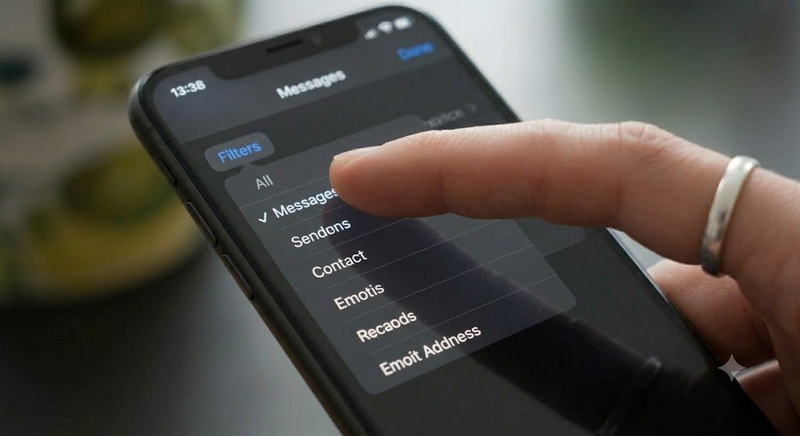
Step 4: Tap the triple-dot Edit icon or button at the top, select Select Messages, and then tap Read All in the bottom corner.
Solution 2: Use Voice Commands to Mark All Messages as Read

-
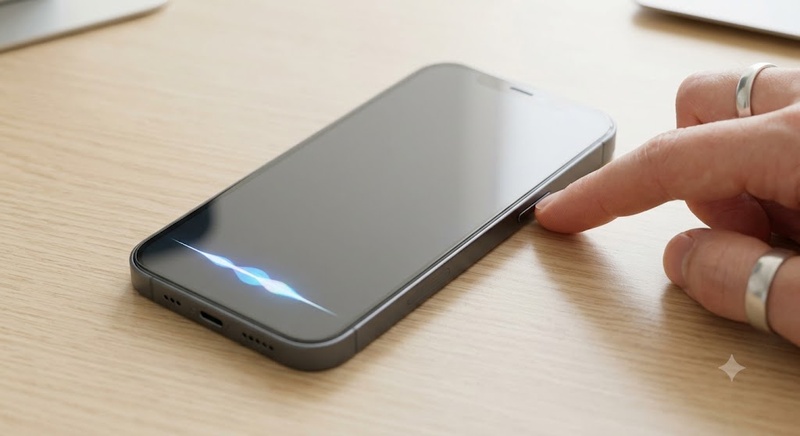
Step 1: Activate the built-in voice assistant on your device by holding down the Power button or using your configured wake phrase.
-
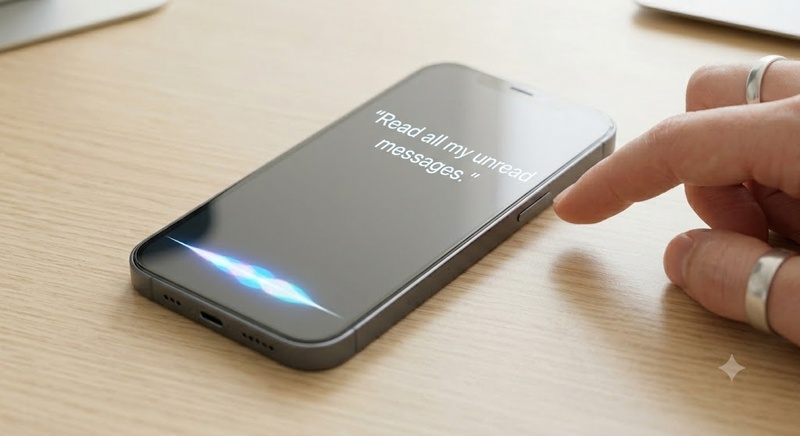
Step 2: Speak the explicit command clearly into your microphone: 'Read all my unread messages.'
Solution 3: Reset Background Notification Framework Registration

-
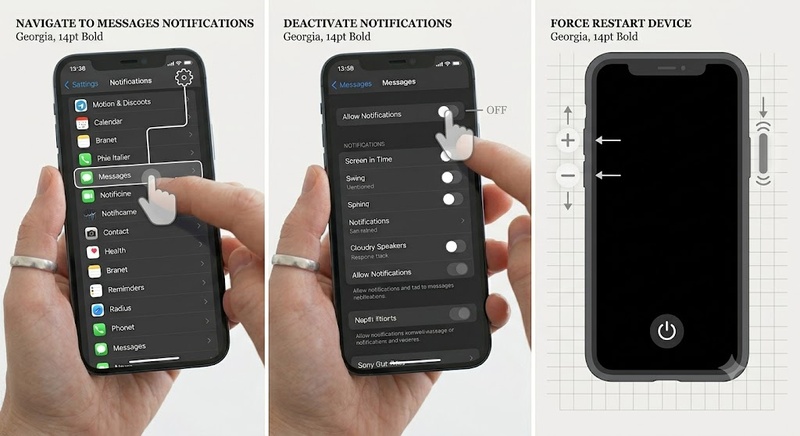
Step 1: Launch the Settings app, navigate directly into the Notifications menu, and select Messages from the application inventory.
-
Step 2: Turn off the master switch labeled Allow Notifications to completely sever the app's connection.
-
Step 3: Perform a system force restart by pressing Volume Up, then Volume Down, and holding the Side button.
Solution 4: Clean Deep OS Notification Glitches via Tenorshare ReiBoot
When standard settings toggles fail to resolve the issue, it typically indicates that deep operating system layout directories have become severely corrupted.
-
Step 1: Download and install Tenorshare ReiBoot on your Windows PC or Mac. Open the tool and connect your iPhone via a stable USB cable.
-
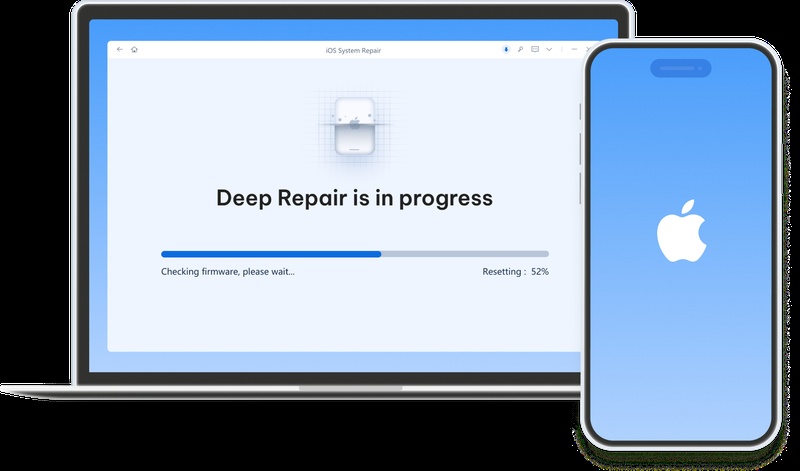
Step 2: Select Standard Repair from the dashboard. The software will analyze your system to prepare the correct package needed to refresh your iOS system files smoothly.
-
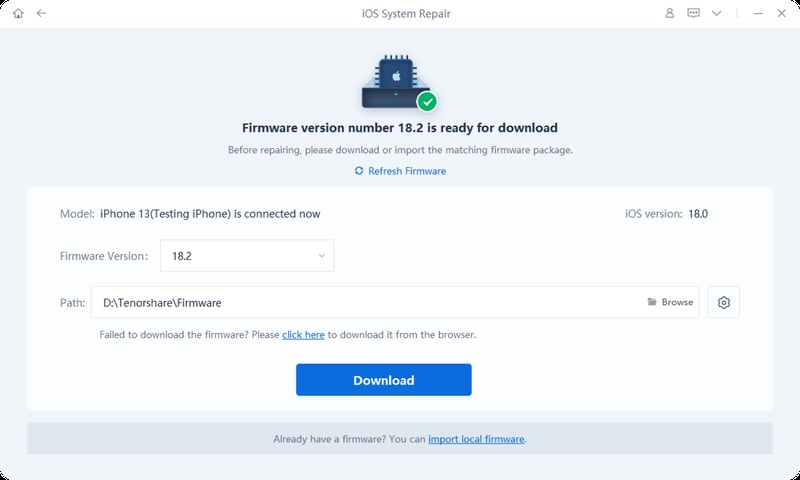
Step 3: Click Download to fetch the matched iOS 27 firmware package. If the download stalls due to heavy server traffic, you can manually import a pre-downloaded firmware file.
-
Step 4: Once the package is ready, click Start Standard Repair. The partition repair process takes around 10 minutes. Your iPhone will reboot normally with all your messages and personal data completely intact.
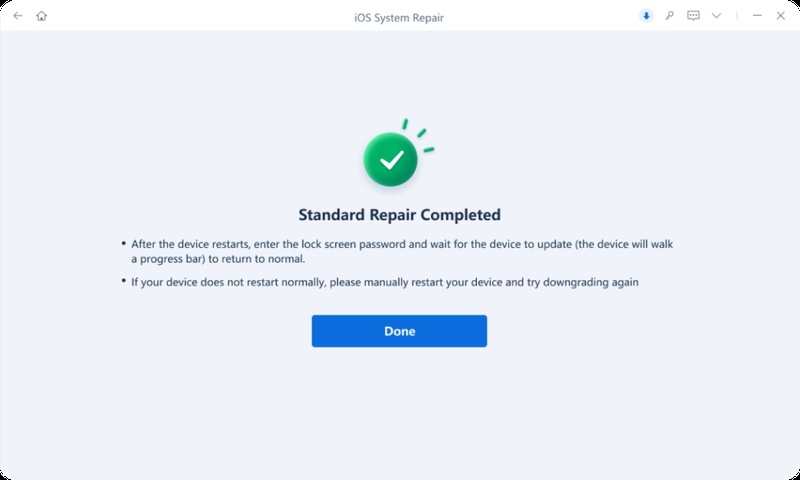
By utilizing Tenorshare ReiBoot's advanced repair framework, the system directly mirrors and rebuilds the corrupted notification registry layout. This targeted partition alignment safely breaks the persistent boot cache loop, permanently fixing the iOS 27 Messages app badge count not clearing glitch without any data loss.
Part 3: Strategic Maintenance to Prevent Messages Badge Corruption
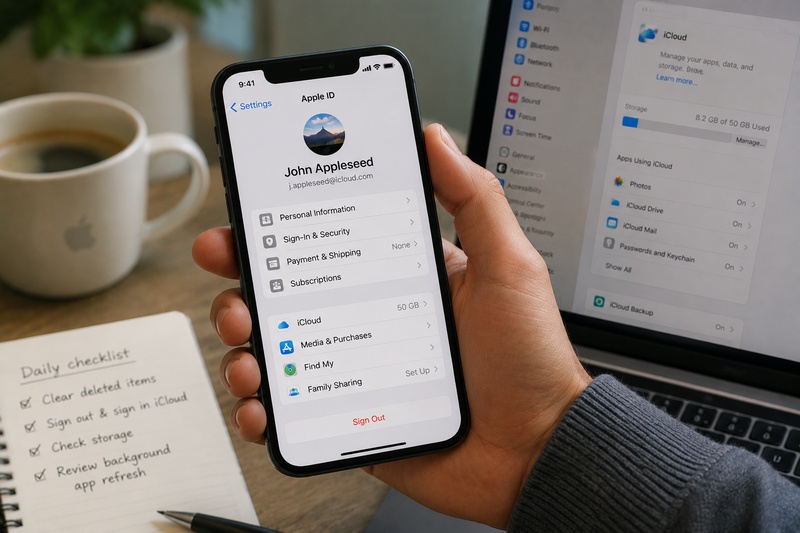
To prevent generic iphone notification badges not working errors from coming back during future update cycles, routine database maintenance is highly recommended.
Make it a habit to regularly clear out your deleted items folder by going to Messages > Filters > Recently Deleted and erasing expired validation codes.
Furthermore, users should frequently sign out and sign back into their Apple ID iCloud settings to trigger a total refresh of remote notification push tokens.
Finally, turning off background app refresh for non-essential applications will minimize index allocation conflicts inside the core iOS notification center environment.
FAQs Regarding iOS 27 Messages App Badge Count Does Not Clear
1.How to clear text message badge count on iPhone?
Enable 'Filter Unknown Senders' in settings and select 'Read All' inside the Messages app to flush hidden unread flags.
2.How to get rid of the ghost badge count on the Messages app?
Toggle 'Allow Notifications' off and on after a force restart, or use Tenorshare ReiBoot to align broken registries perfectly without data loss.
3.How to fix message count on iPhone?
Ask the built-in voice helper to 'Read all unread messages' or run a ReiBoot standard recovery routine to force a fresh metadata download.
Conclusion
The iOS 27 Messages App badge count does not clear error is almost always caused by a minor software synchronization lag rather than a hardware malfunction.
Utilizing simple workarounds like voice assistant overrides or advanced repairs via Tenorshare ReiBoot will resolve the majority of ghost counter loops instantly.
