
Updated on 2026-07-21 / iPhone Tips
iOS 27 introduces many exciting new features. However, it still contains some unresolved bugs, and you may not like certain changes or features. If you've decided to leave the, there are several ways to remove iOS 27 from your iPhone. In this guide, we'll walk you through proven and reliable methods to safely uninstall iOS 27 and downgrade to a stable iOS version. Be sure to read through the entire guide before getting started.
- Part 1: Can You Remove iOS 27?
- Part 2: Proven Ways to Remove iOS 27
- Part 2.1: Remove the iOS 27 Easily with Reiboot
- Part 2.2: Remove iOS 27 via Finder or iTunes
- Part 2.3: Downgrade iOS 27 Using an IPSW File
- Part 2.4: Turn Off Updates
- Part 3: Common Problems & Fixes When Removing iOS 27
- Part 4: Conclusion
Part 1. Can You Remove iOS 27?
Yes. You can remove iOS 27 from your iPhone, but the steps depend on what you want to do.
If you want to remove iOS 27 immediately and return to a stable iOS release, you need to downgrade your iPhone. This requires restoring your device with a currently signed public version of iOS. Before you begin, make sure you back up your data, as downgrading may erase your iPhone if you don't have a compatible backup.
In the following sections, we'll walk you through the best ways to remove iOS 27 based on your situation.
Part 2. Proven Ways to Remove iOS 27
1. Remove the iOS 27 Easily with Reiboot
If you're looking for an easier way to remove iOS 27, ReiBoot offers a beginner friendly solution that doesn't require manually downloading IPSW files or using Finder and iTunes. It simplifies the downgrade process while providing additional tools to repair iOS issues and manage your device.
Why choose ReiBoot:
-
Downgrade from iOS 27 to a stable iOS version with just a few clicks.
-
Enter or exit Recovery Mode for free without pressing button combinations.
-
Upgrade or downgrade iOS safely without complicated manual operations.
-
Fix over 150 common iOS and iPadOS issues, including boot loops, frozen screens, update failures, and devices stuck in Recovery Mode.
-
Back up and restore your iPhone data before making major system changes.
-
Automatically download the appropriate firmware package, eliminating the need to search for IPSW files yourself.
-
Compatible with the latest iPhone models and iOS versions.
-
Simple interface designed for both beginners and experienced users.
How to remove iOS 27 Using ReiBoot:
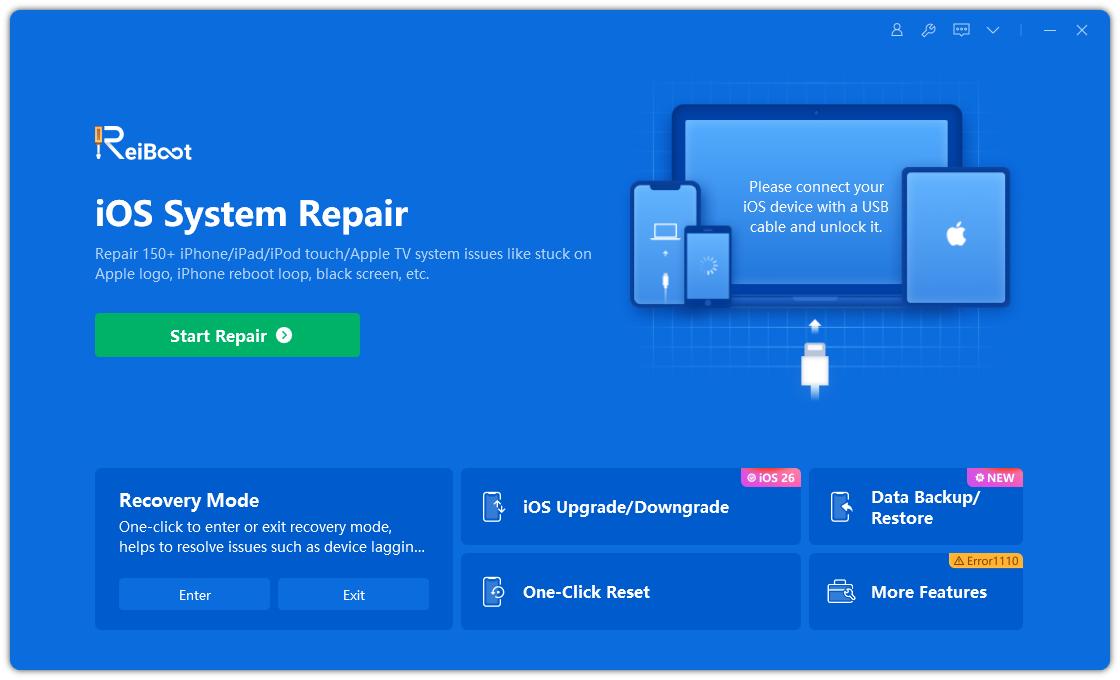
- Download and launch ReiBoot on your computer. From the home screen, click on the "iOS Upgrade/Downgrade" feature.
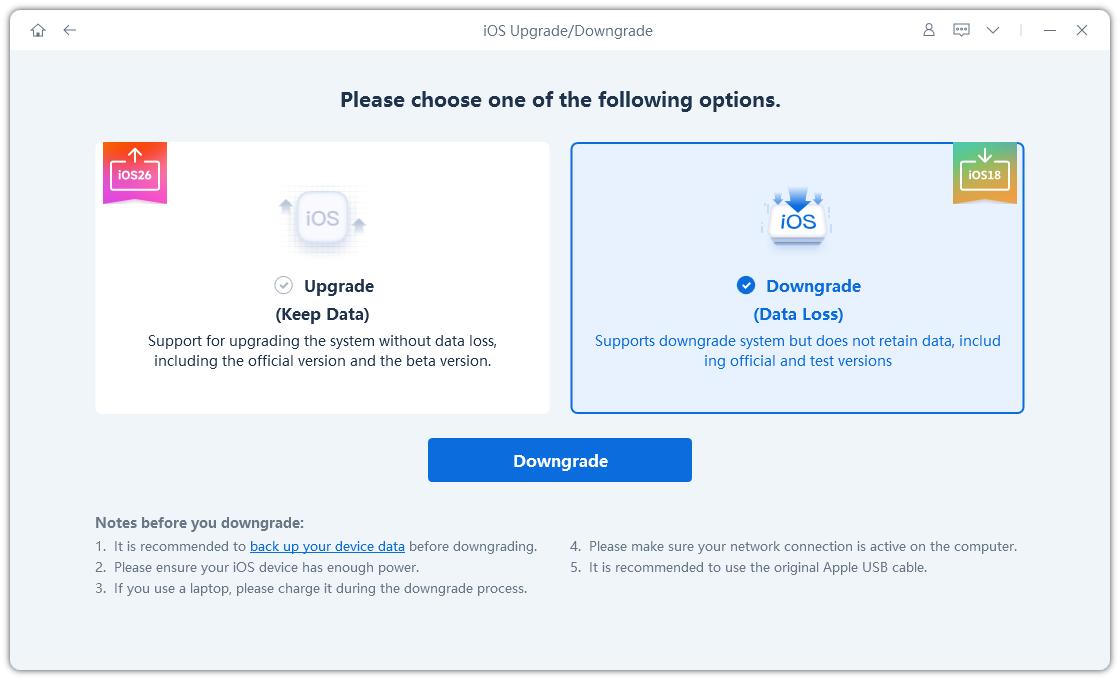
- Select the Downgrade mode.
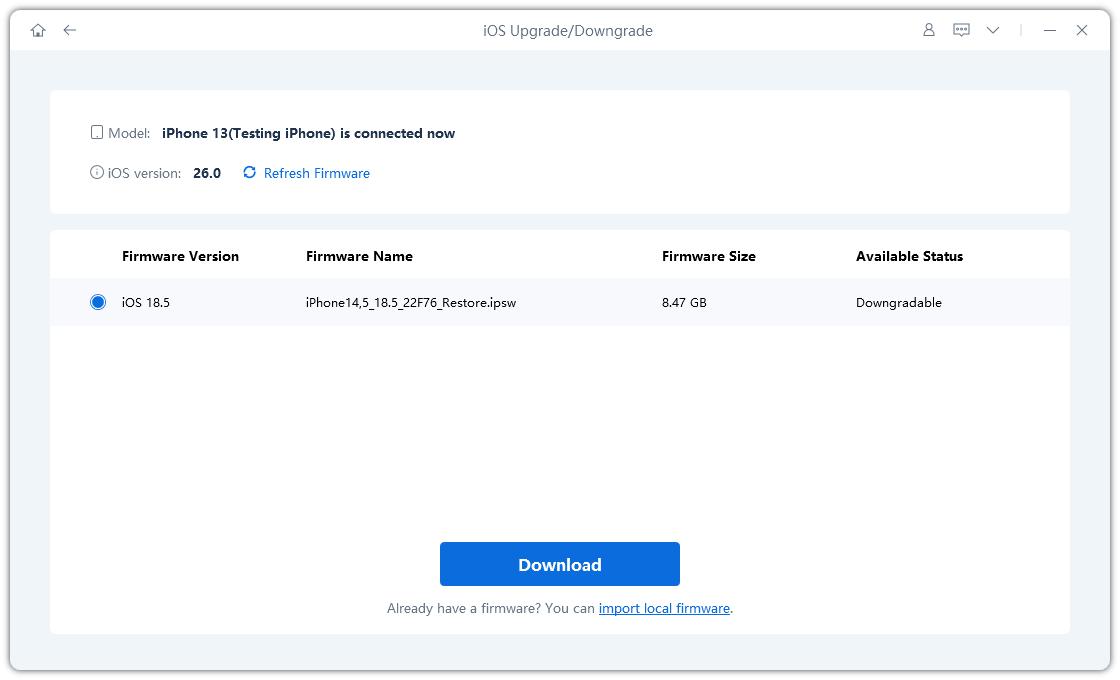
- ReiBoot will automatically detect your iPhone model and display the compatible firmware versions. Choose iOS 26 and click the Download button.
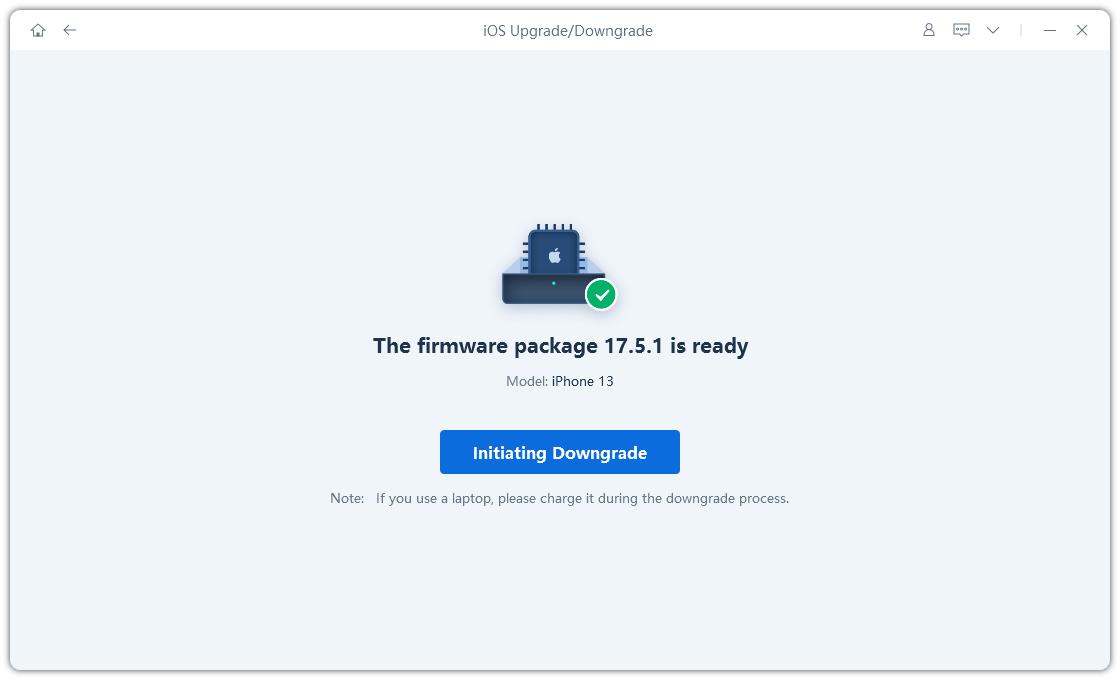
- Once the firmware package has finished downloading, click on "Initiating Downgrade" to proceed.
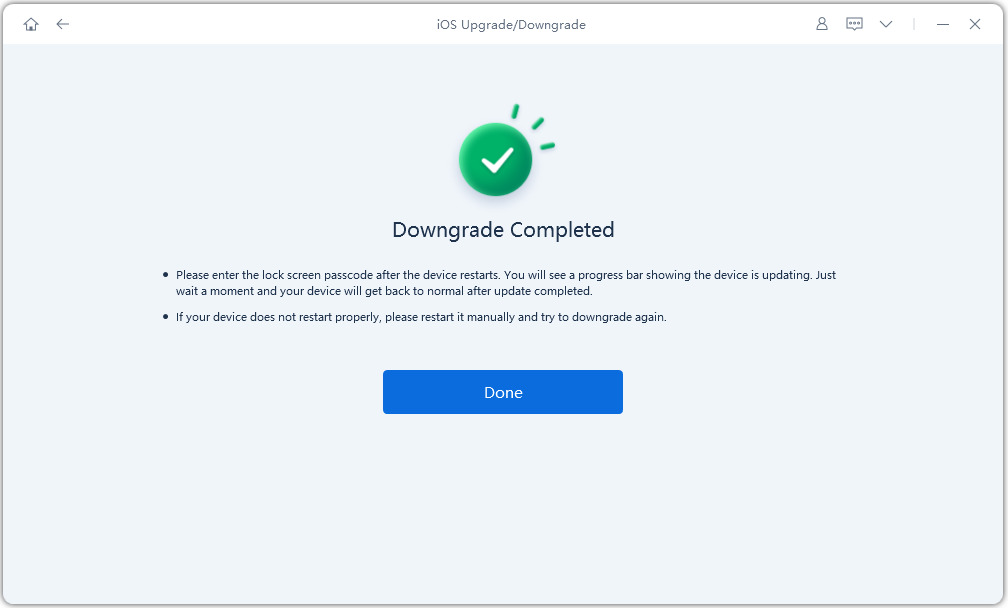
- Wait patiently for the process to finish. Your device will automatically reboot with a freshly installed iOS 26, completely error-free.
2. Remove iOS 27 via Finder or iTunes
-
Connect Your iPhone to a Computer: Use an official Apple USB or Thunderbolt cable to link your iPhone to your Mac or Windows PC.
-
Launch the Desktop Environment: Open Finder (if you are using a modern Mac) or open iTunes (if you are on a Windows PC).
-
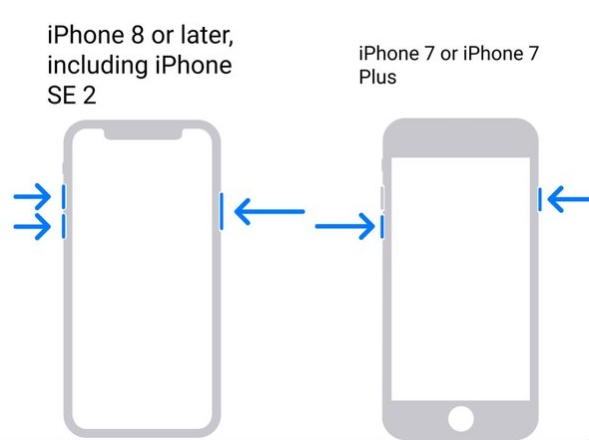
Put Your iPhone into Recovery Mode: Keep the phone connected and perform the following button combination (for iPhone 8 or later, including all Face ID models):
-
Press and quickly release the Volume Up button.
-
Press and quickly release the Volume Down button.
-
Press and hold the Side (Power) button continuously. Do not let go when you see the Apple logo; keep holding until the computer screen icon and a cable appear on your iPhone screen.
-
-
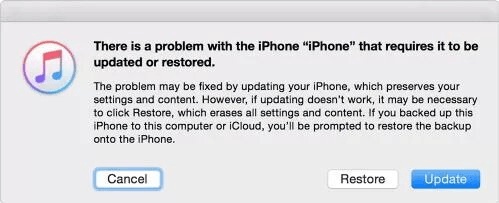
Locate Your Device on the Computer: Look at your computer screen. A pop-up message will automatically appear in Finder or iTunes stating that there is a problem with the iPhone. (If it doesn't, click on your iPhone icon in the sidebar).
-
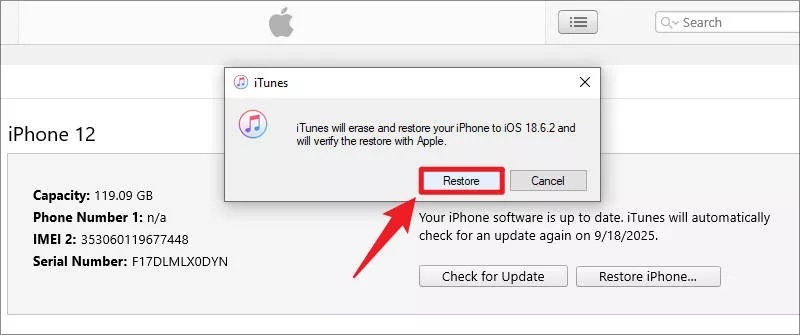
Choose the Restore Option: On the pop-up prompt, click Restore. Do not click Update, as updating will attempt to keep the current software.
-
Authorize and Wait for the Download: Confirm your choice if prompted. Finder or iTunes will clear your device and download the latest signed, public version of iOS. Keep your iPhone connected securely during this process.
-
Set Up and Sync Your iPhone: Once the progress bar on your iPhone finishes, the device will reboot into the "Hello" welcome screen. Follow the on-screen setup assistant to activate your phone and log in with your Apple ID.
3. Downgrade iOS 27 Using an IPSW File
If you want more control over the downgrade process, you can manually install a signed IPSW firmware file. Make sure to download the correct IPSW file for your iPhone model before you begin.
Steps:
-
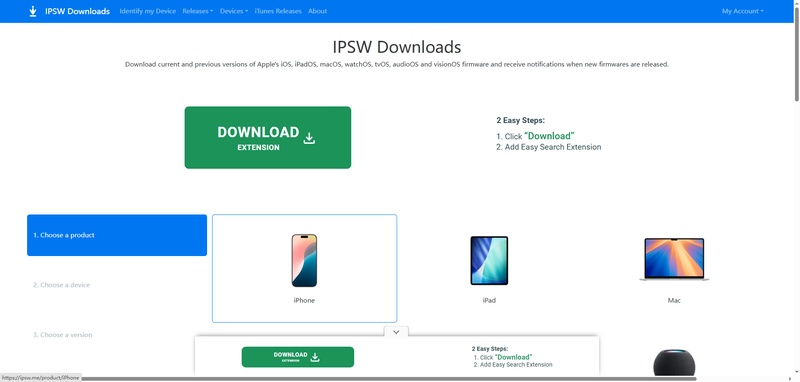
Download the Signed IPSW File: Visit a trusted directory like IPSWme, select your exact iPhone model, and download the latest signed stable firmware package.
-
Connect iPhone to Computer: Connect your iPhone to your Mac or Windows PC using an official Apple USB or Thunderbolt cable.
-
Launch the Desktop Environment: Open Finder (if you are on a Mac running modern macOS) or launch iTunes (if you are using a Windows PC).
-
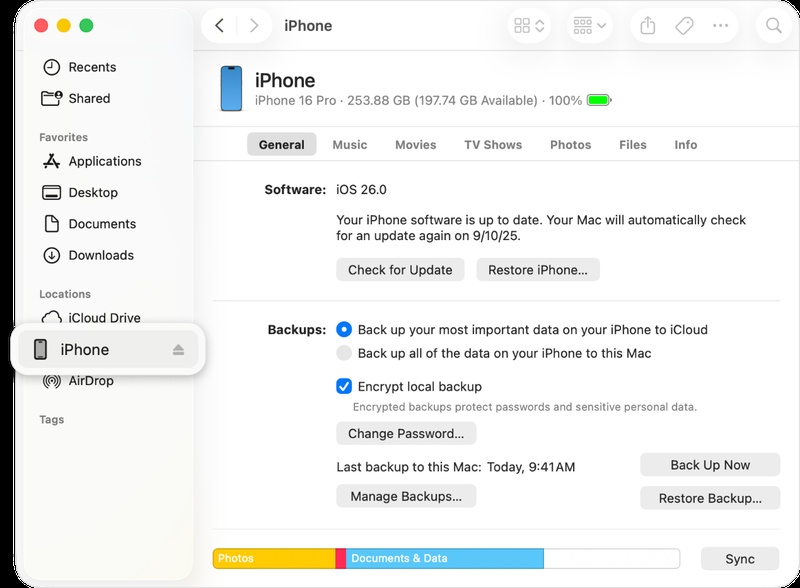
Locate Your Device: Click on your iPhone icon when it appears in the Finder sidebar or the iTunes top menu bar to open the device summary dashboard.
-
Trigger the Custom Restore Command: On Mac: Hold down the Option (⌥) key and click the Restore iPhone button; On Windows: Hold down the Shift key and click the Restore iPhone button.
-
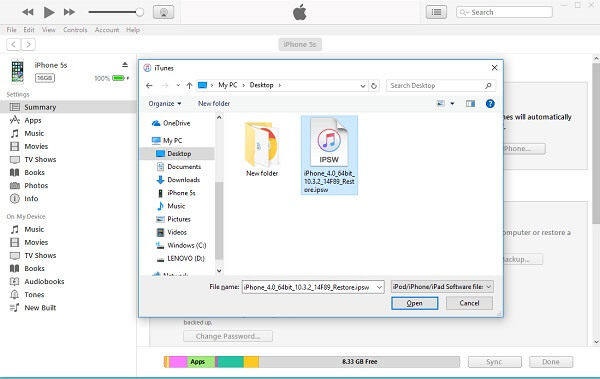
Select the Firmware Package: A file browser window will pop up. Navigate to your computer's downloads folder, select the downloaded iOS IPSW file, and click Open.
-
Execute and Wait: Click Restore again on the confirmation prompt to authorize the action. Keep your iPhone securely connected until the progress bar completes and the device reboots into the welcome screen.
4. Turn Off Updates
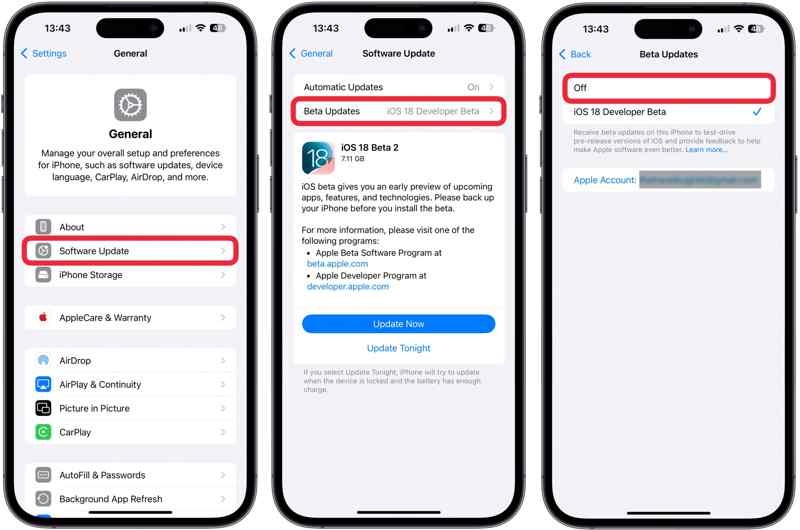
If you don't want to install future iOS 27 updates but prefer to keep your current version for now, you can simply turn off Updates.
Steps:
Open the Settings app on your iPhone.
Tap General, then Software Update.
Tap Updates.
-
Select Off.
-
Return to the Software Update page to confirm Updates are disabled.
-
Your iPhone will stay on the current version until the next public iOS release becomes available.
Part 3. Common Problems & Fixes When Removing iOS 27
Removing iOS 27 is usually straightforward, but you may run into a few issues during the process. Below are some of the most common problems users experience, along with proven solutions to help you complete the downgrade successfully.
-
iPhone Stuck on Apple Logo After Removing iOS 27
This happens when the restore process is interrupted or the firmware installation fails. It is common during downgrade or recovery mode restores.
Fix: Put your iPhone into Recovery Mode or DFU Mode and restore it again using Finder or iTunes. This forces a clean reinstall of iOS and resolves the boot loop.
-
iOS Updates Still Showing After Removing
Profile
Removing the profile does not downgrade your system. It only stops future updates, so the device can still show iOS 27 as the current version.
Fix: You must restore your iPhone using Finder or iTunes with a stable IPSW file to fully remove iOS 27 and return to a public iOS version.
-
Unable to Install a Lower iOS Version
Apple only allows installation of signed iOS versions. If the version is no longer signed, the downgrade will fail immediately.
Fix: Check Apple's current signing status before restoring. If the version is not signed, you cannot downgrade and must wait for a newer official release.
-
iPhone Stuck in Recovery Mode During Restore
This usually happens when the restore process is not completed properly or the firmware file is corrupted.
Fix: Reconnect your iPhone to a computer and repeat the restore process using Finder or iTunes. If needed, switch to DFU Mode for a deeper restore.
-
Data Loss After Removing iOS 27
Downgrading or restoring can erase your iPhone if you do not have a backup.
Fix: Always create an iCloud or computer backup before removing iOS. If you already lost data, restore from your most recent backup during setup.
-
Apps Not Working Properly After Downgrade
Some apps may behave incorrectly after switching from to stable iOS due to system cache or compatibility changes.
Fix: Update all apps from the App Store and restart your iPhone. In most cases, this resolves compatibility issues immediately.
Part 4. Conclusion
Removing iOS 27 is easier than you might think. Now that you've learned the available methods, you're ready to choose the one that works best for your situation. Before making any major system changes, always back up your iPhone to keep your data safe. If you're looking for the simplest solution, ReiBoot can help you downgrade from iOS 27 with much less effort, making the entire process faster and easier. We highly recommend giving it a try.
